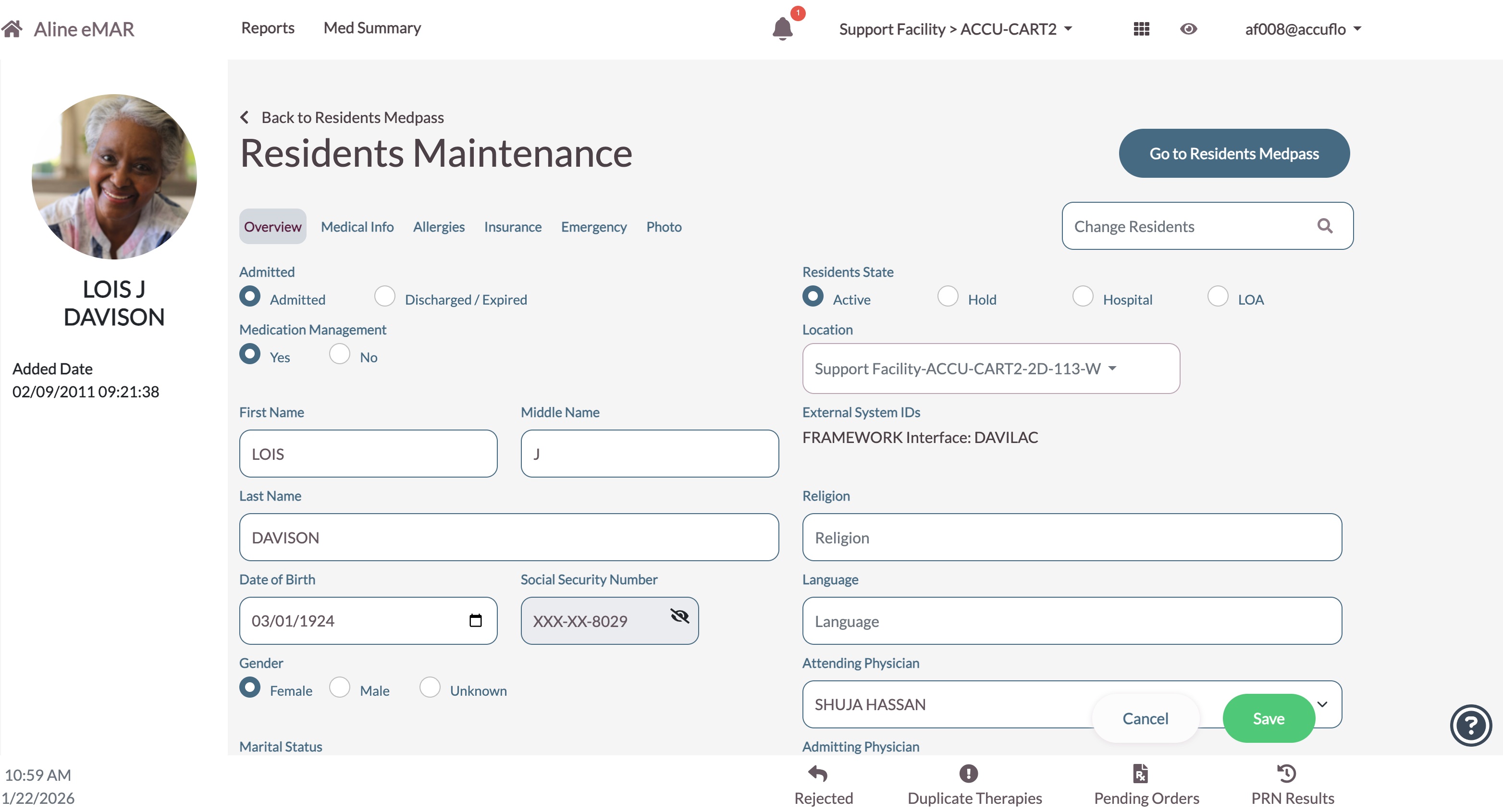
Review the information and make changes as needed.
- If changes are made, select Save at the bottom of the screen.
- Admitted:
- To change a resident status from Admitted to Discharged/Expired, select the Discharged/Expired button. A message will appear warning “All active orders for this resident will be discontinued on save. Do you wish to continue marking this resident as discharged/expired?”
- Select Continue to discharge the resident.
- Select Cancel to return to the overview screen.
- To re-admit a discharged resident, Select Admitted.
- Select Continue to discharge the resident.
- To change a resident status from Admitted to Discharged/Expired, select the Discharged/Expired button. A message will appear warning “All active orders for this resident will be discontinued on save. Do you wish to continue marking this resident as discharged/expired?”
- Admitted:
Note: The community should discharge residents from ACCUflo when appropriate to ensure all orders are discontinued. If the pharmacy discharges the resident, the resident will be discharged in ACCUflo.

Depending on the pharmacy management system, the resident's orders may or may not be discontinued. Orders that have not been discontinued could present issues if the resident is readmitted.
If a resident is discharged in error, all current orders will have to be re-entered as discontinued orders cannot be reactivated.
- Admitted: This field can be edited. Selected admitted or discharged based on the resident’s admission status in the community.
- On Med Management: This field can be edited. See On Med Management for additional information.
- First Name: This field can be edited. It is essential this field matches the pharmacy field for first name.
- Middle Name: This field can be edited.
- Last Name: This field can be edited. It is essential this field matches the pharmacy field for last name.
- Attending Physician: Select the drop-down to add or change the attending physician.
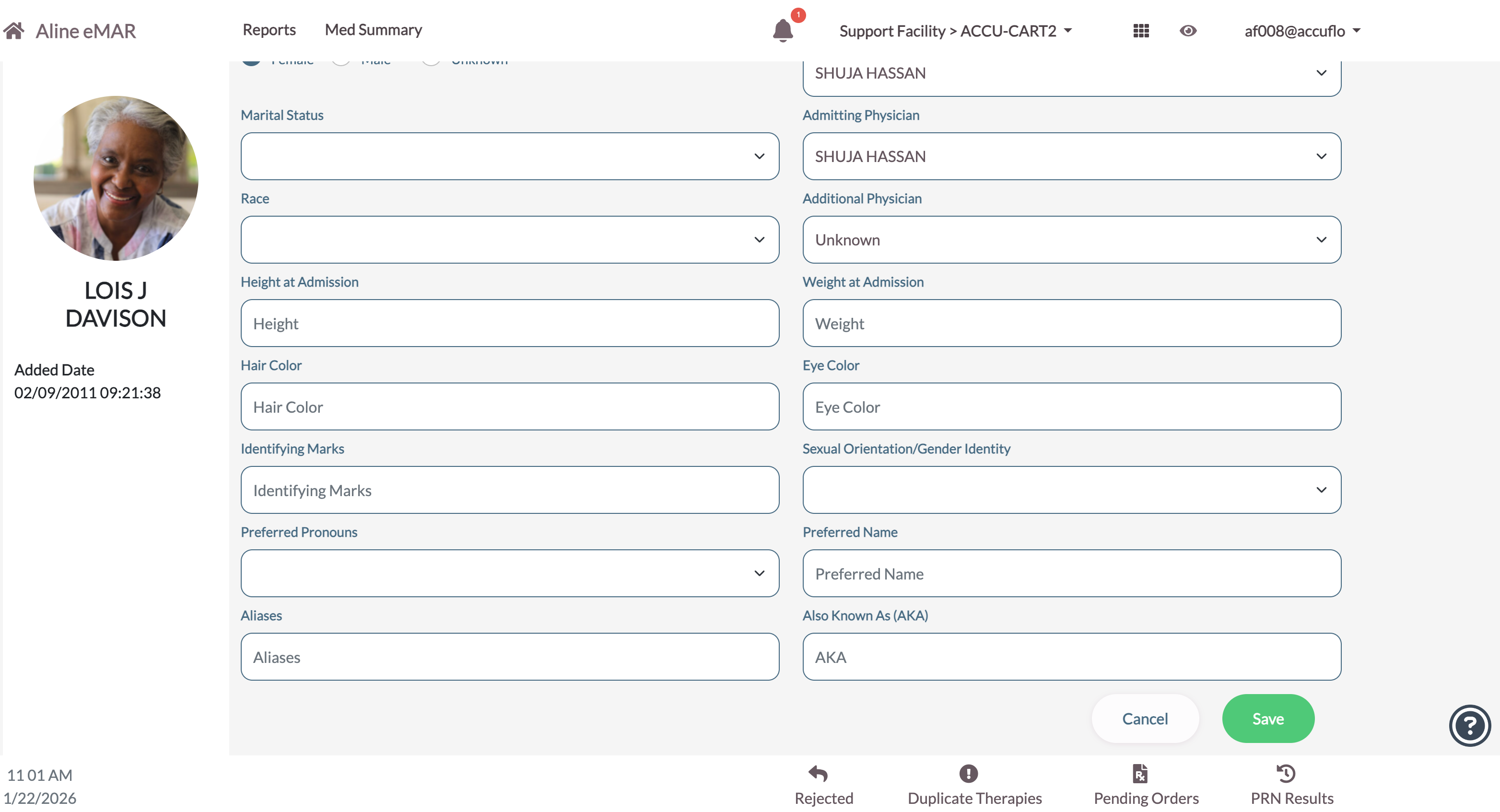
- Admitting Physician: Select the drop-down to add or change the admitting physician.
- Additional Physician: Select the drop-down to add or change the additional physician.
- Religion: This field can be edited.
- Gender: Select from the available radio buttons to add or change the gender.
- Resident State: Select from the available radio buttons to change the status; options are Active, LOA, Bed Hold, and Hospital. Refer to the Resident State Icons on Main Residents' Screen section for additional information.
- Location: Select the drop-down to add or change the location (room).
- External System IDs: This field is not editable.
- Added Date: This field is not editable.
- Date of Birth: This field is editable by entering the date of birth or selecting from the drop-down. It is essential this field match the pharmacy field for birth date.
- Social Security Number: This field is generally received from the pharmacy management system and available to view by advanced, administrative, and pharmacy users. Administrative users can edit the SSN number.
- Marital Status: This field can be edited.
- Race: This field can be edited. The selected field is pre-populated with a list of races from the US Census Bureau
- Height at Admission: This field can be edited.
- Weight at Admission: This field can be edited.
- Hair Color: This field can be edited.
- Eye Color: This field can be edited.
- Identifying Marks: This field can be edited.
- Sexual Orientation/Gender Identity: This field can be edited.
- Preferred Pronouns: This field can be edited.
- Preferred Name: This field can be edited.
- Aliases: This field can be edited.
- Also Known As (AKA): This field can be edited.
Was this article helpful?
That’s Great!
Thank you for your feedback
Sorry! We couldn't be helpful
Thank you for your feedback
Feedback sent
We appreciate your effort and will try to fix the article