Overview
In this article we will review the main residents' screen in ACCUflo. You will find information on Unreconciled medications prompts, the left side panel, items in the header and footer, information on the residents tiles, viewing options, as well as wristband scanning.
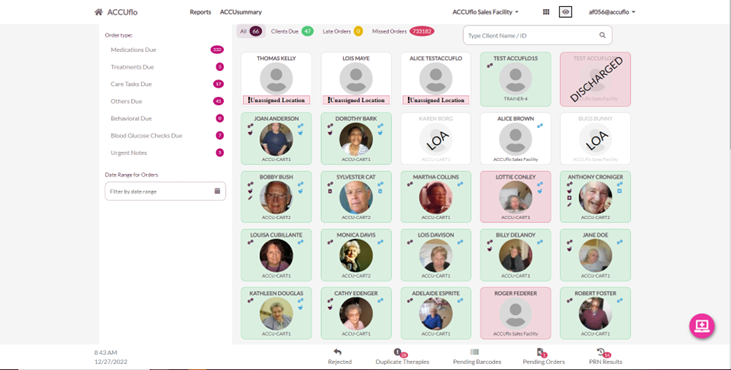
Note: Once logged into ACCUflo, the Main Residents screen will display. The Main Residents screen displays all residents assigned to the Selected Group. The Selected Group will default to the Group assigned to the device; if the device does not have an assigned group, the Selected Group will be the user's assigned Group.

Users can refine the Residents displaying on the screen by choosing one of the options above the resident tiles.
Unreconciled Medications Prompt
If the community has the Controlled Substance Count feature enabled, and there are orders in reconcile, the Unreconciled Medication Counts prompt will display: There are one or more unreconciled medication counts. Reconcile these counts OR notify the appropriate person(s) immediately.
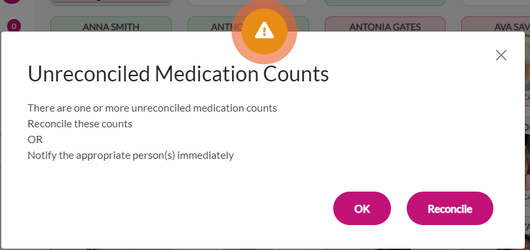
Select Reconcile to navigate to the Reconcile page and reconcile the orders now or OK to continue to the medpass.
The Left Panel
From the Main Residents’ screen, the Left Panel indicates the number of Medications Due, Treatments Due, User-Defined Orders Due, Other Orders Due, Behavioral Due, Blood Glucose Checks Due, for all residents displayed on the device, and, if enabled, the number of active Urgent Notes added to residents.
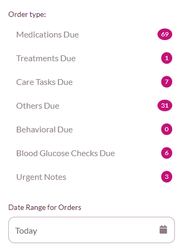
The Date Range for Orders section displays orders within a specific future or past date and time range. The Date Range for Orders icon is gray when not in use. Refer to the ALINE eMAR (ACCUflo) Date Range of Orders Feature section for additional information.
Note: The tabs appearing on the Left Panel will vary depending on the user's security role; for example, if the user does not have permissions to administer medications, the medications due tab will not appear. The tabs appearing on the Left Panel will vary depending on features and order types enabled for the community. Specifically, Behaviors Due and Missed Behaviors will appear only if the community has enabled the Behavior Feature; User Defined Due will display only if the community has enabled the User Defined Order Type.The Header

- The House icon will return users to the Main Residents screen from any screen in the application. If selected from the Main Residents screen, the screen will be refreshed.
- Reports will take users to the Reports screen. Refer to the Reports section for additional information.
- ACCUsummary provides an at-a-glance view of important performance metrics in the community such as Med Pass Progress, Wasted Medications, Potential Drug Diversions, etc.
- The Community Name functions as a filter and allows users to narrow down the residents that are displayed on the screen to specific wing(s). The name will always display the location(s) the user is currently displaying.
- The Waffle Menu displays options for Orders, Users, Inventory, Residents, Facility, Machines, and ACCUflo Support. Refer to the Maintenance section for additional information.
- Show/Hide icon is used when users must leave the med cart computer unattended:
- Select the Show/Hide icon to hide the screen before leaving the device.
- Select the Show/Hide icon again to display the screen when returning to the device.
- Username (in this example, af056@accuflo) indicates the user currently logged into the application and, when selected, presents the following options:
- Change Password allows the currently logged in user to change their password
- Reset Security Challenge Questions allows the currently logged in user to reset their security challenge questions
- Customize My Email Alerts displays when users have appropriate permissions and allows the user to customize the email alerts they receive
- Change Community displays the choose organization page
- Log Out logs out the user
The Footer

- Time and Date only displays for users on the ACCUflo Cloud. It will always display the time in the community’s time zone regardless of the time zone set on the local device.
- Rejected / Clarified Orders displays the number of orders for active residents that have been rejected or sent for clarification and have been unaddressed by the pharmacy in the last 30 days.
Note: If the community has chosen to use Order Clarifications instead of Rejected, the tab will display Clarifications.- Duplicate Therapies displays the number of potential duplicate orders ACCUflo has detected. Refer to the Possible Duplicate Therapies section for additional information.
- Pending Barcodes displays the number of barcodes that have been assigned but not yet approved. Refer to the Pending Barcodes section for additional information.
- Pending Orders displays the number of Pending Orders in queue for all residents displayed. Refer to the Pending Orders section for additional information.
- PRN Results displays the number of orders requiring a PRN result to be charted. Refer to the Procedure for Documenting PRN Results section for additional information.
Note: Pending Barcodes, Pending Orders, and PRN Results icons will display only if those features are enabled for the community- The Battery icon (not pictured above) provides a visual indication of the battery’s state of charge. Users can hover over the icon to see the values. Users must plug in the computer after each med pass to ensure the battery is always charged.
- The Connection Icon, is the familiar “wi-fi” icon. It indicates a local install’s connectivity status to the ACCUflo cloud:
- A regular Connection Icon indicates the computer is communicating with the ACCUflo cloud.
- A Connection Icon with a slash indicates the computer is offline or a data error of some type is occurring preventing communication with the ACCUflo cloud

- A regular Connection Icon indicates the computer is communicating with the ACCUflo cloud.
Note: Contact Aline Customer Support if the connection icon shows a slash for thirty minutes or more and the user is in an area with known internet connectivity.Note: For Pending Barcodes, Pending Orders, and PRN Results, if a question mark is displayed, ACCUflo is compiling the information and will present a number when finished.The Resident Tiles
Resident Tiles are displayed on the Main Residents’ screen and provide a snapshot of orders due to be administered for each resident. Each resident tile is color coded, displays a resident photo and/or status, and may display order icons.
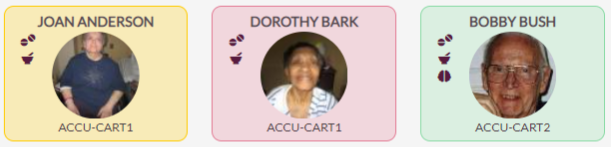
Resident Tile Colors
- A Green Tile indicates the resident has at least one routine order currently due.
- A Yellow Tile indicates the resident has at least one late routine order or behavioral charting due at this time that is within the “Late” time window of the medpass.
- A Red Tile indicates the resident has only at least one missed routine order at this time.
- A White Tile indicates the resident does not have any routine orders or behavioral charting due at this time.
Resident tiles will be the color of the highest priority item when more than one condition can be true. ACCUflo sees late orders being the highest priority, followed by due orders, and finally missed orders.
Examples:
- A resident has a routine order due and a routine order missed, the resident’s tile will appear as Green.
- A resident has a late order and a missed order, the resident’s tile will be appear yellow.
The icons appearing on each tile represents various types of orders. Users can hover over the icon to display the number of orders for each order type.
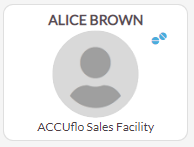
Resident State
Active | |
| The resident is located at the community and medications will display for administration. The tile will display either the resident’s photo or “No Image”. |
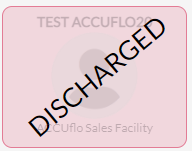
Discharged/Expired | |
| The resident has been discharged from the community or has expired. Please refer to the community’s policy regarding who can perform this function, as well as when resident discharges should be done. Discharging a resident will discontinue ALL orders in ACCUflo. If a resident is discharged with orders still active, orders currently due, or orders currently missed, the resident will remain on the Main Residents screen until all orders have been charted or discontinued.
|
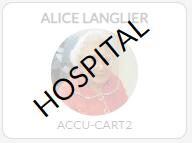
Hospital Leave | |
| The resident is in the hospital or another health facility. The Main Residents screen will display the Hospital icon in place of the resident’s photo. While the resident has a status of Hospital, an H will appear on the MAR for all routine orders due. For this reason, it is important the resident’s status is changed in a timely manner. Please refer to the community’s policy for the appropriate use of this status. |
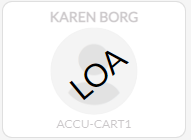
LOA | |
| The resident is leaving the community for a short period of time (e.g., a home visit). The Main Residents screen will display the LOA icon in place of the resident’s photo. While the resident has a status of LOA, an L will appear on the MAR for all routine orders due. For this reason, it is important the resident’s status is changed in a timely manner. Please refer to the community’s policy for the appropriate use of this status. |
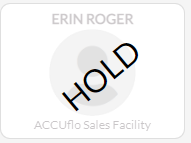
Bed Hold | |
| The resident is out of the community and the bed is being held. The Main Residents screen will display the Hold icon in place of the resident’s photo. While the resident has a status of Hold, a B will appear on the MAR for all routine orders due. For this reason, it is important the resident’s status is changed in a timely manner. Please refer to the community’s policy for the appropriate use of this status. |
Resident Tile Order Icons
See ALINE eMAR (ACCUflo) Colors and Icons for an explanation of the colors and icons that may appear on the resident tiles.
Wristband Scanning
Wristband Scanning is the ability to scan barcodes on the wristbands of recipients to quickly and easily locate them in ACCUflo and view their medpass. Simply scan the wristband with a barcode scanner from the Main Resident’s Screen. As long as the barcode matches the ID for the recipient in ACCUflo, that recipient will be selected and displayed.
Was this article helpful?
That’s Great!
Thank you for your feedback
Sorry! We couldn't be helpful
Thank you for your feedback
Feedback sent
We appreciate your effort and will try to fix the article