Overview
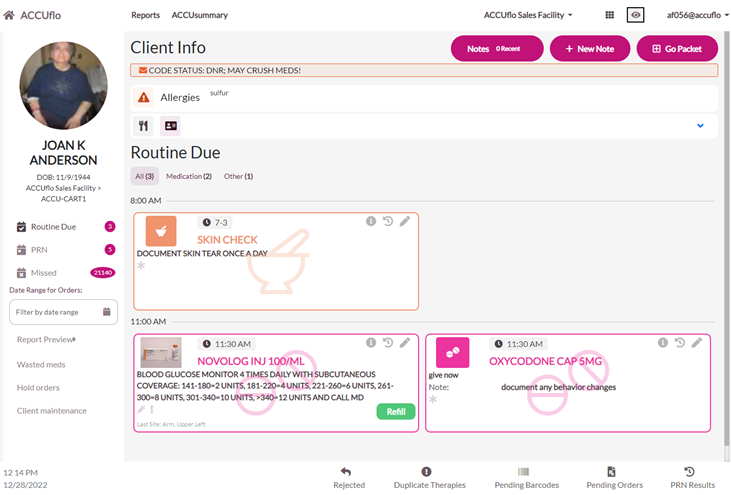
In this article we will review the Resident's screen. When a resident is selected from the Main Resident's screen, the Resident's screen will display, In this article we will review the different types of messages that may display. These can include, but not limited to Pending Order Prompt, Missed Order Prompt, The Left Panel, Routine Orders, PRN Orders, Missed Orders, Report Preview, Wasted Meds, Hold Orders, The Go Packet, Resident Demographics, and Notes.
Resident Order Prompts
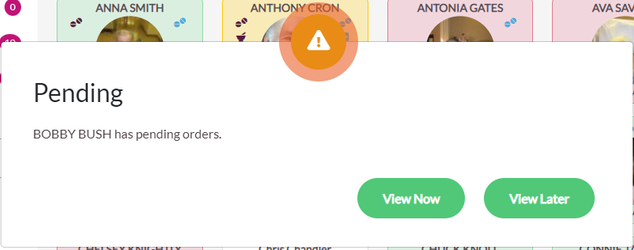
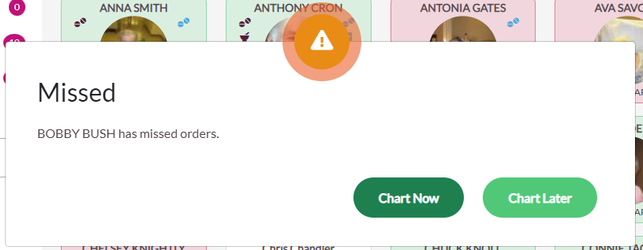
If the community has either of these features enabled and the selected resident has pending or missed orders, one of the following prompts will display:
- The Resident has Pending Orders in need of approval. Select View Now to display the resident’s pending orders or View Later to display the resident’s screen.
- The Resident has Missed Orders in need of charting. Select Chart Now to display the resident’s missed orders or Chart Later to display the resident’s screen
The Left Panel
The Left Panel of the Resident’s screen indicates the number of Routine Orders due, PRN Orders available, Missed Orders, and Behaviors for the selected resident.
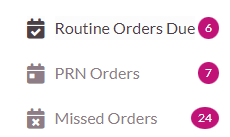
After selecting the category, the order types will be displayed above the medication tiles where they can be selected to filter the displayed order tiles. Only the order types currently due will be displayed and will display a count in parenthesis of the number of orders for that type.
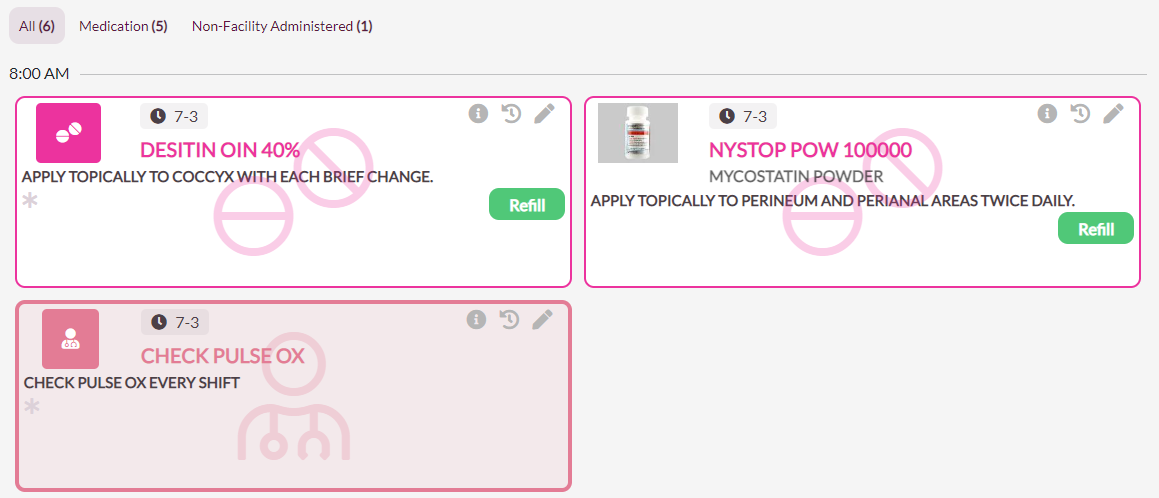
Note: The tabs appearing on the Left Panel and above the medication tiles will vary depending on the user's security role. For example, if the user does not have permission to chart medication, the Medication order type will not display. The tabs and order type filters will also vary depending on the features and order types enabled for the community. For example, Behaviors Due and Behaviors Missed tabs will appear only if the community has enabled the Behavior Feature. User Defined will display when the Routine tab is selected only if the community has enabled the User Defined Order Type.Order Filters
Orders filters display at the top of Routine, PRN, and Missed orders pages. These filters can be used to view specific order types on the corresponding page, which defaults to showing all order types.
- Medication: Displays the number of medications available to chart. If medications are the only orders a user wants to display on the screen, select the Medication tab.
- Treatment: Displays the number of treatments available to chart. If treatments are the only orders a user wants to display on the screen, select the Treatment tab.
- User Defined: Displays the number of User Defined Orders available to chart. If user defined orders are the only orders a user wants to display on the screen, select the User Defined tab.
- Other: Displays the number of Other Orders available to chart. Other Orders are non-medication, non-treatment orders that the community wants printed on the MAR. If Other Orders are the only orders a user wants to display on the screen, select the Other tab.
- Non-Facility Administered (NFA): Displays the number of NFA Orders available to the resident. NFA Orders do display when due, but users do not chart them. NFA Orders display for informational purposes only. If NFA Orders are the only orders a user wants to display on the screen, select the Non-Facility Administered tab.

Note: User Defined will be renamed by the community to reflect the orders for this type. Examples include Nursing, Personal Care, Wound Care, and Respiratory. If User Defined orders are not enabled, this order type will not be available to the community.
Report Preview
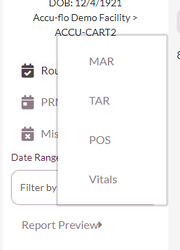
The Report Preview Tab is used for quick access to the current MAR, TAR, POS, Behavior Monitoring, Vitals and More reports.
Select Report Preview to select the desired report.
The Go Packet
A Go Packet button is also displayed at the top of the Resident’s Page. Selecting the Go Packet tab will pop open the resident’s Face Sheet and MAR reports so they can be viewed or printed in one click.
Resident Demographics
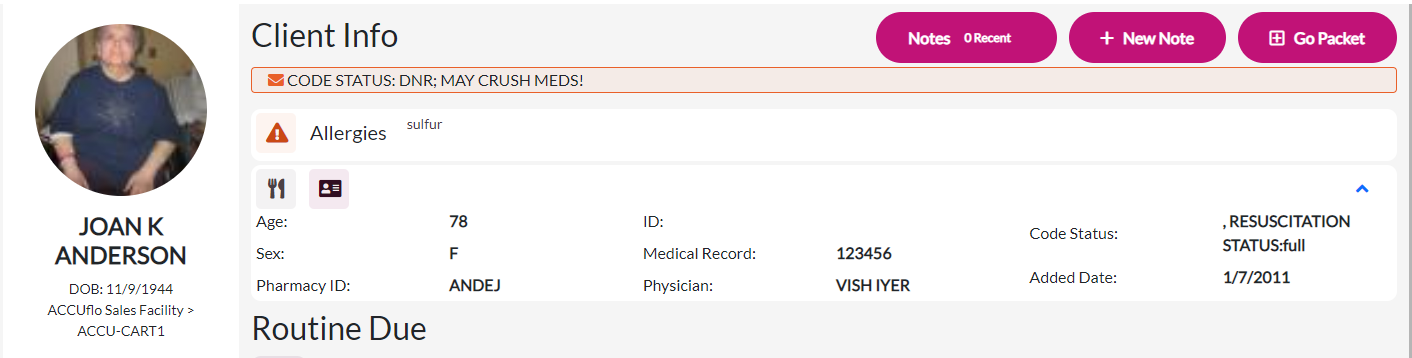
The top and left panel of the Resident’s Screen displays pertinent resident information:
- Resident photo, name, date of birth, and room can be found in the left column
- The right column displays the Patient Message, if applicable.
- The resident’s allergies will always display on the screen.
- The resident’s diet can be viewed by clicking on the diet icon (fork & knife).
- The resident’s diagnosis can be viewed by clicking the diagnosis icon (contact card).
- Age, Sex, Pharmacy ID, Facility Management System ID, Medical Record Number, Physician, Code Status, and Date Added to ACCUflo display in a collapsible demographic section. This section will always default to collapsed unless opened by the user.
Was this article helpful?
That’s Great!
Thank you for your feedback
Sorry! We couldn't be helpful
Thank you for your feedback
Feedback sent
We appreciate your effort and will try to fix the article