There are two options for adding a resident’s photo. Take Photo using the device or Browse for Photo to obtain the image from a file.
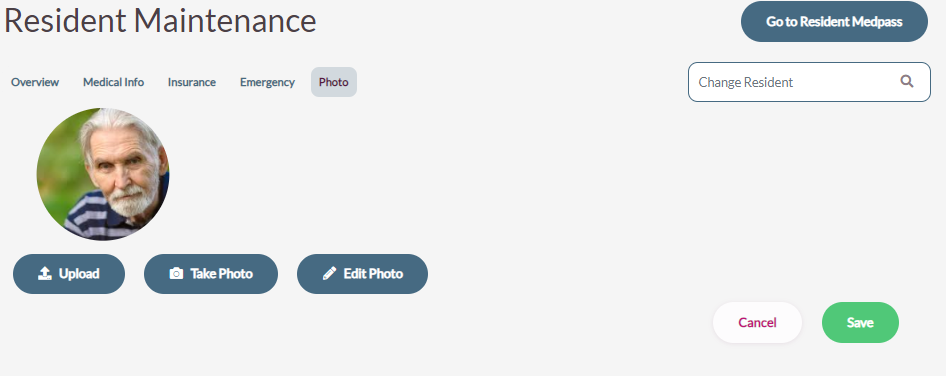
Take Photo
Select Take Photo to capture the resident’s photo with the device you are using.
Users may be prompted to allow the application to access the webcam to take the photo. Select Yes.
View the resident’s image and select Capture Photo.
If the photo is acceptable, go to the next step.
If the photo is not acceptable, select Capture Photo again.
To save the photo, select Save on the bottom right of the screen or select Cancel to keep the original photo.
Selecting Cancel will revert all changes being made to the Resident profile, not just the photo.
Browse for Photo
Select Upload.
Locate the file where photos are stored.
Double click on the resident’s photo.
To save the photo, select Save on the Left Panel or select Cancel to keep the original photo.
Selecting Cancel will revert all changes being made to the Resident profile, not just the photo.
Note: A resident's photo cannot be removed, it can only be replaced.
Occasionally a mistake may be made where the wrong photo is applied to the resident or the appropriate photo is not available. Keeping a "Photo Not Available" .jpg in the file with the resident photos allows users to replace an incorrect photo on a resident.
Edit Photo
Click Edit Photo.
Zoom, Rotate, and/or change the photo selection area.
Click Save Edits.
Click Save.
Note: Photos can be edited any time, while being added to the residents profile or after it has been added as a standalone action on the profile.
Was this article helpful?
That’s Great!
Thank you for your feedback
Sorry! We couldn't be helpful
Thank you for your feedback
Feedback sent
We appreciate your effort and will try to fix the article