Overview
In this article we will review the procedures for documenting PRN results.
Procedure for Documenting PRN Results
ACCUflo allows users to document the effectiveness of all PRN Medication Orders / Other Orders and, if the community has this feature enabled, users may be required to do so. The number of PRN Results to be charted displays on the PRN Results icon in the footer of any screen in ACCUflo.

- The Main Residents screen displays the number of PRN Results for the Selected Group.
- A resident’s page displays the number of PRN Results for the selected resident only.
Note: Users should follow the community's policy indicating the amount of time to wait before charting a result. In other words, just because it is available to chart does not mean it is time to chart the result.
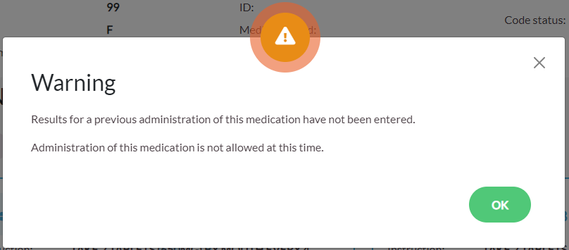
If the community chooses to use this feature, the PRN Result must be charted before the same PRN order can be administered again.
If users select an order with an uncharted PRN Result, a message will display that reads:
Step 1: Select PRN Results in the footer of any screen in ACCUflo.
Step 2: The PRN Results screen will display.
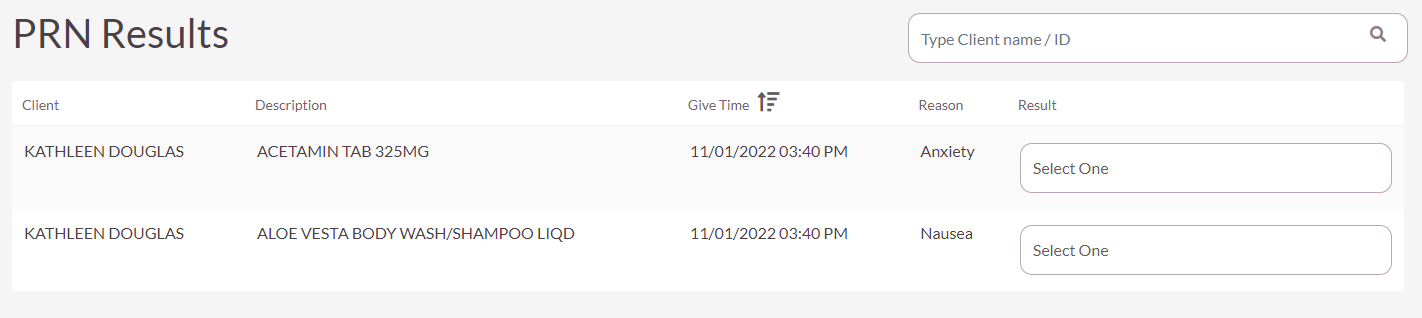
Step 3: Locate the resident and order for which results need to be documented.
Step 4: Select the result of the PRN administration from the dropdown in the results column.
- There are five options available when charting PRN Results:
- Effective
- Ineffective/No Change
- Ineffective
- See Nurse’s Notes
- Adverse Reaction (See Nurse’s Notes)
Step 5: PRN medication provided with an Administration Reason of Pain, may also have follow up information to provide such as current pain level, pain type, etc.
Step 6: Repeat steps 1-5 for each order where results of the PRN administration are available.
Step 7: Click Save.
Note: All Results do not need to be charted in order to save the page.
Was this article helpful?
That’s Great!
Thank you for your feedback
Sorry! We couldn't be helpful
Thank you for your feedback
Feedback sent
We appreciate your effort and will try to fix the article