Overview
In this article we will review the procedures for administering PRN orders.
Procedure for Administering PRN Orders
Step 1: From the Main Residents screen, select a resident’s tile who needs a PRN medication.
- The Resident’s screen displays: If the resident has Routine Orders due, the Routine Orders screen will appear first. If no Routine Orders are due at this time, PRN Orders will display.
- If Routine Orders are displaying, Select the PRN tab on the Left Panel to display the PRN Orders available.
Step 2: Review the PRN Order to be administered. If the order was previously administered, the Last Administered date, time, and Quantity will display on the tile. Verify that sufficient time has passed since the last administration.
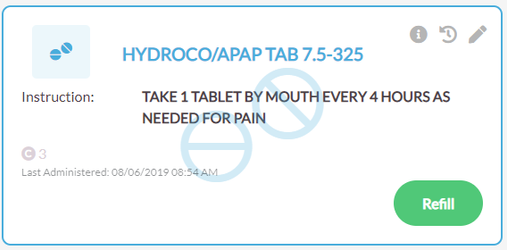
Note: The last given date and time is displayed in gray text. It's important to note ACCUflo will not warn users if it's too soon for a PRN to be administered; it's the responsibility of the user to determine the appropriate amount of time between doses has passed.
Step 3: Select the order tile or scan the barcode on the medication packaging.
Step 4: Select the Show/Hide icon to hide the resident’s screen if the cart computer is to be left unattended.
Step 5: After administering the medication and returning to the cart computer, Select the Show/Hide icon to display the resident’s screen again.
Step 6: Select Administer, Did Not Administer, Self-Administration, or Home Health.
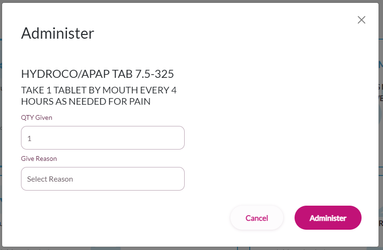
Step 7: On the Chart Actions screen, enter or select the QTY Given.
Step 8: Select the reason from the Give Reason drop-down.
Step 9: Select Administer.
- The user’s initials will then be filled in on the electronic MAR as will any Order Action information.
If an order was not checked in prior to an attempt to administer a pop up will appear that warns the user to go to Medication Check In to check in the narcotic prior to administration to keep the count accurate.
Was this article helpful?
That’s Great!
Thank you for your feedback
Sorry! We couldn't be helpful
Thank you for your feedback
Feedback sent
We appreciate your effort and will try to fix the article