Overview
In this QRG article w will review the Documenting of PRN Results.
Documenting PRN Results
After administering a PRN med, users are required to chart the effectiveness of the administration. The number of PRN results needing follow ups charted is displayed on the PRN Results icon (see Fig. 1) on the footer of most screens throughout the ACCUflo application.
Fig. 1 | PRN Results Button
Step 1: Select PRN Results.
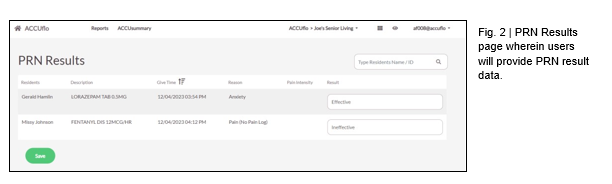
Step 2: From the PRN Results screen, as seen in Fig. 2, fill in any required results from the drop-down menu. Results include: Effective, Ineffective, See Nurses Notes, and Adverse Reaction.
Step 3: Selecting See Nurses Notes allows a user to free type a custom response.
Step 4: Select Save.
All PRN results should be charted, if appropriate, by the end of each user’s shift. PRN results that cannot be followed up on during a user’s shift will carry over to the next shift. PRNs cannot be administered again until the previous administration has had the results charted.
Note: PRN results will display after a community-determined amount of time - this could be five minutes, fifteen minutes, thirty minutes, or more depending on community's preferences. See Community leadership for specific information about your community's PRN Results timing windows.
Was this article helpful?
That’s Great!
Thank you for your feedback
Sorry! We couldn't be helpful
Thank you for your feedback
Feedback sent
We appreciate your effort and will try to fix the article