Overview
In this article we will review the procedures for documenting an order action on a PRN.
Procedure for Documenting an Order Action on a PRN
Some PRN Orders may prompt users to enter an Order Action. For example, temperature, if administering a medication for a fever, or perhaps a blood sugar level for a resident with suspected hypoglycemia, or O2 Sat if the resident is short of breath and requires oxygen.
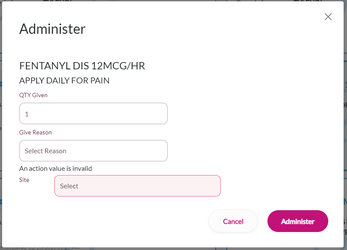
Step 1: Select the order with an order action or Scan the barcode to be administered (in this example, the site where a Fentanyl patch was applied).
Step 2: Select the Show/Hide icon.
Step 3:Upon returning to the cart computer, select the Show/Hide icon.
Step 4: Select Administer.
Step 5: On the Chart Actions screen, enter or select the QTY Given if prompted.
Step 6: Select the give reason from the Give Reason drop-down.
Step 7: Enter the required values (Site in this example).
Step 8: Select Administer.
Was this article helpful?
That’s Great!
Thank you for your feedback
Sorry! We couldn't be helpful
Thank you for your feedback
Feedback sent
We appreciate your effort and will try to fix the article