Overview
In this article we will review the process of administering orders with order actions.
Instead of using the paper MAR and TAR, ACCUflo will be used to administer and record the results of medications and treatments. Once users are logged into ACCUflo, they can begin the medication pass. The residents assigned to the Selected Group will display onscreen.
Show/Hide Icon
Users should remember to use the Show/Hide Icon when the med cart must be left unattended.
Note: Select the Show/Hide Icon to hide the screen before leaving the med cart computer unattended.
 |  |
Note: Select the Show/Hide Icon to unhide the screen when returning to the med cart computer.
Resident Status
If a resident has a status of LOA, Hospital, or Bed Hold selected, the resident’s screen will display “Couldn’t find any orders.”
Note: Orders cannot be administered when a resident's status is anything other than 'Active' or 'Discharged'.
Charting Options
Depending on how each facility is configured, you may see more then the default options of Administer and did bot administer medications when charting.
Note: Home Health and Self-Administered charting options are optional and set up in configurations.

- Administered
- Did Not Administer
- Home Health (optional)
- Self-Administered (optional)
Procedure for Documenting Routine Orders with Order Actions
If an order requires additional documentation, such as vital sign parameters, users will be prompted to chart the information on the Chart Actions screen.
The order tile will have an icon present if additional information is required. The purpose of the icon is to alert the user that additional information is required; the order’s instructions should specify what information is required. See ACCUflo 6.0 Colors and Icons for a listing of the available indicators.
Step 1: Select the order or scan the barcode with an Order Action to be administered.
Step 2: Select the Show/Hide icon.
Step 3: Upon returning to the cart computer, select the Show/Hide icon.
Step 4: Select Administer.
Step 5:The Chart Actions screen will display.
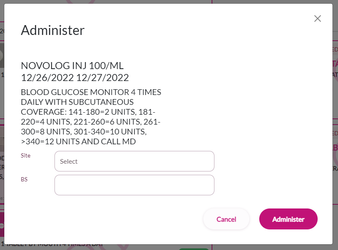
Step 6: Enter the required values.
Step 7: Select Administer.
Site Selection
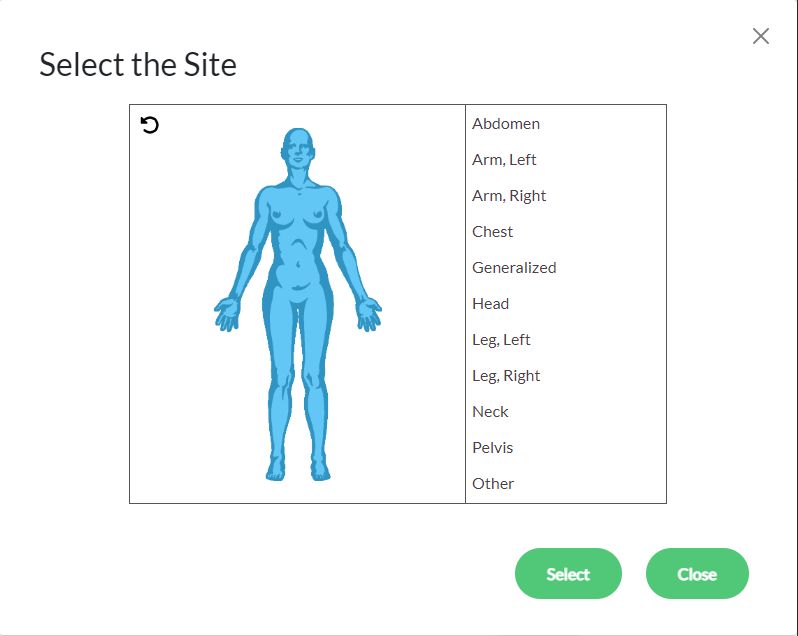
If the order requires a site to be documented, a drop-down will be available to select the site. The drop-down for Site displays a human figure, as well as site descriptions.
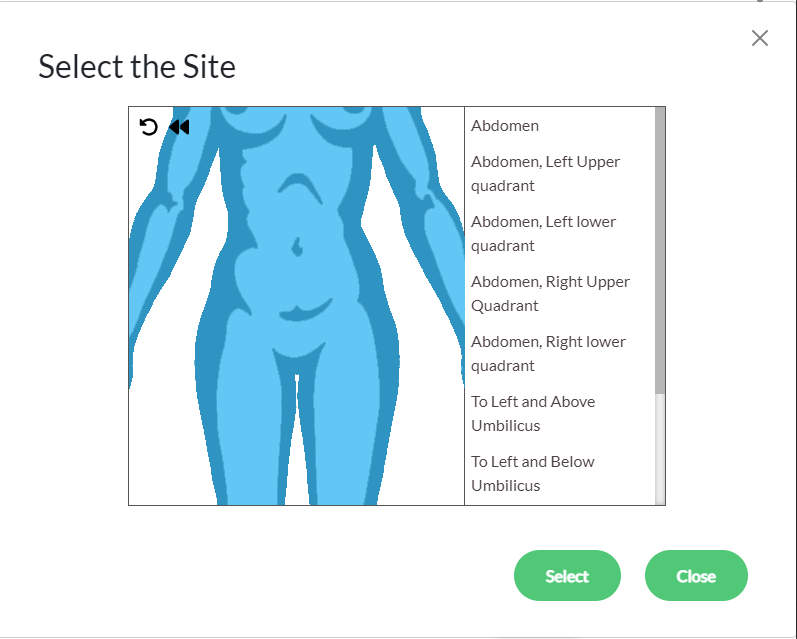
Users can select anywhere on the body or the word descriptions. When an area on the diagram is selected, zoomed in and more specific areas will display.
To change the view (front/back), select the rotation arrow.
Once the desired site is chosen, click Select.
Was this article helpful?
That’s Great!
Thank you for your feedback
Sorry! We couldn't be helpful
Thank you for your feedback
Feedback sent
We appreciate your effort and will try to fix the article