Overview
In this article we will review the process of how to document Did Not Administer (DNA) medications.
Instead of using the paper MAR and TAR, ACCUflo will be used to administer and record the results of medications and treatments. Once users are logged into ACCUflo, they can begin the medication pass. The residents assigned to the Selected Group will display onscreen.
Show/Hide Icon
Users should remember to use the Show/Hide Icon when the med cart must be left unattended.
Note: Select the Show/Hide Icon to hide the screen before leaving the med cart computer unattended.
 |  |
Note: Select the Show/Hide Icon to unhide the screen when returning to the med cart computer.
Resident Status
If a resident has a status of LOA, Hospital, or Bed Hold selected, the resident’s screen will display “Couldn’t find any orders.”
Note: Orders cannot be administered when a resident's status is anything other than 'Active' or 'Discharged'.
Charting Options
Depending on how each facility is configured, you may see more then the default options of Administer and did bot administer medications when charting.
Note: Home Health and Self-Administered charting options are optional and set up in configurations.

- Administered
- Did Not Administer
- Home Health (optional)
- Self-Administered (optional)
Procedure for Documenting Routine Orders as Did Not Administer (DNA)
Step 1: Select the order that was not administered.
Step 2: Select Did Not Administer.
Step 3: Select the Did Not Administer Reason Box and select the reason for not administering the order.
Remember to choose Other if free type is needed.
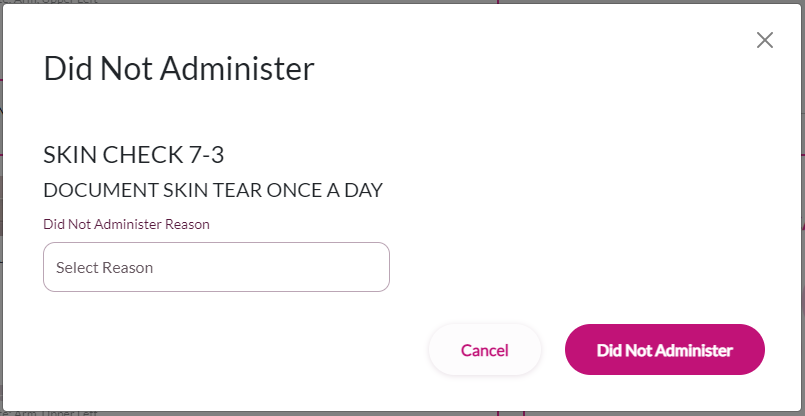
Step 4: Select Did Not Administer once all fields have been completed.
Note: If multiple orders were not administered for the same reason, Select "Apply to All" and the DNA reason selected for the first order will apply for all orders.
Additionally, If the order not administered requires an order action, users can chart the order action (for example, if a BP medication was not administered because the BP was too low) or users can Select Did Not Chart.
Did Not Administer Alerts
When the Did Not Administer Alert feature is activated, the application will track sequential Did Not Administers of each order. Once the sequential number of Did Not Adminsters defined in the facility configuration is reached, an alert will be triggered for the nursing staff to discuss the order being marked as DNA with the provider.
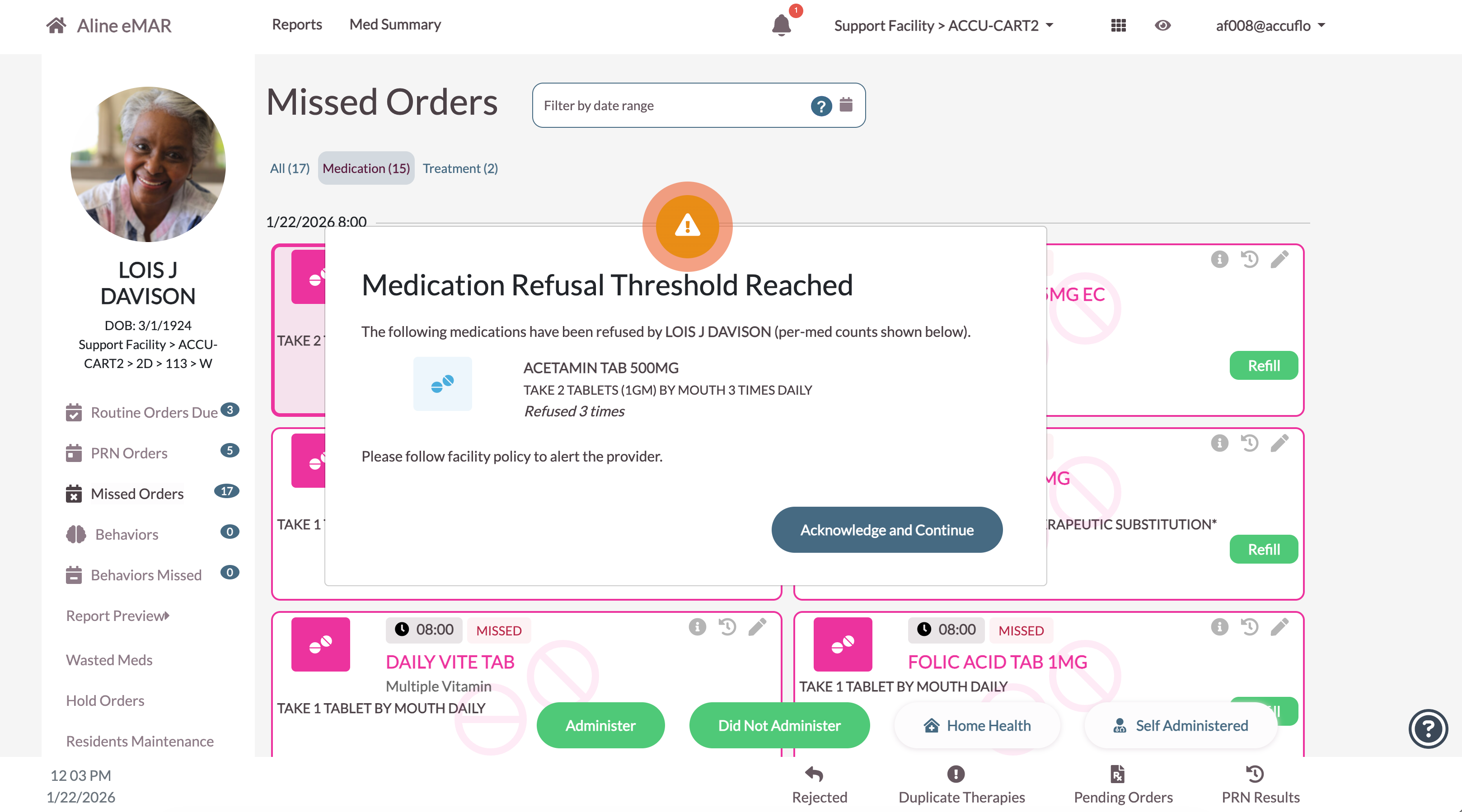
The order does not have to be specifically refused to trigger the alert, as the alert works for both routine and PRN DNA administrations. Any successful administration (not marked as DNA) will reset the counter for that order.
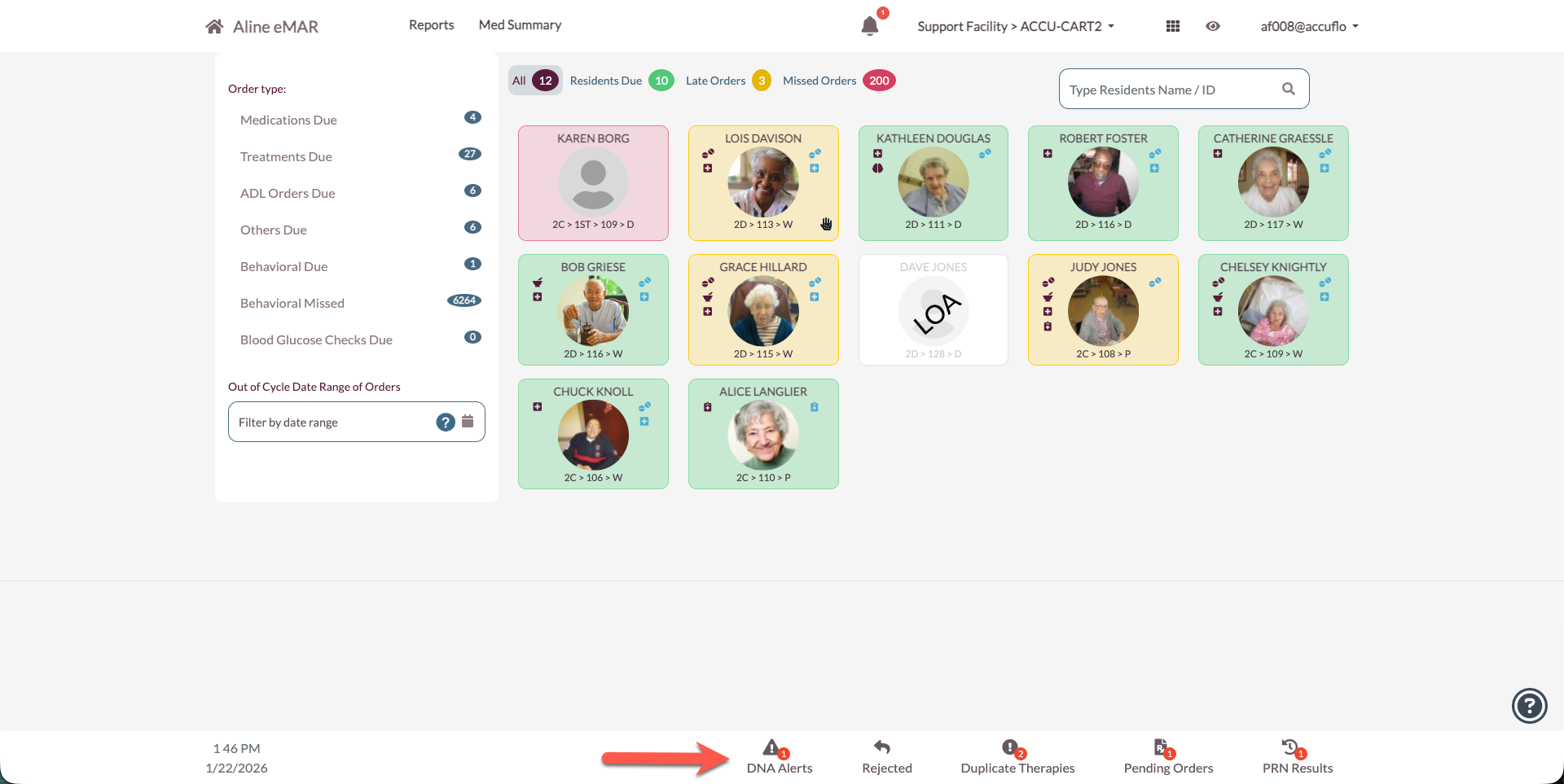
A new footer counter for DNA Alerts has been introduced that will show the number of outstanding DNA Alerts. Clicking this counter will take the user to the DNA Alert page.
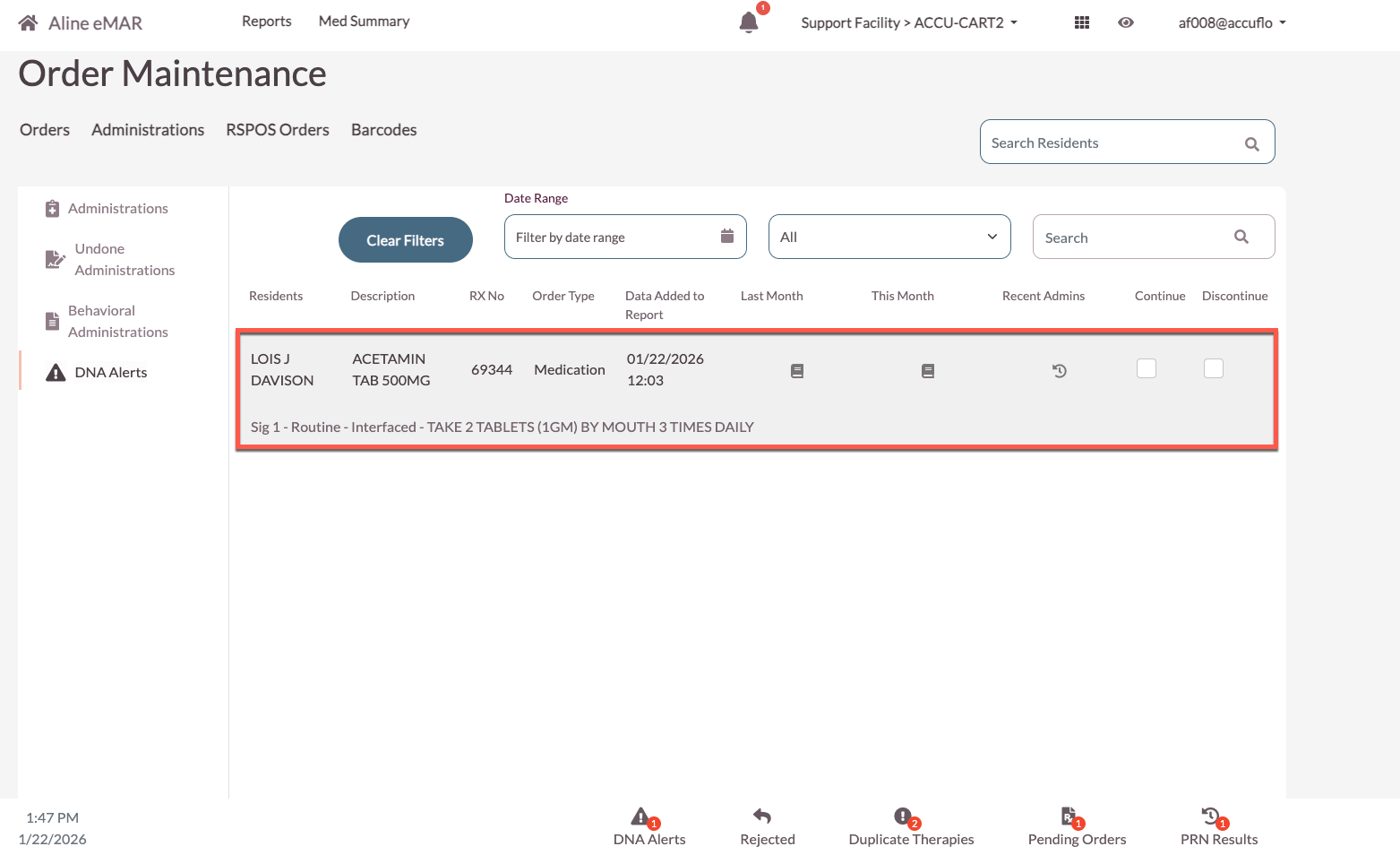
The nursing staff can view the patient, order description, RX number, order type, date the alert was triggered, last month’s MAR, this month’s MAR, and recent admins for each alert.
The user can then select a disposition for the alert after discussing with the provider/physician. Selecting Continue will clear the alert, but it will return if the next dose is DNA’d and the sequential count remains above the threshold. Discontinuing the medication will send a DC message to the pharmacy. The medication will remain active until the pharmacy approves the medication's discontinuation.
Was this article helpful?
That’s Great!
Thank you for your feedback
Sorry! We couldn't be helpful
Thank you for your feedback
Feedback sent
We appreciate your effort and will try to fix the article