Refill Requests and the Refills Page
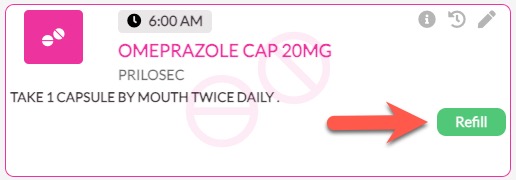
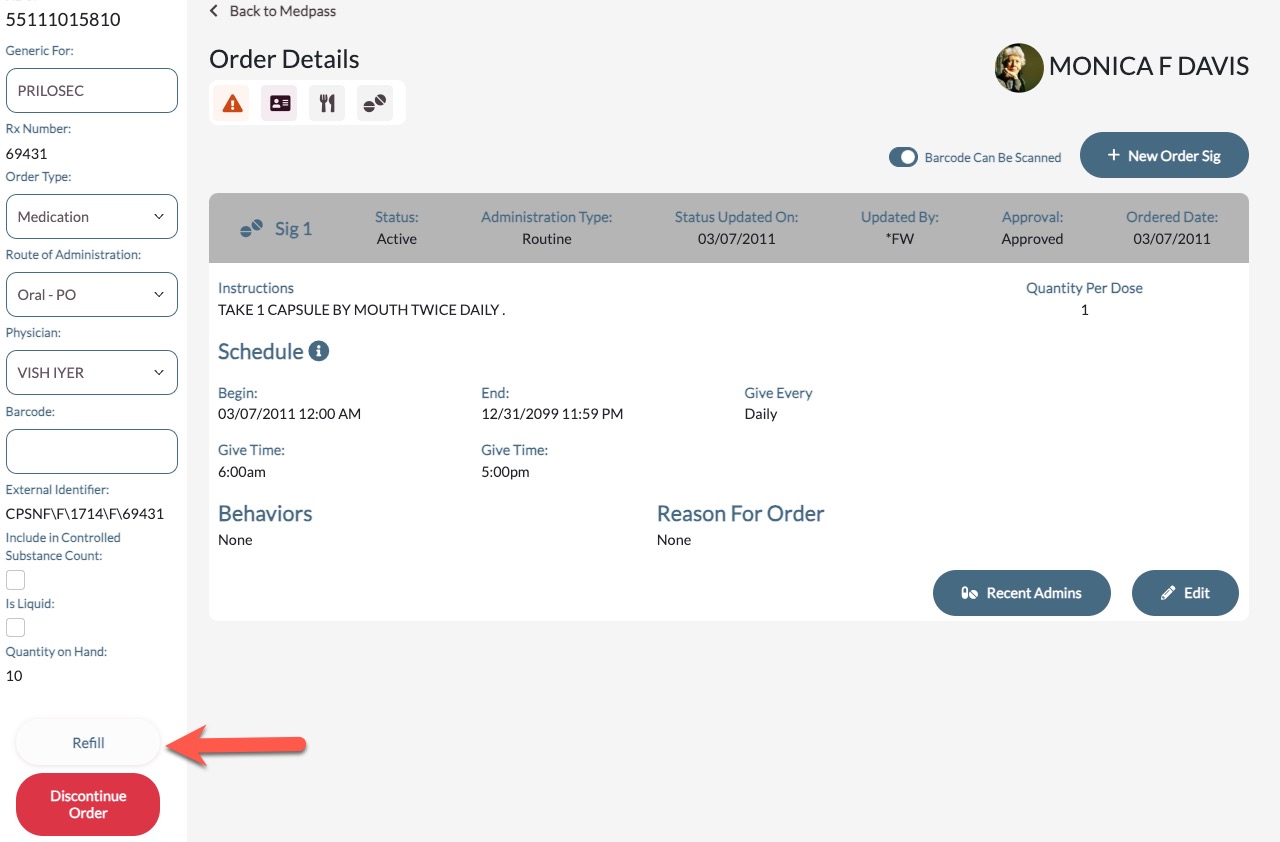
In this article, we'll review refill requests. Refills can be requested through Aline eMAR ( ACCUflo) by using the Refill Icon displaying on the order tile, on the Order Detail screen, or on the Refills Page.
The refills page allows users to view all orders at once and is an efficient way to refill many items at one time. If Cycle fill is in use at the community, a Cycle fill status of Yes or NO will also display for each order.
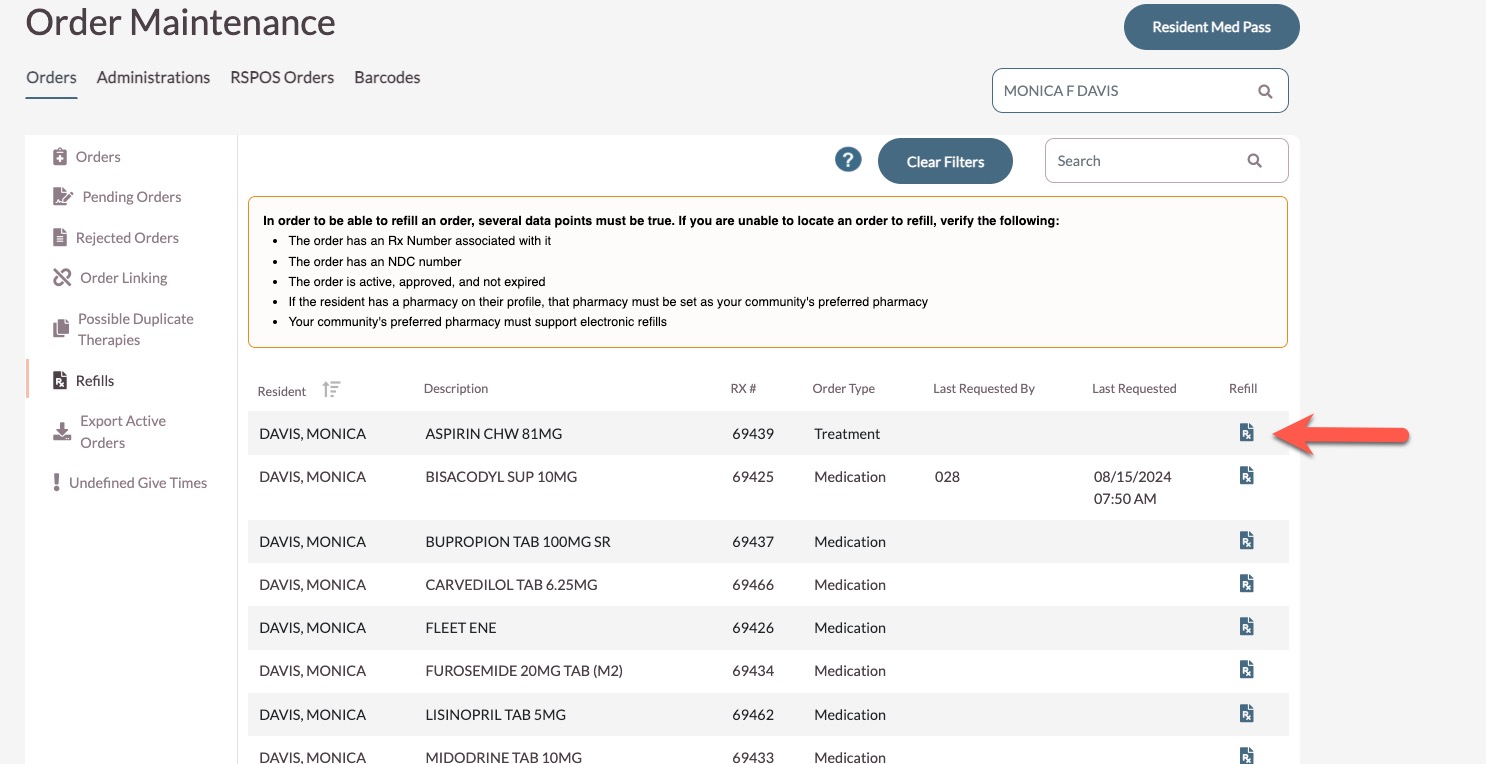
The Refills page is a useful tool for efficiently requesting multiple refills at a time along with reviewing help refill information. The refills page will display a list of the resident's active orders, RX number, order type, last user to request a refill, late refill request date and time, whether the order is in a cycle fill program, a refill button, and the refill status.
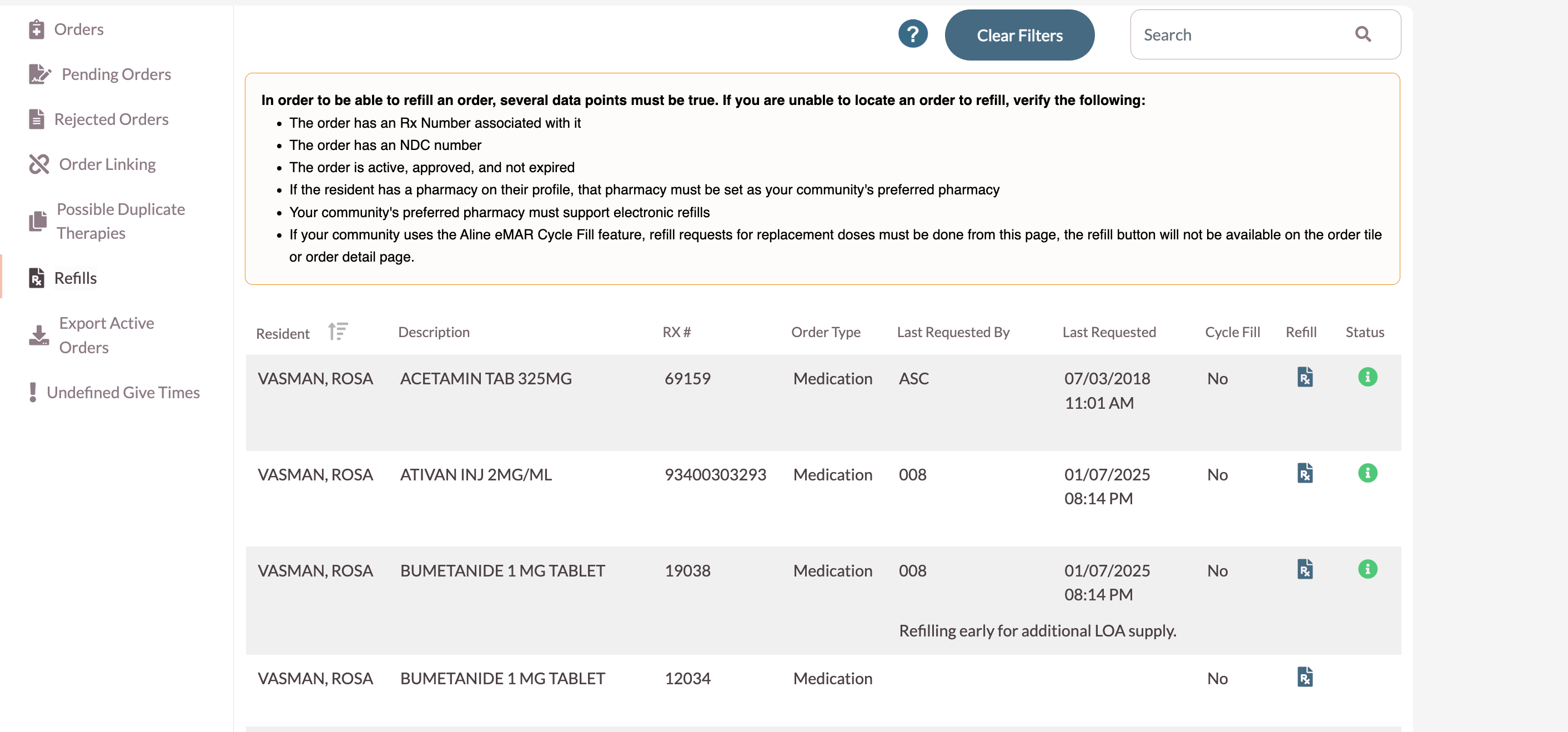
For applicable pharmacies, the Refill Status indicator will inform community users about the status of their refill request - a yellow icon indicates the refill request is still pending, a green icon indicates the refill request has been accepted, and a red icon indicates an error. Users can hover over the red error icon to see the possible error. Common errors include:
- Total quantity written exceeded
- Refill to soon
- Order is already in batch
- Patient is profile only
- Prescription is on hold
- Receipt from written prescription from physician is pending
- OTC items should not be sent for this patient
- Prescription has expired
- Reorder functionality has been disabled
- Order has been discontinued
- Required field missing
Procedure for Requesting a Refill
Step 1: Select Refill on the order tile, the Order Detail Screen, or on the Refills Page.
Step 2: The Refill Request Form will display indicating information specific to the medication. Before confirming the Refill, enter in the Refill Note. If the order in included in a cycle fill program, a Refill Note will be required. Otherwise, the refill note will be optional. In addition, some pharmacy's do not accept Refill Notes.

Step 3: Select Refill to submit the request.
Step 4: Select OK to acknowledge the Refill Request Created message.
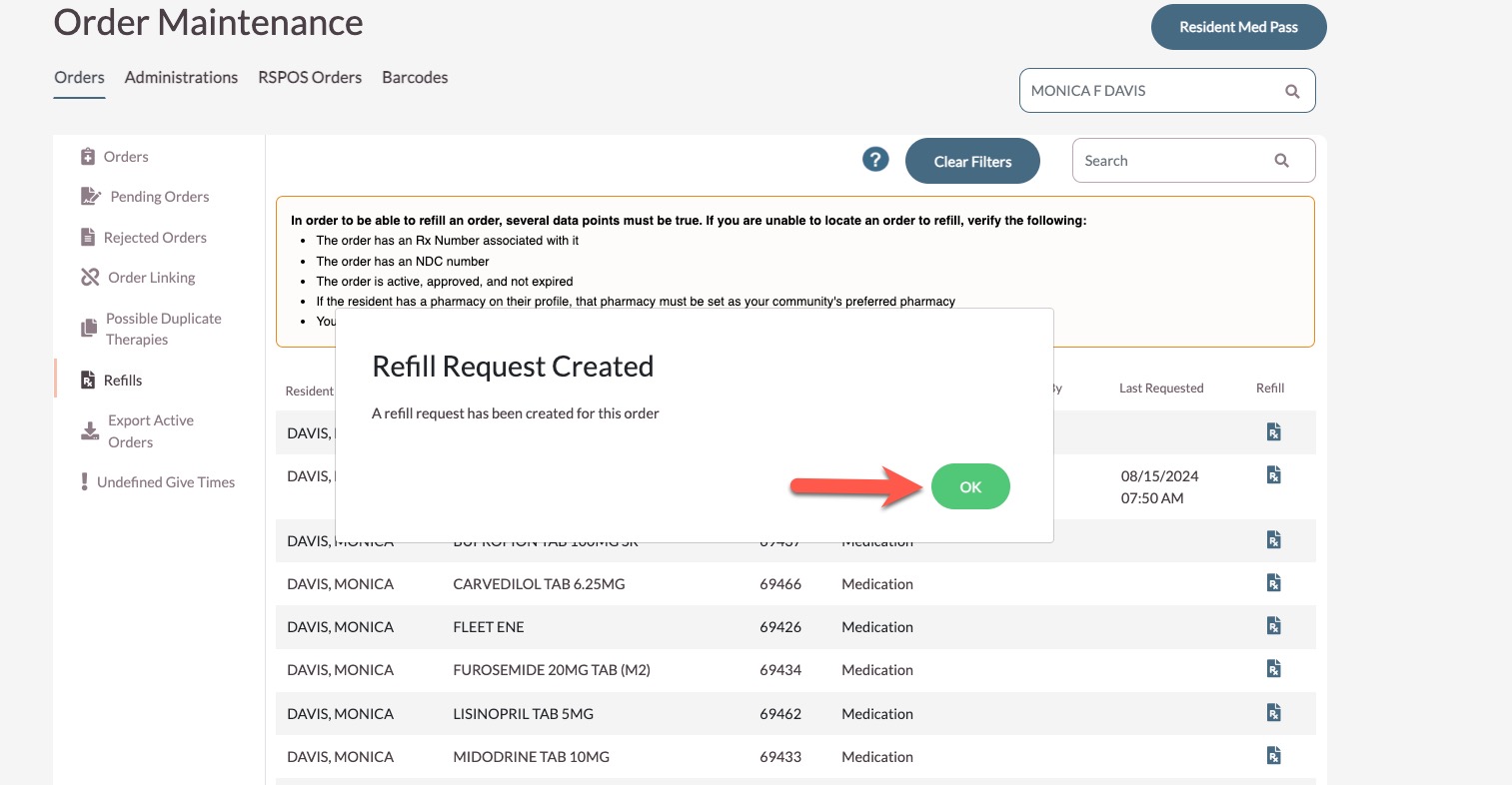
Note: The Qty Remaining field will display an inventory amount only if the community is using the inventory related features; otherwise the quantity remaining will display NA (Not Available)Note: If the resident receives their medication from a Pharmacy not marked as a "Preferred Pharmacy" in pharmacy maintenance and the pharmacy has been added to the resident's profile in Resident Maintenance then the refill button will not display.
See Pharmacy Maintenance for additional details on Preferred Pharmacies.
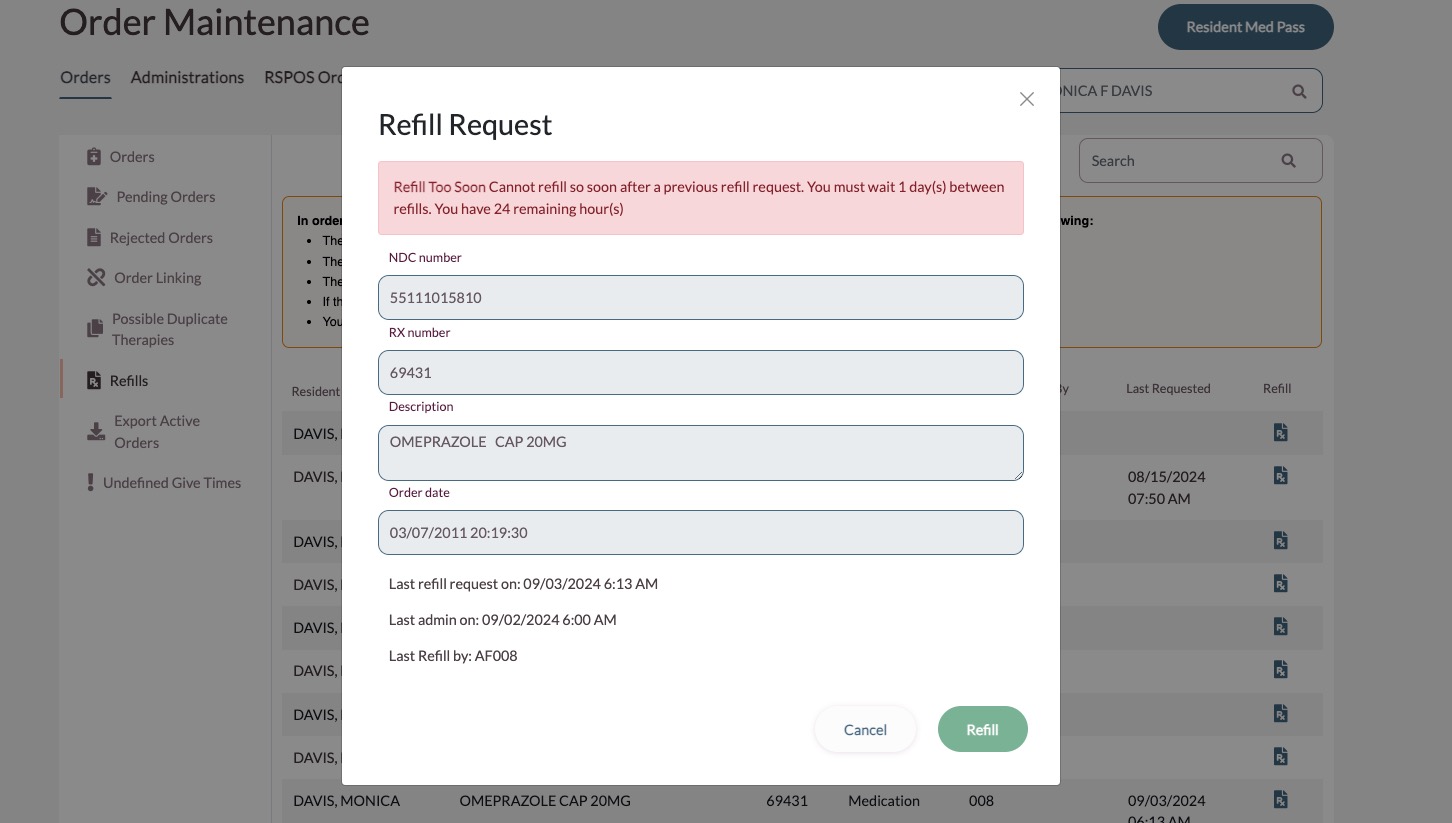
Refill Request Too Soon
The community determines the number of days required between refill requests. Typically, this is no sooner than every three days—or 72 hours. This is to avoid the pharmacy receiving multiple refill requests for the same order.
If another refill request is attempted before the designated amount of time has passed, a warning
message will display indicating an electronic request cannot be submitted. If a refill is needed urgently, users should call the pharmacy.
Select X or Cancel to return to the previous screen.
Was this article helpful?
That’s Great!
Thank you for your feedback
Sorry! We couldn't be helpful
Thank you for your feedback
Feedback sent
We appreciate your effort and will try to fix the article