Overview
In this article, we will review Reviewing & Approving an Active Order in the ALINE eMAR (ACCUflo) application.
Order Approval: Steps to Review & Approve an Active Order
The following steps should be followed when reviewing and approving an interfaced order imported from the pharmacy’s pharmacy management system:
Step 1: Select the desired resident.
Step 2: Select Pending Orders on the Footer.

Step 3: Select the desired order.
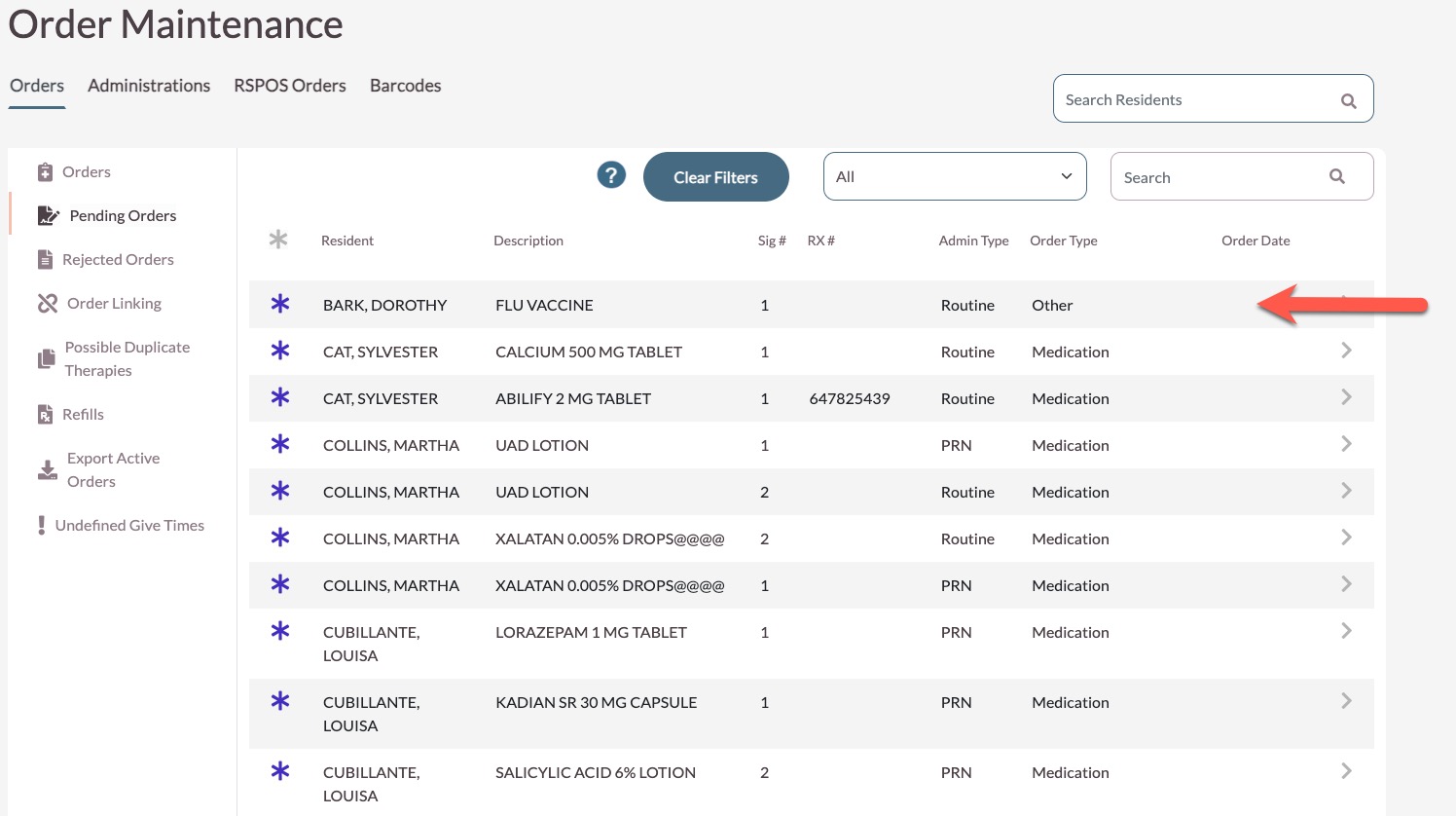
Step 4: Confirm the Order Type is correct. The Order Type can be edited if necessary.
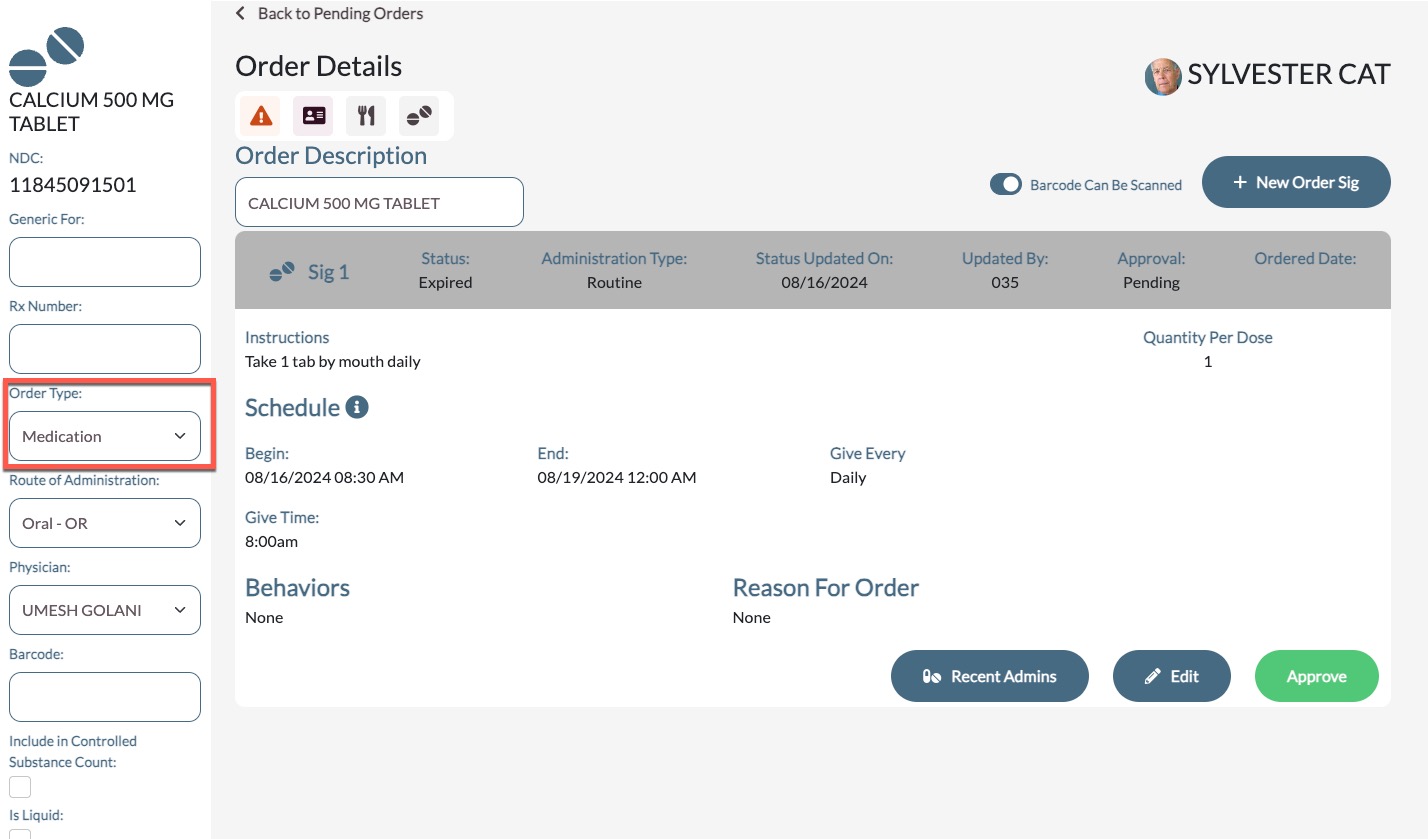
Step 5: Confirm that the medication name and strength are therapeutically identical to what the physician has ordered.
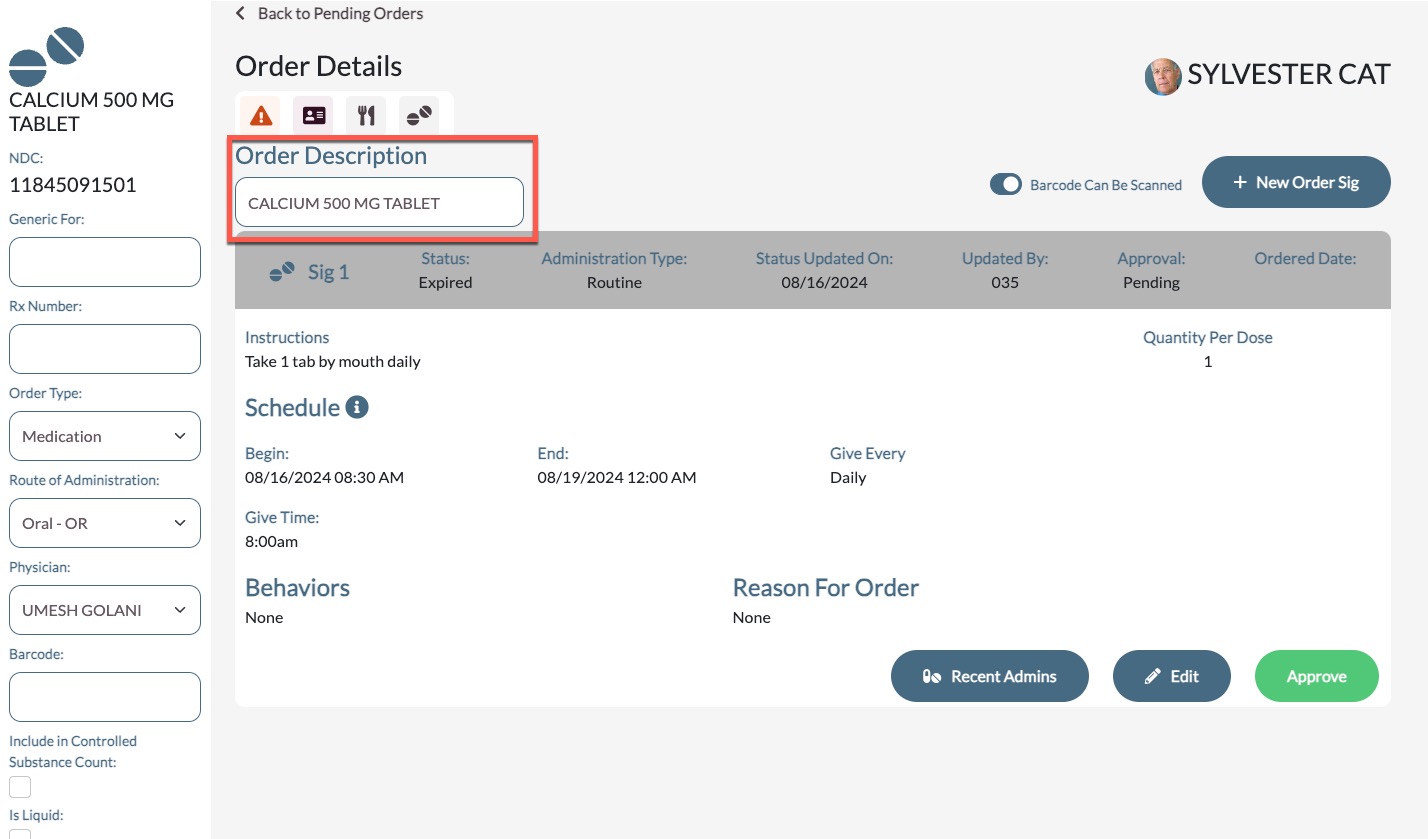
Note: Reject the order back to the pharmacy for changes if the medication's names and strength are not correct as this field can not be edited by community users and must be corrected by the primary pharmacy.Step 6: Confirm the route of administration, or ROA, is correct. This can be edited if necessary.
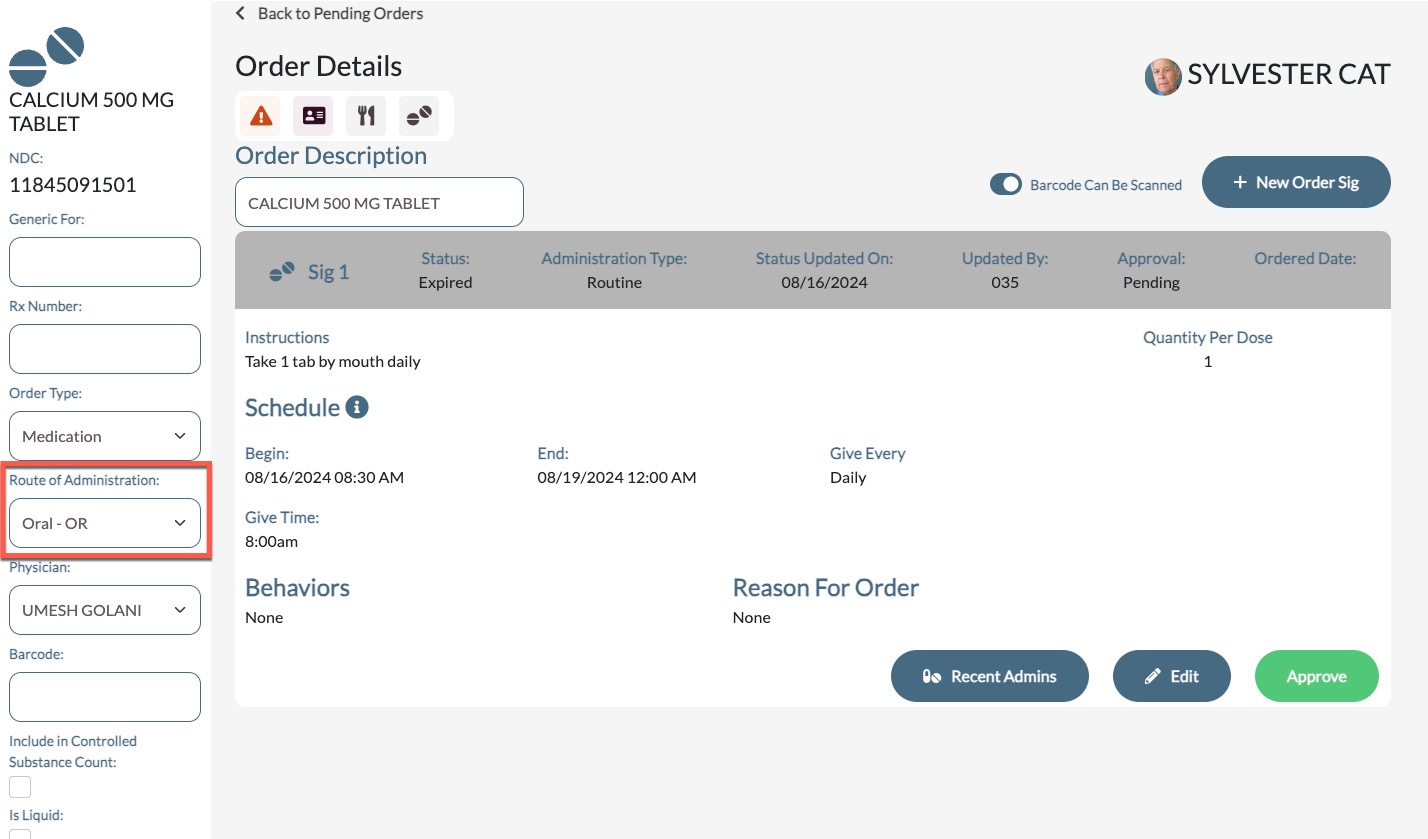
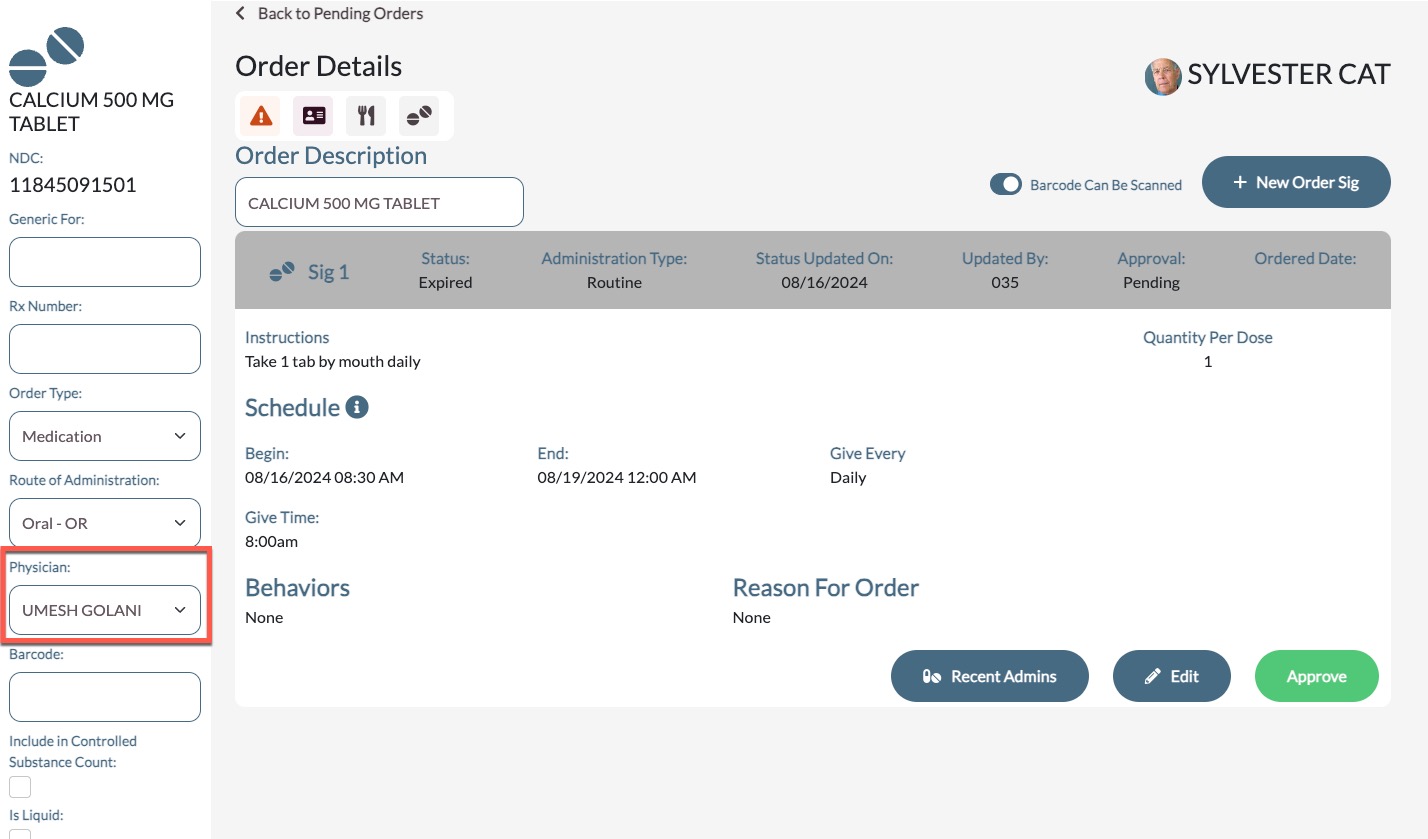
Step 7: Confirm the ordering physician is correct. This can be edited if necessary.
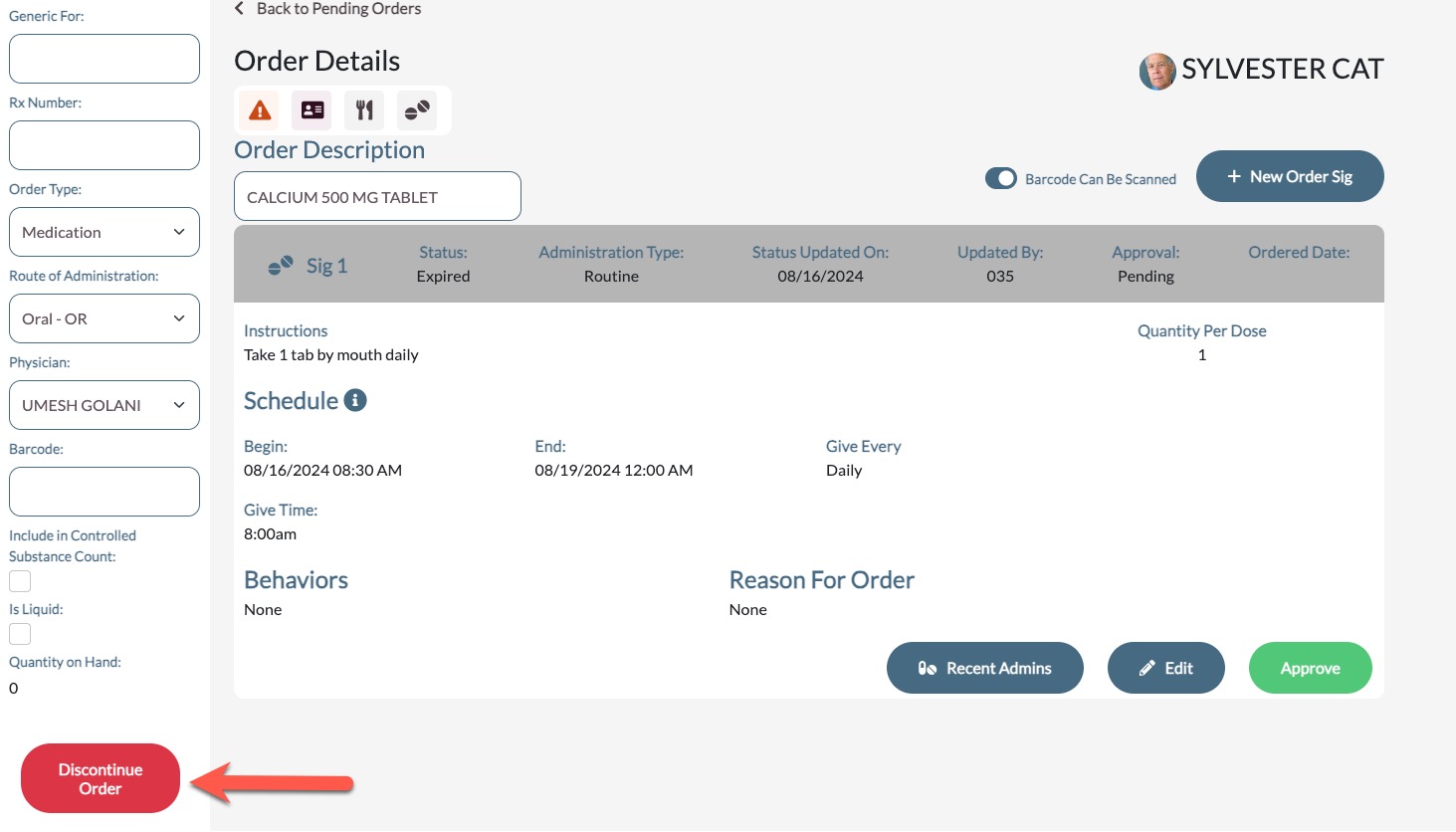
Step 8: The order can be discontinued selecting the Discontinue button if the order is no longer needed or valid.
Step 9: Confirm that the order’s instructions are therapeutically identical to what the physician ordered.
Note: If the order's instructions are incorrect, reject the order so the pharmacy can make corrections as community users cannot edit this field.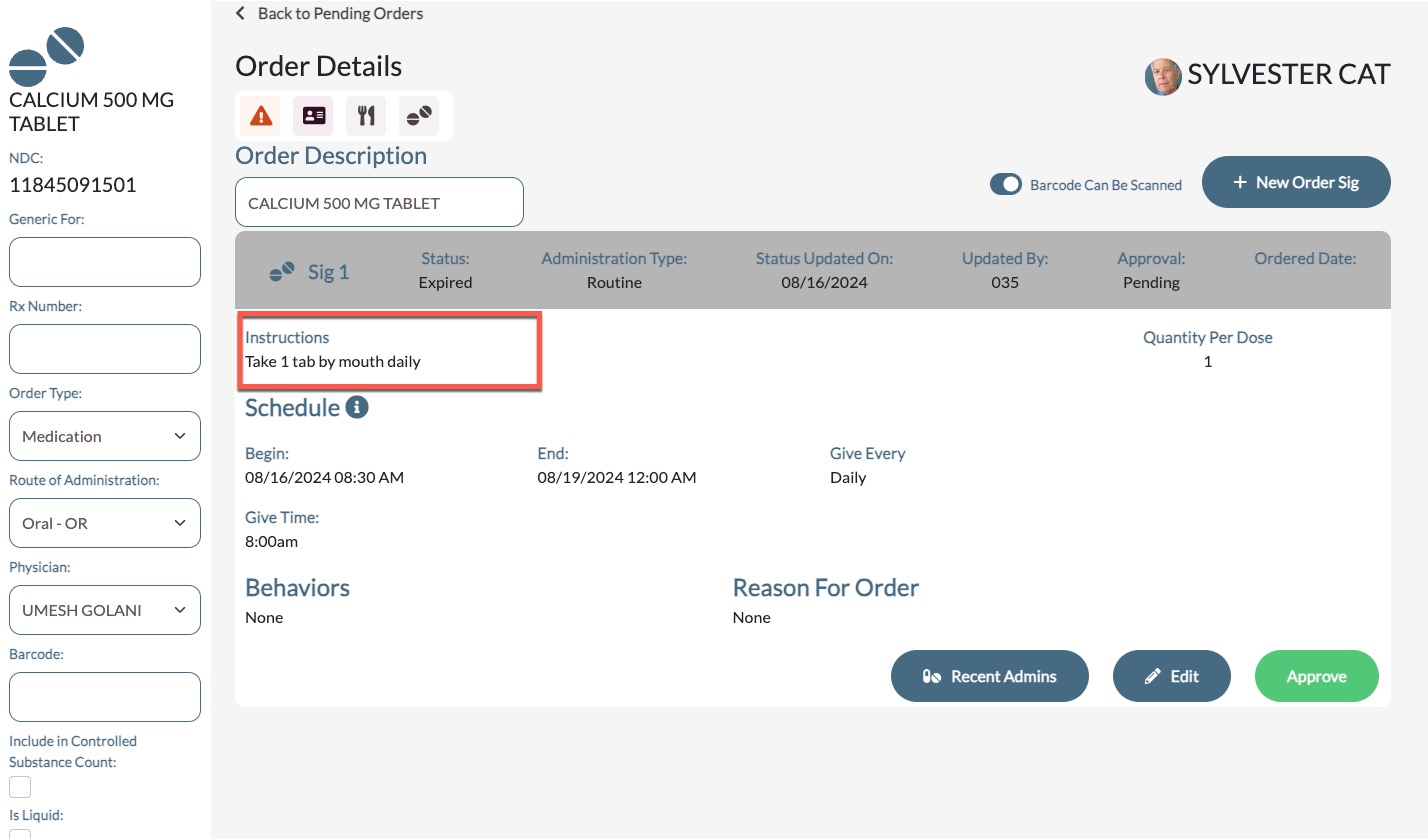
Step 10: Confirm the Administration Type (Routine / PRN) is correct. This can be edited if necessary. Edit this component by selecting the Edit button.
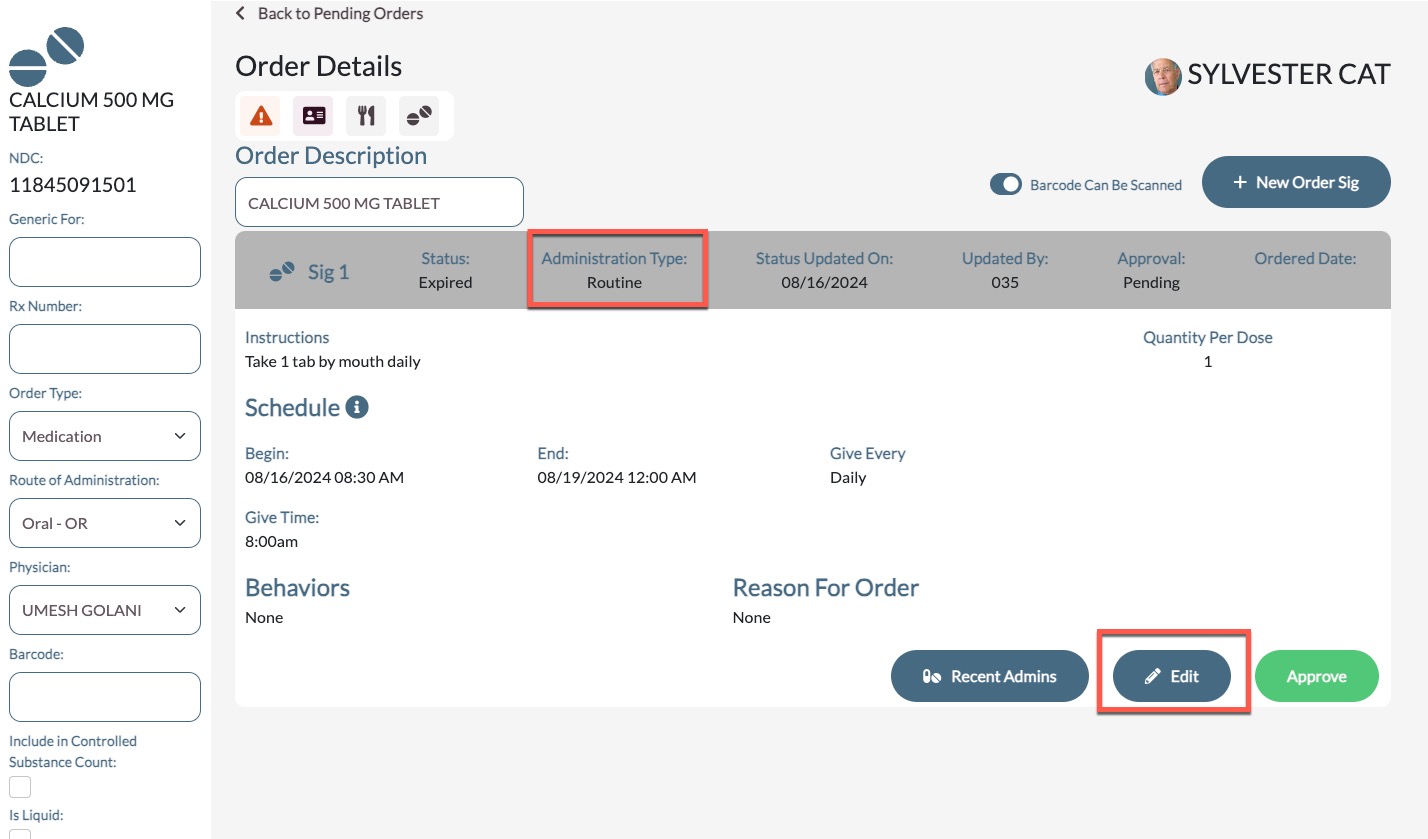
Step 11: Confirm the Schedule is correct. This can be edited if necessary. Edit this component by selecting the Edit button.
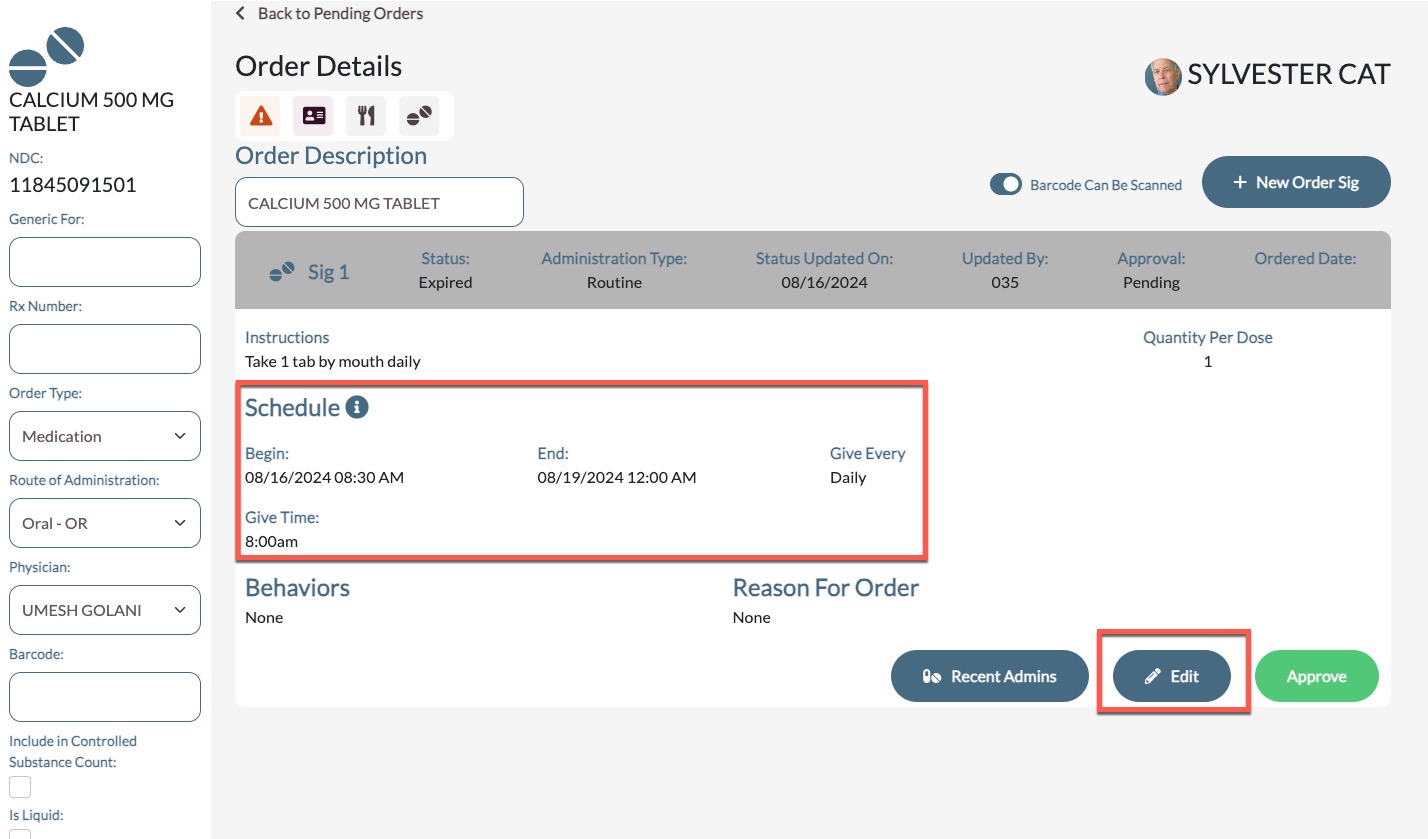
If editing the order's schedule, please note the following: Orders can be scheduled on daily, weekly, monthly, or annually depending on the need. The starting and ending dates can be edited as necessary.
Note: The default ending date is 12/31/2099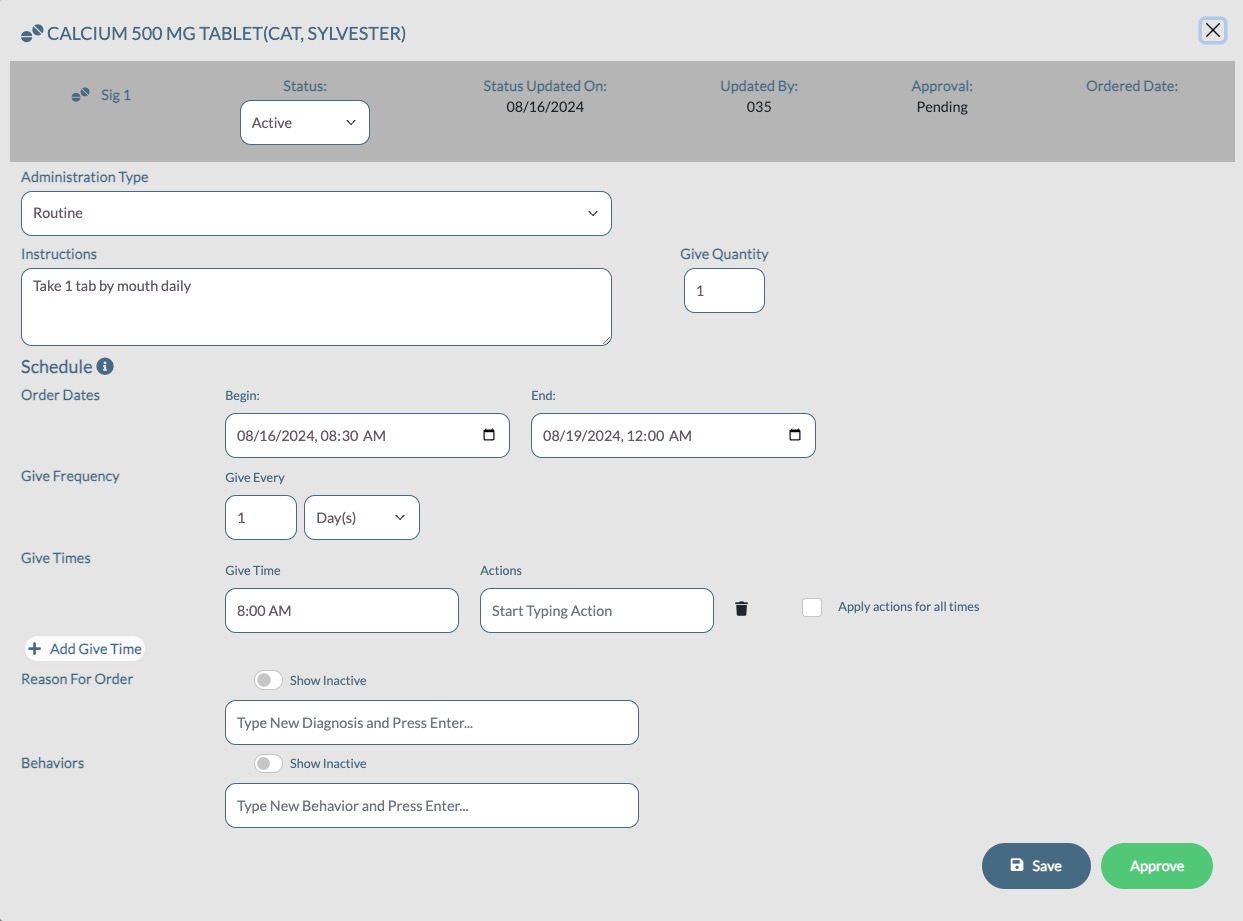
Give times can be edited as needed. Additional give times can be added, and unnecessary give times can be deleted.
Order Actions can be added or deleted. Order Actions can be added to all give times at once by selecting the checkbox Apply actions for all times, or they can be added to individual give times. Enter a 'Reason for Order', if the order has an associated diagnosis or reason.
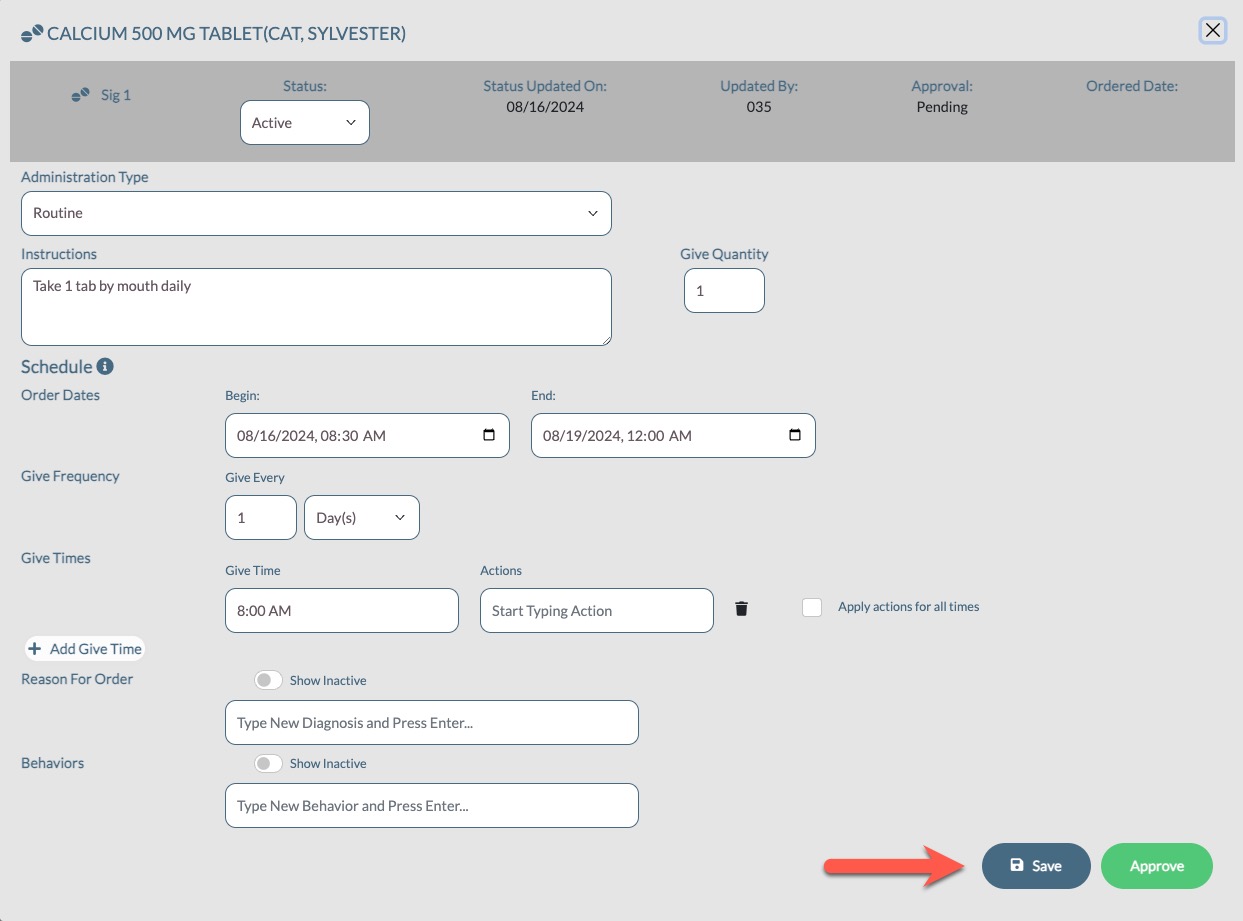
Step 12: If any edits are made, select Save to save any changes. Approve can also be selected if the order has already been fully reviewed and is ready for approval.
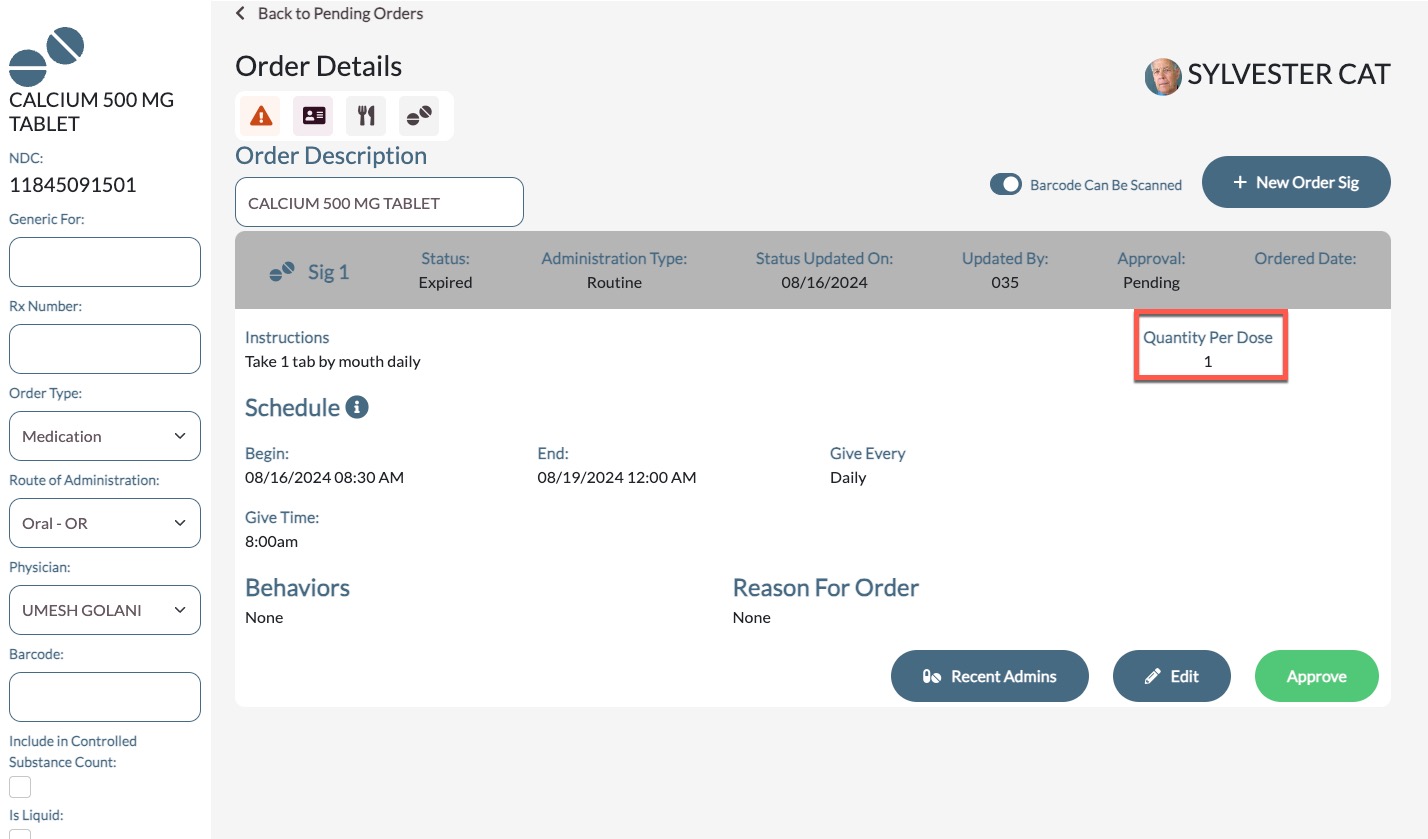
Note: Communities utilizing Controlled Substance Count will also need to confirm the accuracy of an order's Quantity per Dose (QPD) for federally controlled substances. QPDs must be set by the pharmacy. Controlled orders with incorrect QPDs should also be rejected back to the pharmacy for corrections.
Was this article helpful?
That’s Great!
Thank you for your feedback
Sorry! We couldn't be helpful
Thank you for your feedback
Feedback sent
We appreciate your effort and will try to fix the article