Overview
In this article we will review Adding an Order in Aline eMAR (ACCUflo).
Steps to Add an Order
Step 1: From the Main Resident screen, select the resident requiring a new order.
Step 2: Select the Waffle Menu, Order Maintenance, and then + New Order at the top of the Order Maintenance page.
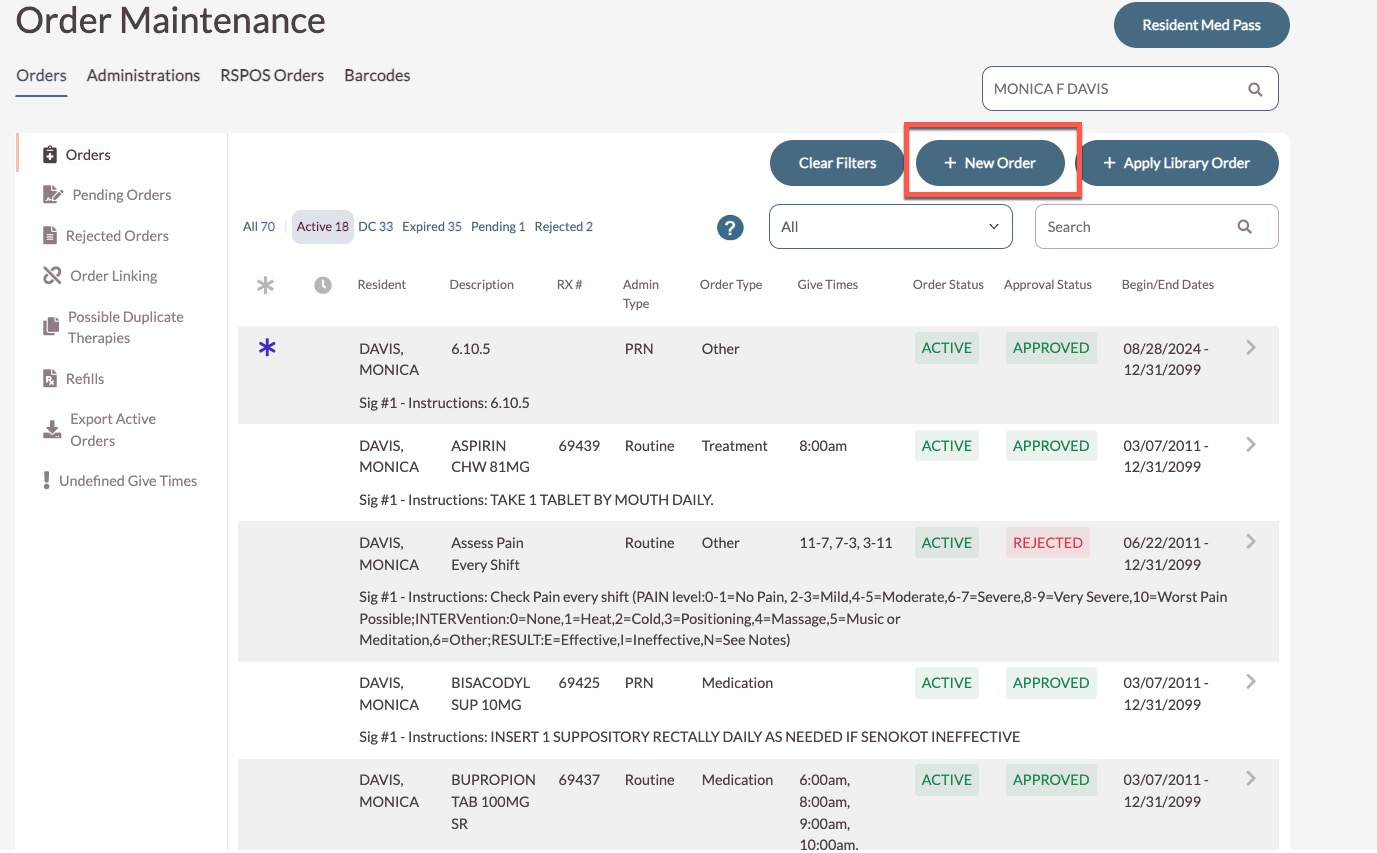
Step 3: This will present a blank order page wherein the following details can be filled out:
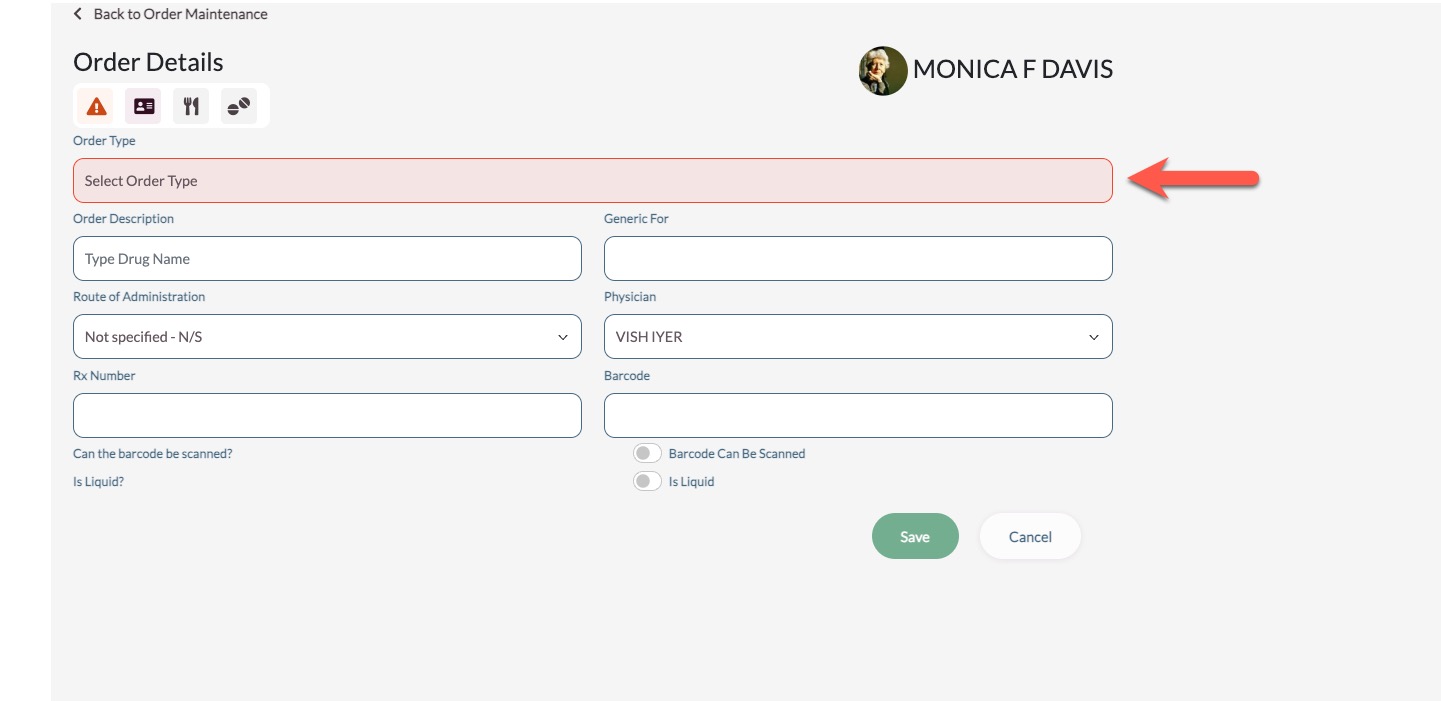
Step 4: Select the Order Type: Medication, NFA, Other, Treatment, User Defined.
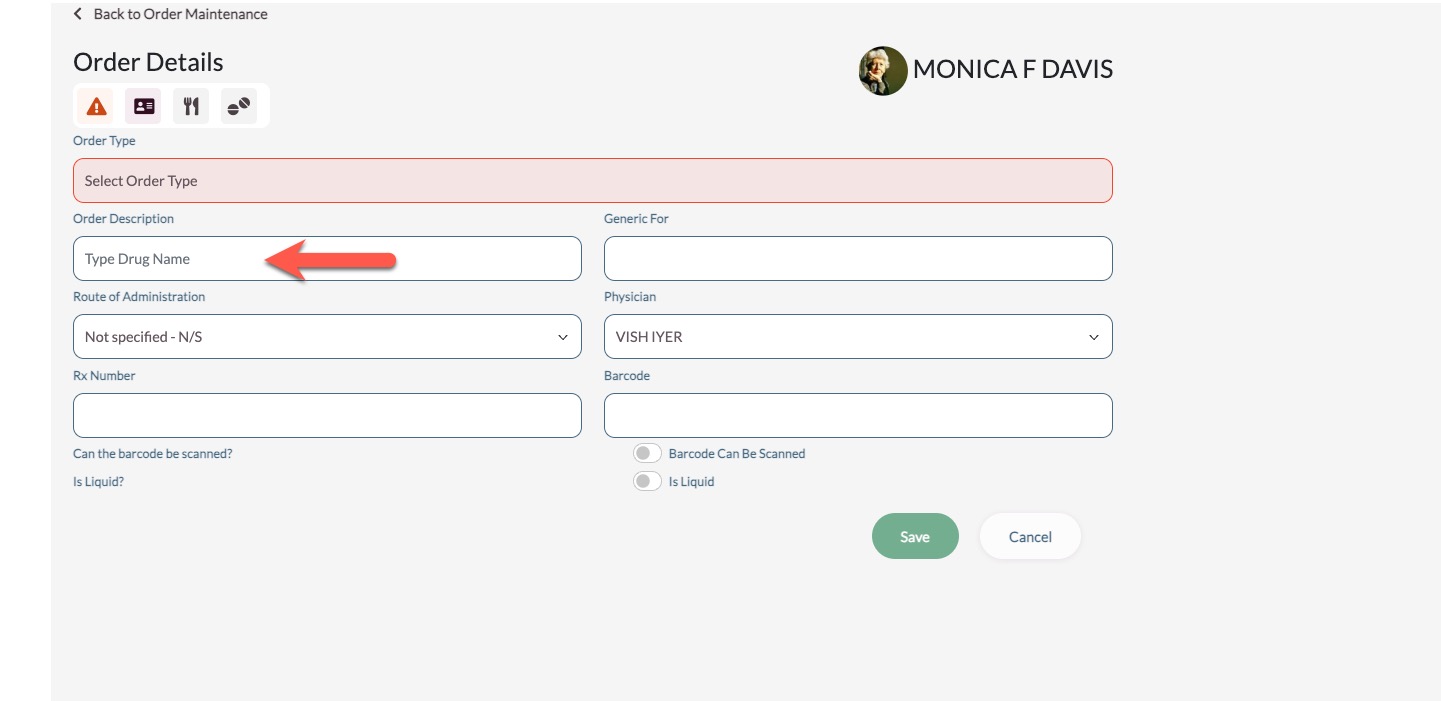
Step 5: Add a Description: If the order type is Medication, begin entering the medication name and select from the search suggestions appearing in the drop-down list. For all other order types, users can select from the drop-down list or free type the description.
Step 6: Select the Route.
Step 7: Select the Ordering Physician.
Step 8: Enter an RX number or barcode value if applicable.
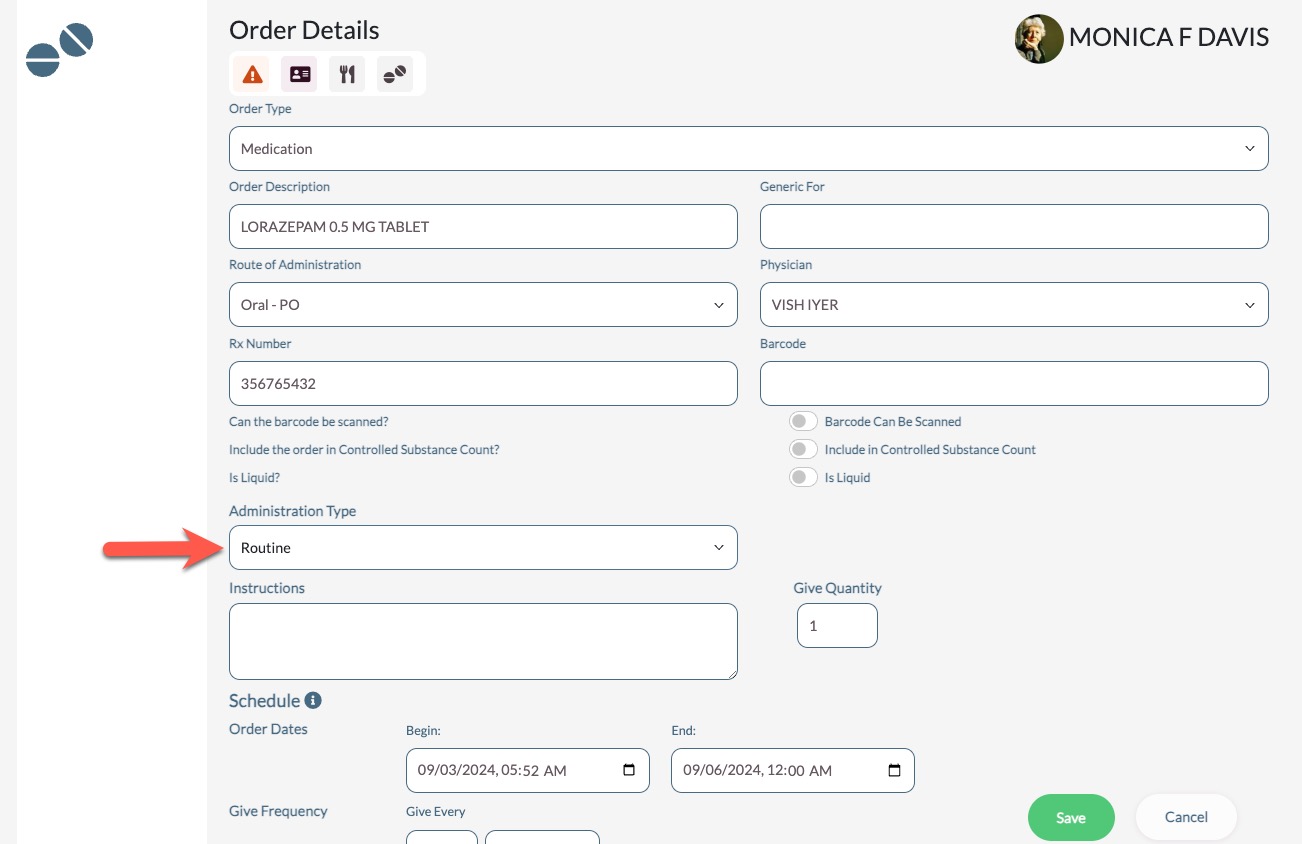
Step 9: Select the administration type - Routine VS PRN.
Step 10: Select the give quantity.
Step 11: Enter the order's instructions.
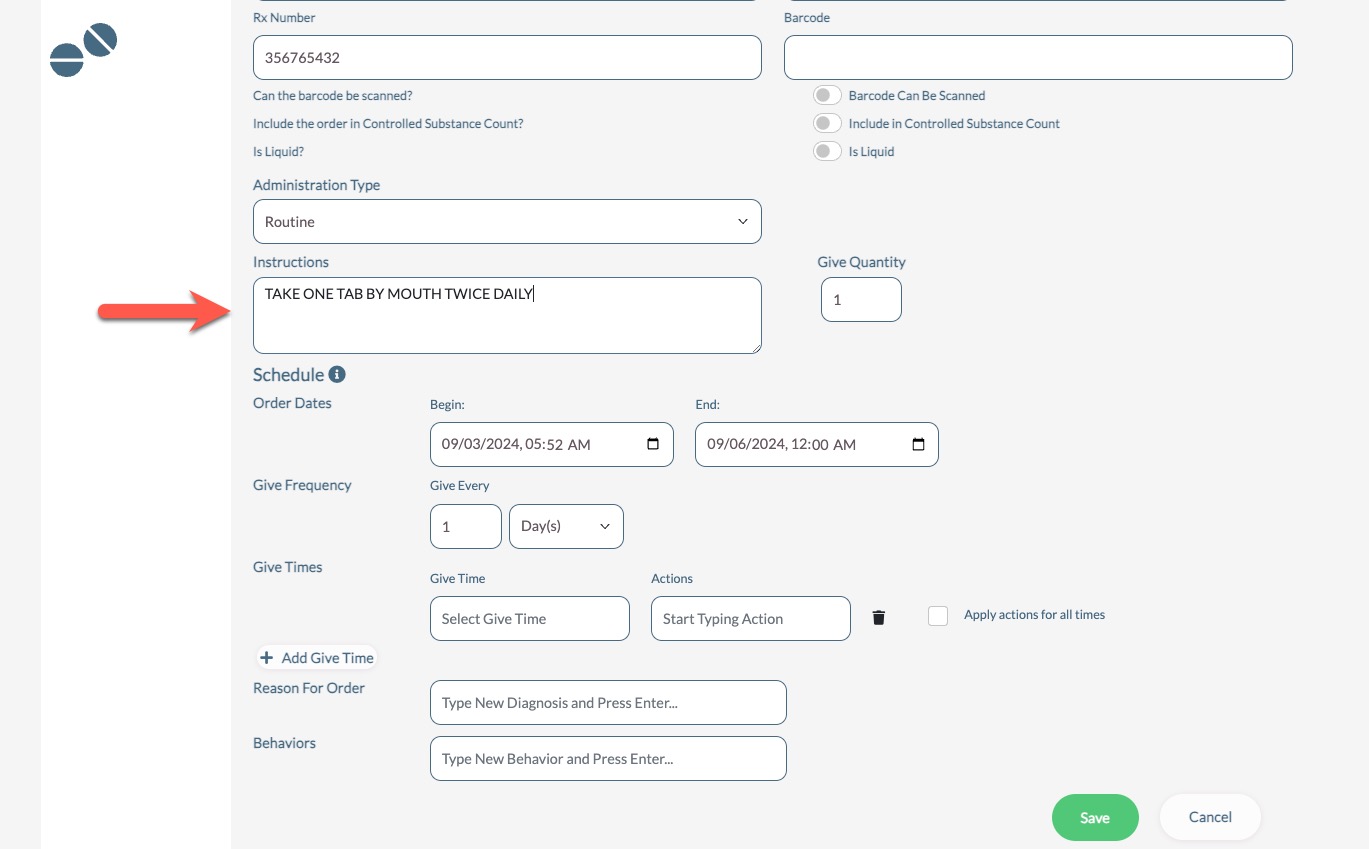
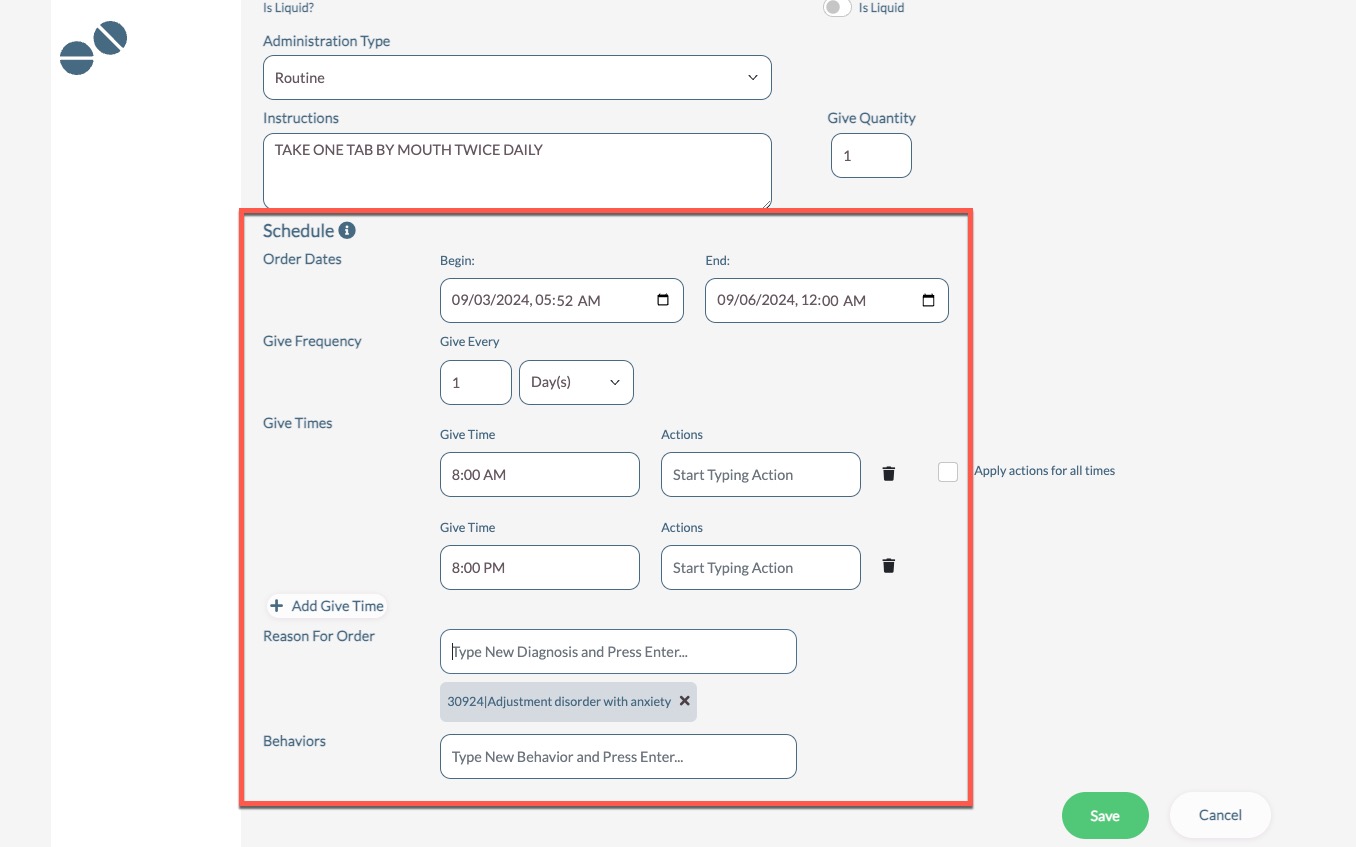
Step 12: Enter the order's Begin and End Date.
Step 13: Select the give frequency.
Step 14: Enter the Give Times. Additional give times can be added by selecting + Add Give Time.
Step 15: Enter any necessary Order Actions. If the order requires actions to be charted for ALL give times, select Actions for All Times and select the appropriate action(s).
Step 16: If the order has an attached diagnosis, or reason for the order, enter it into the Reason for Order field.
Step 17: Select Save to save the new order.
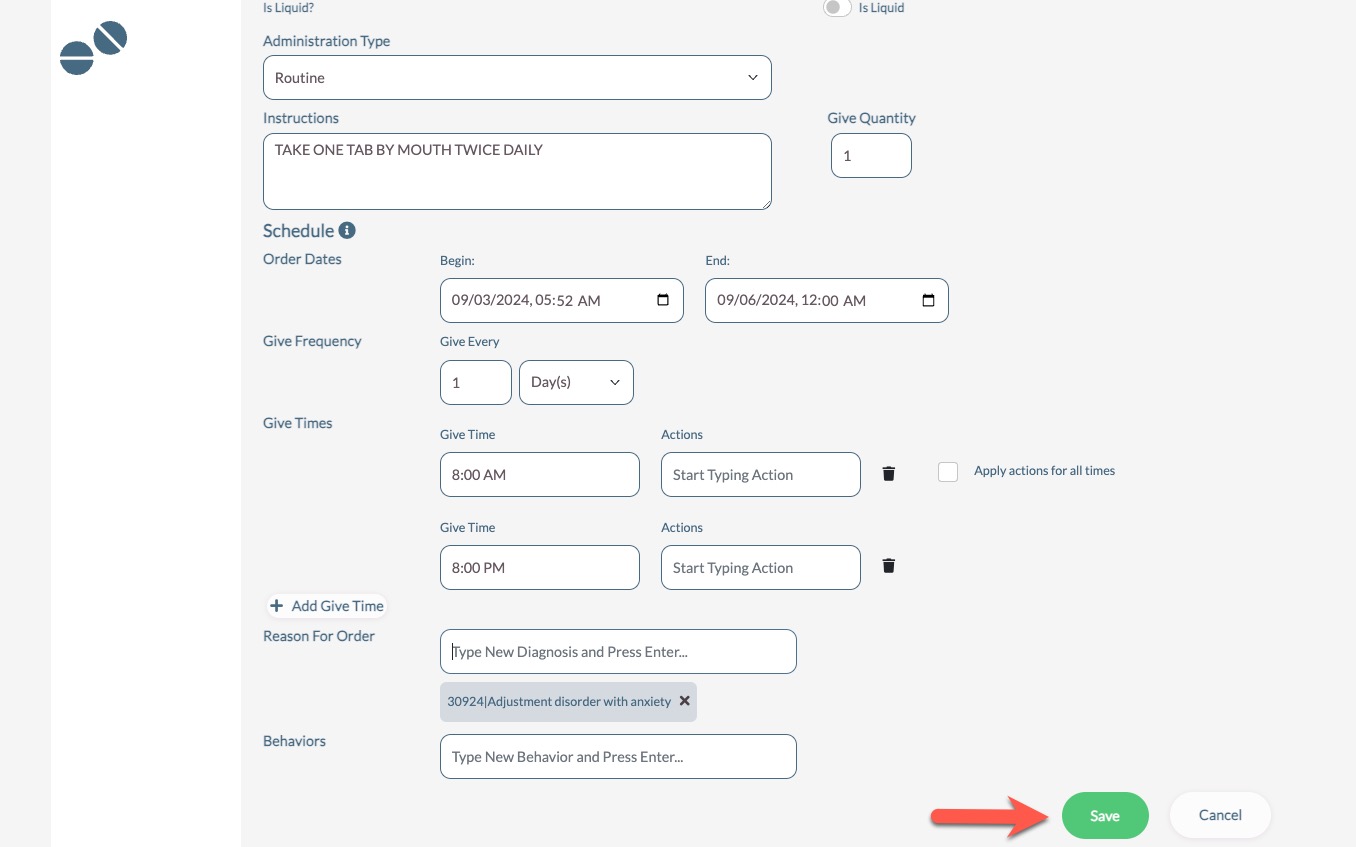
If your community requires approval for non-interfaced orders, the order must be thoroughly reviewed and approved after saving.
Was this article helpful?
That’s Great!
Thank you for your feedback
Sorry! We couldn't be helpful
Thank you for your feedback
Feedback sent
We appreciate your effort and will try to fix the article