Overview
In this article we will discuss the procedures for Pharmacy Maintenance.
To get to Facility Maintenance select the Waffle Menu, Facility Maintenance from the header of any screen in ACCUflo.
| Pharmacies | Allows administrative staff to add additional or edit existing pharmacies in ACCUflo. Pharmacies can be attached to resident’s via Resident Maintenance. |
All Facility Maintenance options are community specific. These options are reviewed during the implementation process and changes should be made only after careful consideration. Please contact your Aline Implementation Specialist or Account Manager for assistance with these features.
Note: If changes are made, to ensure all changes take effect, please log out and log back into ACCUflo.
Pharmacy Maintenance
Pharmacy Maintenance is used to add/edit pharmacies in ACCUflo that can then be attached to residents via Resident Maintenance.
Procedure for Adding New Pharmacies in Pharmacy Maintenance
Step 1: Select the Waffle Menu, Facility Maintenance from the header of any screen in ACCUflo.
Step 2: Select Pharmacies from the Header Options.
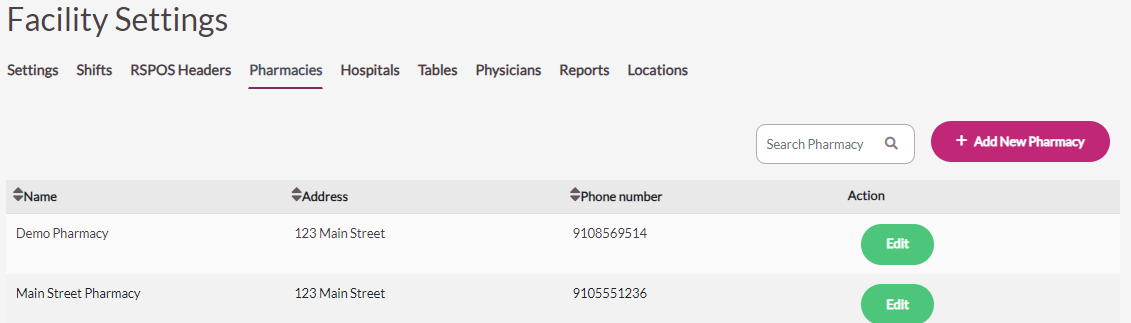
Step 3: To add a new pharmacy, select the Add New Pharmacy button.
Step 4: Enter each field, as necessary. The only required field is the Pharmacy Name field.
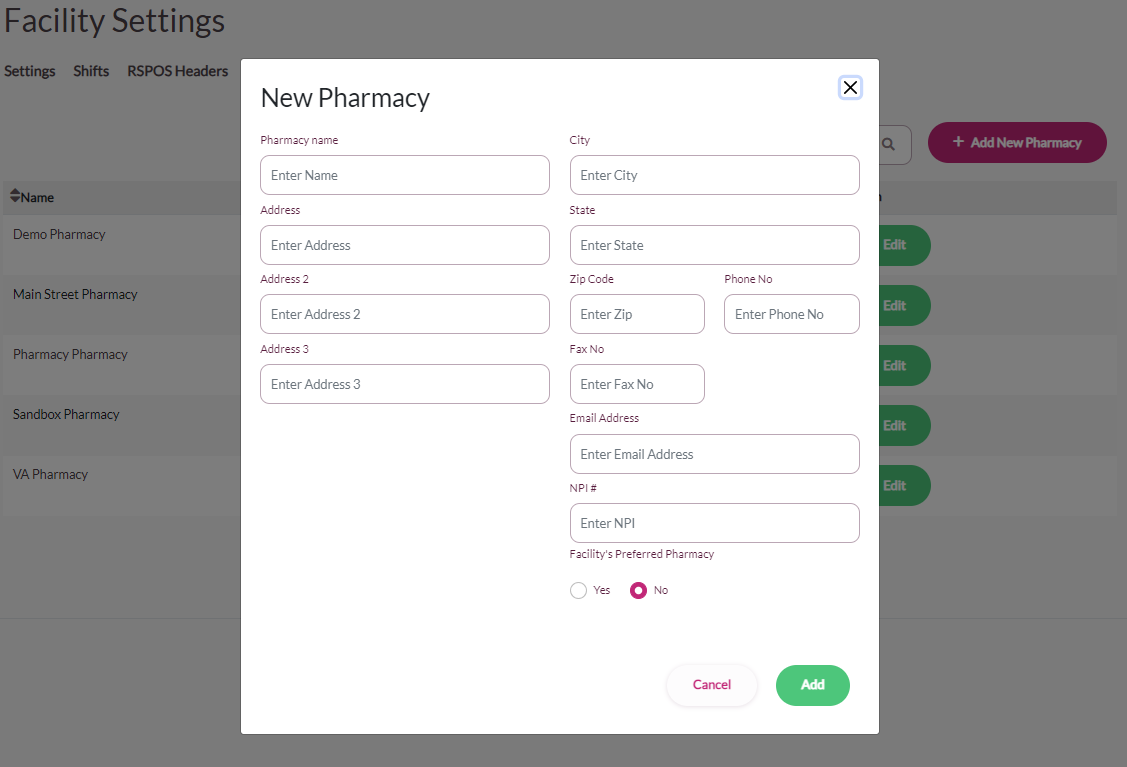
When the Facility’s Preferred Pharmacy button is set to No, any resident with the pharmacy assigned will have the refill button disabled in ACCUflo. This functionality will prevent users from requesting refills from the interface pharmacy for residents who are not serviced by the preferred pharmacy.
Step 5: Select Add to save the new pharmacy in ACCUflo.
Don’t know your pharmacy’s NPI Number? No problem—you can find NPI numbers in this NPI registry here: https://npidb.org/.
Was this article helpful?
That’s Great!
Thank you for your feedback
Sorry! We couldn't be helpful
Thank you for your feedback
Feedback sent
We appreciate your effort and will try to fix the article