Procedure for Adding a Note
Step 1: Select New Note on the Resident’s screen.
Step 2: Select Note Type and select the type of note from the options provided.
Step 3: If the note refers to an order, Select Order and select the associated order.
Step 4: Enter the note into the Message text field.
Step 5: If applicable, Select End Date to add the date the note should expire.
Step 6: If the note is urgent, Select the Urgent Note check box.
Step 7: Select Add to save the changes.
Note: Urgent Notes associated with an order, pictured below, display when the order is selected for administration. Urgent Notes that are not associated with an order display when the resident is selected.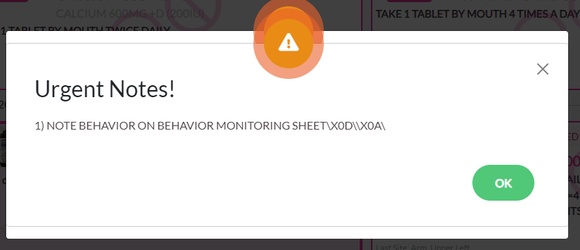
Editing Notes
Step 1: Select Notes on the Resident’s screen.
Step 2: Select the Edit (pencil) Icon next to the note that needs to be edited. If Editing Notes has been enabled at your community, you will have the ability to edit each field. ACCUflo defaults this option to be disabled.
Step 3: Select Discontinued to discontinue the note.
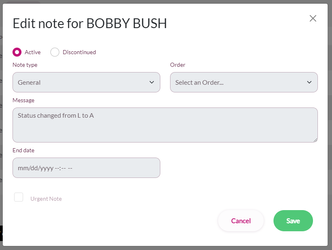
If your community has Editing Notes Enabled
Step 1: Select Notes on the Resident’s screen.
Step 2: Select the Edit (pencil) icon next to the note to be edited
Step 3: Make the necessary changes
Step 4: Select Discontinued to change the note status to Discontinued.
- An inactive/expired note will not appear in the list of notes by default. Users have the option to include inactive/expired notes when printing the Notes Report.
Step 5: Select the Note Type drop-down to change the note type.
Step 6: Select the Order drop-down to associate the note with an order.
Step 7: Select the End Date calendar if the note has an expiration date.
Step 8: Select the Urgent Note checkbox to change whether the note is urgent.
Step 9: Select Save.
Step 10: Select Back to Resident Med Pass to return to the Resident's Screen.
Note: Do not change the content of a message. This field should be edited only to fix typos. It is not recommended to change the order with which a note was originally associated. Aline recommends user change the incorrectly associated Note to "inactive" and add a new note.
Was this article helpful?
That’s Great!
Thank you for your feedback
Sorry! We couldn't be helpful
Thank you for your feedback
Feedback sent
We appreciate your effort and will try to fix the article