Overview
In this article we will review the Notes Feature in ACCUflo. You will find the procedure for adding a note on the note detail screen, adding a new MAR/TAR/POS Drug notes and editing an existing note.
Note: When the Notes Feature is enabled, users can add Notes specific to a resident or a resident's orders. Users have the option to make a general note, assign a note to a specific order, and or print the note on the note's report. Users can also mark a note as urgent and specify an end date for the note.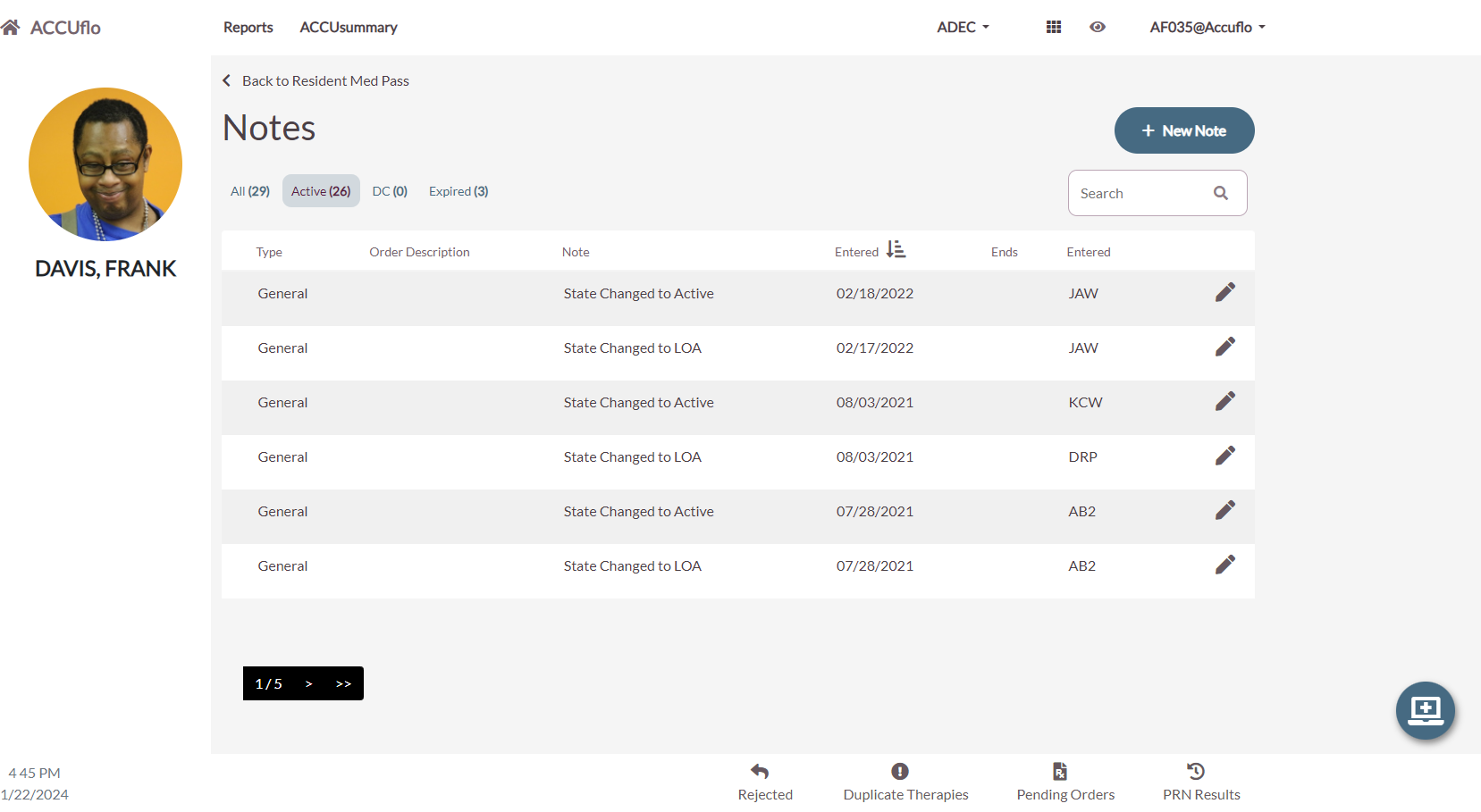
Some communities use notes to communicate useful, but non-essential, information to other staff members. Others use them as the official nurses’ notes to be included as part of the resident’s medical record. Refer to the community’s policy for how Notes will be used.
- If the resident has a note marked as Urgent, an Urgent Notes indicator will display the number of urgent on the resident’s screen. Urgent notes will always prompt a pop-up message.
- If there are recent notes, the number of recent notes will display in the Notes button on the resident’s screen. The time frame for which a note is considered recent is determined by the community.
Select Notes to display the resident’s Notes Screen. This screen will display any active notes associated with the selected resident. Notes can be sorted via selecting the dark silver column headings.
Note Type | The type selected for the note when it was entered. |
Order Description | The order associated with the note, when applicable. |
Note Text | The text content of the note. |
Entered | The date/time the note was entered. |
Ends | The date the note will expire, if applicable. The default is blank which means no end date. |
Entered | The initials of the user who entered the note. |
Last Edited | The date/time the note was edited, when applicable. |
Last Edited By | The initials of the user who last edited the note. |
From the Notes Screen, users can select Back to Resident Med Pass to return to the Resident’s Screen. When edits to existing notes are required, users can select a note and discontinue the note. Then add a new note with the updates by selecting Add Note.
The Note Detail Screen
The Note Detail screen appears when New Note is selected from the Resident Med Pass, Notes Screen or when the user selects an existing note.
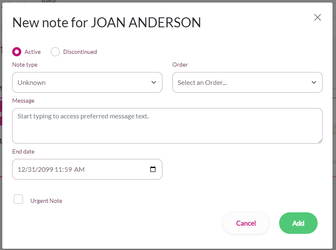
As pictured above, when Add Note is selected, the Note Detail Screen will be blank. Users can then fill in the blanks to create the note.
- Active / Discontinued – By default, any new note is set to Active.
- Note Type – Select the appropriate type. The community will define the Note Types available and have a policy regarding the appropriate use of each type. The Note Type will default to whichever type is listed first. The community can choose to customize the sort order of the list—otherwise, the note types will appear alphabetically.
- Order – If the message is regarding a specific order, select the order from the drop-down. The default is None. Verify the correct Sig is selected if there are more than one sig for the order.
- Message – Enter the note content in this field.
- End Date – If the message should eventually expire, select an End Date and Time. If the message does not need to expire, leave the field blank.
- Urgent? – The default is No. Select to change it to Yes, when applicable.
If a note is set to Urgent, the note will appear with the urgent indicator (!) in the Notes Page and the Urgent Note(s) indicator will display on the Resident’s Screen.

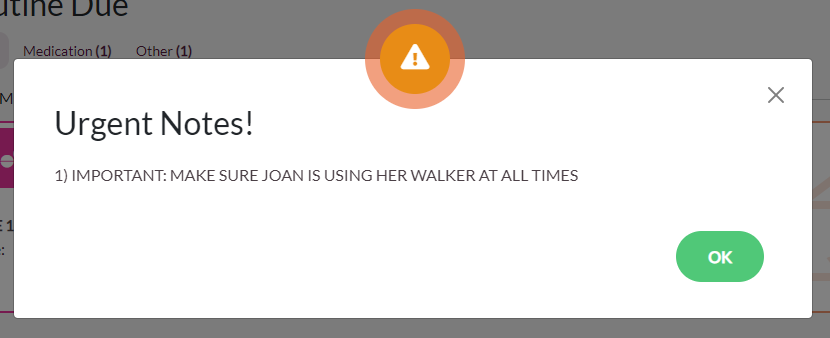
An urgent note, pictured below, will also display each time the resident is selected unless the urgent note applies specifically to an order. An urgent note associated with an order will display each time the order is selected or scanned for administration.
Was this article helpful?
That’s Great!
Thank you for your feedback
Sorry! We couldn't be helpful
Thank you for your feedback
Feedback sent
We appreciate your effort and will try to fix the article