Procedure for Resetting your Password
If your device is online
If you have forgotten your password and previously setup your Security Challenge Questions (See: ALINE eMAR (ACCUflo) User Self Service | Procedure for setting up security challenge questions | ) you can use the self-service link available on the ALINE eMAR (ACCUflo) login page along with assistance from your administrator to reset your password. Follow steps below if your device is ONLINE.
Step 1: On the login page, click I forgot my password.

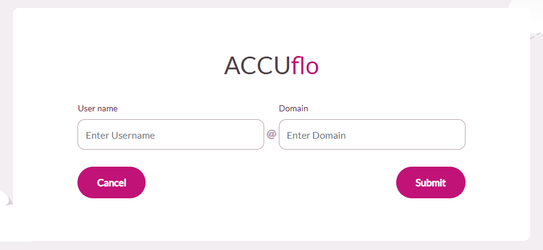
Step 2: Enter your username and domain and click Submit.
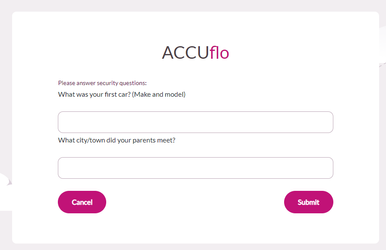
Step 3: Enter your responses to the two randomly selected challenge questions, then click Submit.
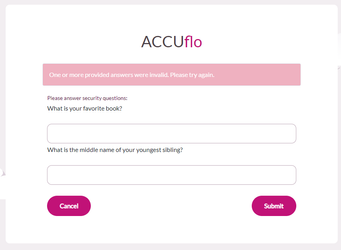
Step 5: If your answers are incorrect, you will be prompted to answer two additional randomly selected security questions. Additional incorrect answers will result in a 30 minute lockout before you will be able to attempt to reset your password again.
Step 6: If you have access to more than one community, you will be prompted to select the community you are trying to access.

Step 7: After successfully answering two challenge questions and selecting the facility you are trying to access, you will be redirected to a screen to enter a reset code. An email containing a reset code will be sent to verified users with the User Management email notification enabled. You will need to contact one of the listed users to obtain your reset code.
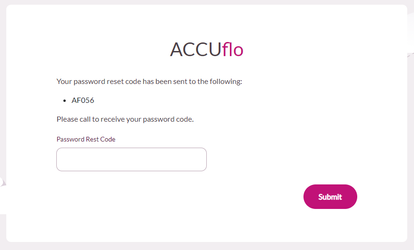
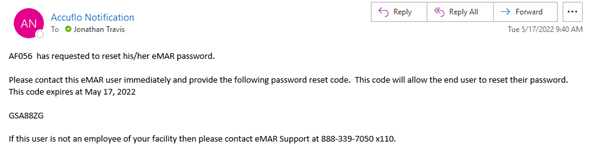
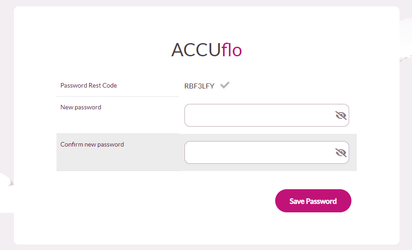
Step 8: After obtaining your reset code, enter it in the space provided and click Submit.
Step 9: Enter and confirm a new password, then click Save Password.
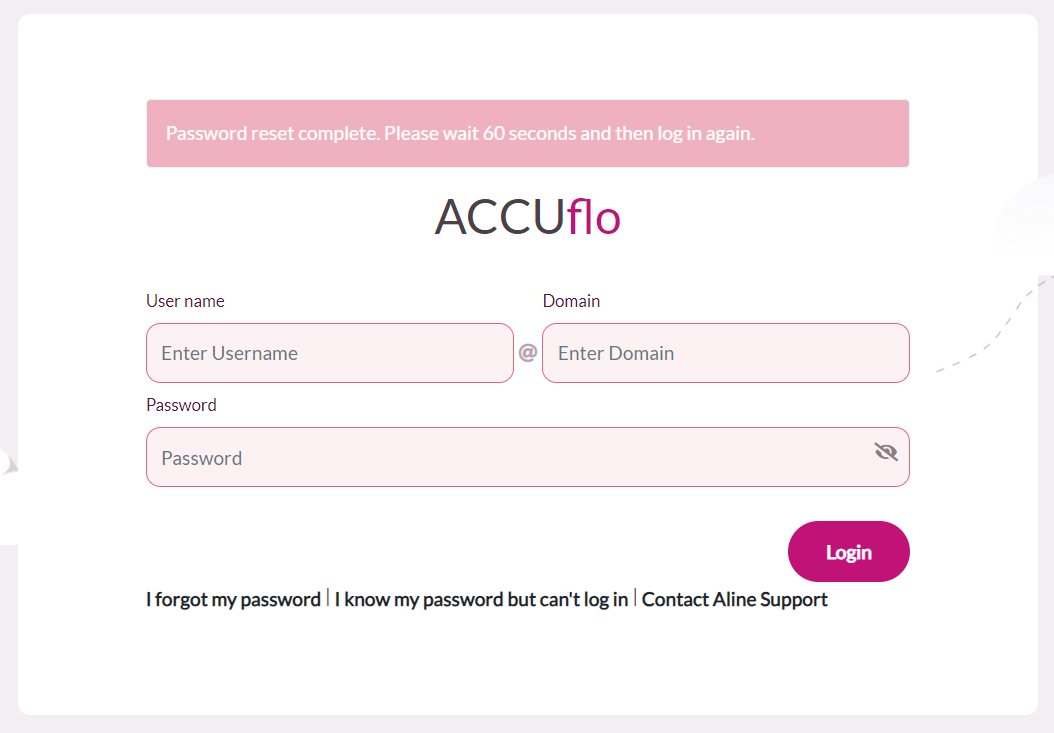
Step 10: Wait 60 seconds the login with your new password.
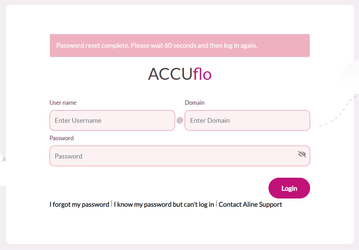
Note: The password requirements for your community still apply. For details on what the requirements are, contact your supervisor or Aline Customer Support.
If your device is offline
Step 1: On the login page, click Contact Aline Support.

Step 2: Enter your username and domain and select Submit.
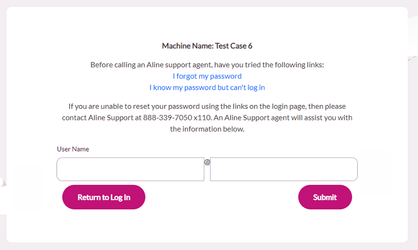
Step 3: Call Aline Support at 888-339-7050 extension x110. Aline Support will ask what facility and machine you are on and for your first name, last name or username to find your user account. Support will then ask answers for two security questions at random. If you provide the correct security question answers then Aline Support will provide a password reset passcode to be entered to allow you to reset your password.

Step 4: After entering the correct Password reset code, you will be prompted to enter a new password and then confirm the new password. The password requirements for your community still apply. For details on what the requirements are, contact your supervisor or Aline Customer Support.
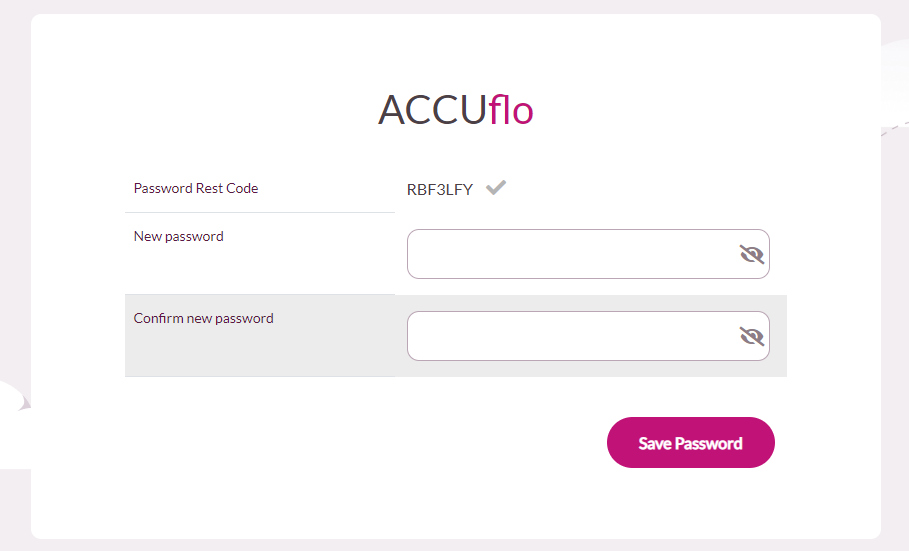
Step 5: Password should now be changed. When convenient, get the device back online so your new password is able to sync up to the cloud and other devices at the facility.
Was this article helpful?
That’s Great!
Thank you for your feedback
Sorry! We couldn't be helpful
Thank you for your feedback
Feedback sent
We appreciate your effort and will try to fix the article