Overview
In this article we will review the logging in to and out of ACCUflo. You will find the procedures for logging in, locked out users, unlocking a user account and logging out of ACCUflo.
Note: Whoever is logged into ACCUflo will “sign” any administrations for the time period the user remains logged in. For this reason, it is essential that the individual administering medications and treatments be the individual logged into ACCUflo. The user’s login ID, login time, and selected group will display on every screen in the application. When a user logs in the user login/logout activity and public IP address are stored.
Procedure for Staff Login (Login ID and Password)
Step 1: From the computer’s desktop screen, select the ACCUflo icon if the application is not already open.

Step 2:The ACCUflo Login Screen will open in an internet browser.

Step 3: Select the User Name field and enter the provided User Name. As a matter of practice, the User Name is usually the user’s first initial and last name; however, the community administrator may use different conventions for User Names. The User Name field is NOT case sensitive.
Step 4: Select the Domain Field (@...). Each community has their own domain. The Domain field is NOT case sensitive. This domain is provided prior to the date of the community’s Go-Live.
Step 5: Select the Password Field and enter the Password.

New Accounts
Users will be issued a password by the community administrator. Upon initial login, users will be prompted to change their password. All passwords are case-sensitive. The community administrator determines the password’s character/length requirements and whether the password will expire every X number of days. Please refer to your community’s policy for password requirements.
Step 1: Enter the provided password.
Step 2: Enter the new password.
Step 3: Renter the new password.
Step 4: Select Save Change.
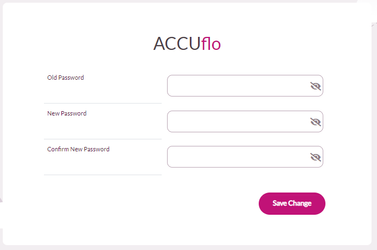
Note: If the new password does not meet the requirements, message(s) will display with details regarding the password requirements.
Step 6: If prompted by the web browser to save the User Name and/or Password, be sure to select NO / NEVER / DO NOT SAVE / DO NOT REMEMBER. NEVER save the ACCUflo password to the med cart computer.
Step 7: New users will be prompted to setup and answer Security Challenge Questions. (See: Aline eMAR (ACCUflo) User Self Service | Procedure for setting up security challenge questions |)
Step 8: Select Log In.
Step 9: Users with access to multiple communities will have to choose which community they would like to log in to. Users with access to only one community will automatically be logged into their assigned community.
Step 10: The Main Residents’ Screen will display with the users Selected Group and the User Name in the upper right corner of the screen. Anytime a device is left unattended, users should ensure their specific User Name is displaying before working in ACCUflo.
Locked Out Users
After five unsuccessful login attempts, ACCUflo will automatically lock the user out of the system until an administrator manually unlocks the user. Only Advanced and Administrative users may unlock a user account. In addition, users who have setup their security challenge questions will also be able to unlock their account.

Once an account has been unlocked, users should wait 60 seconds before attempting to log in again.
Unlocking a User Account
Advanced and Administrative users can unlock user accounts and users with Security Challenge Questions can unlock their own account.
Refer to the Procedure for Unlocking a User Account and Aline eMAR (Accuflo) User Self Service | Procedure for unlocking your account | section for additional information.
Procedure for Logging Out of ACCUflo
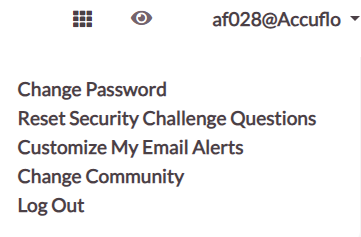
Step 1: Select the User Name in the upper right corner.
Step 2: Select Logout to end the ACCUflo session and return to the login screen.
Note: If PRN Results have not been charted, a message will display stating “There are PRN results that have not been resolved. Do you wish to continue logging out of ACCUflo?”
Step 3: Select No to remain logged in or Yes to finish logging out.
Was this article helpful?
That’s Great!
Thank you for your feedback
Sorry! We couldn't be helpful
Thank you for your feedback
Feedback sent
We appreciate your effort and will try to fix the article