Overview
In this QRG article we will review what to do when you receive a new controlled medication or refill.
Received a New Controlled Medication or Refill
When you receive a new controlled Medication or refill, the medication needs to be checked in.
Medication Check In is used to record the number of medications in the cart. Medications are checked in when they arrive from the pharmacy per the community’s policy. Before Controlled Substance Count can be performed, all controlled substances must be checked in using the Medication Check In function. Communities can also check in non-controls to keep an inventory.
If Controlled Substance Count by Schedule is enabled, the Nurse role (or C-2 permission) is required to check-in C-2 Medications. Users with the Nurse role will have C-2 medications filtered by default. All other users will have C-3, C-4, C-5, and Non-Federally Controlled orders selected by default and will not be able to select C2.
Procedure for Medication Check In
Step 1: Select the Waffle Menu, then select Medication Check In from the header of any screen in ACCUflo.
Step 2: Scan the barcode or enter the RX number of the medication to be checked in in the search field.
Step 3: Enter the quantity.
Step 4: To check-in another order, select + Add Order to Check-In
Step 5: Repeat steps 1 - 3
Step 6: Click Save All
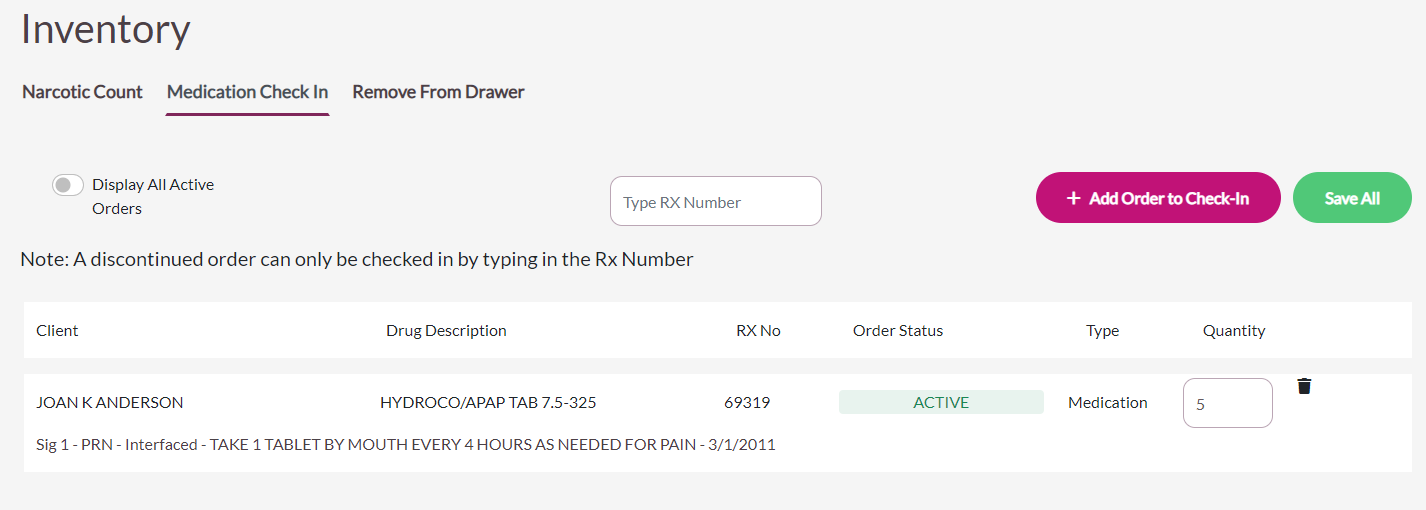
Note: Quantity is the number of pills/capsules or ML, NOT the number of doses. For Example, if there are 1/2 pills in each blister of as 30 pack, users would check in 15. Alternatively, if there are two pills in each blister of a 30-blister pack, user would check in 60.Double Signature
If Check-In Meds: Controlled Medications Require Double Signature is Active, two users will be required to complete the check in process.
- Only Medication orders and specified Other orders that have been checked in will show in Controlled Substance Count. If any controlled order has been administered without being checked in, a warning window will appear. This warning will direct the user to check in a quantity for the medication via Medication Check in.
- If Controlled Substance Count by Schedule is enabled and C-2 narcotics are being checked in, then one of the signatures must have the C2 permission
Procedure for Check in When Scanning is Not Available
Step 1: Select Display all Active orders.
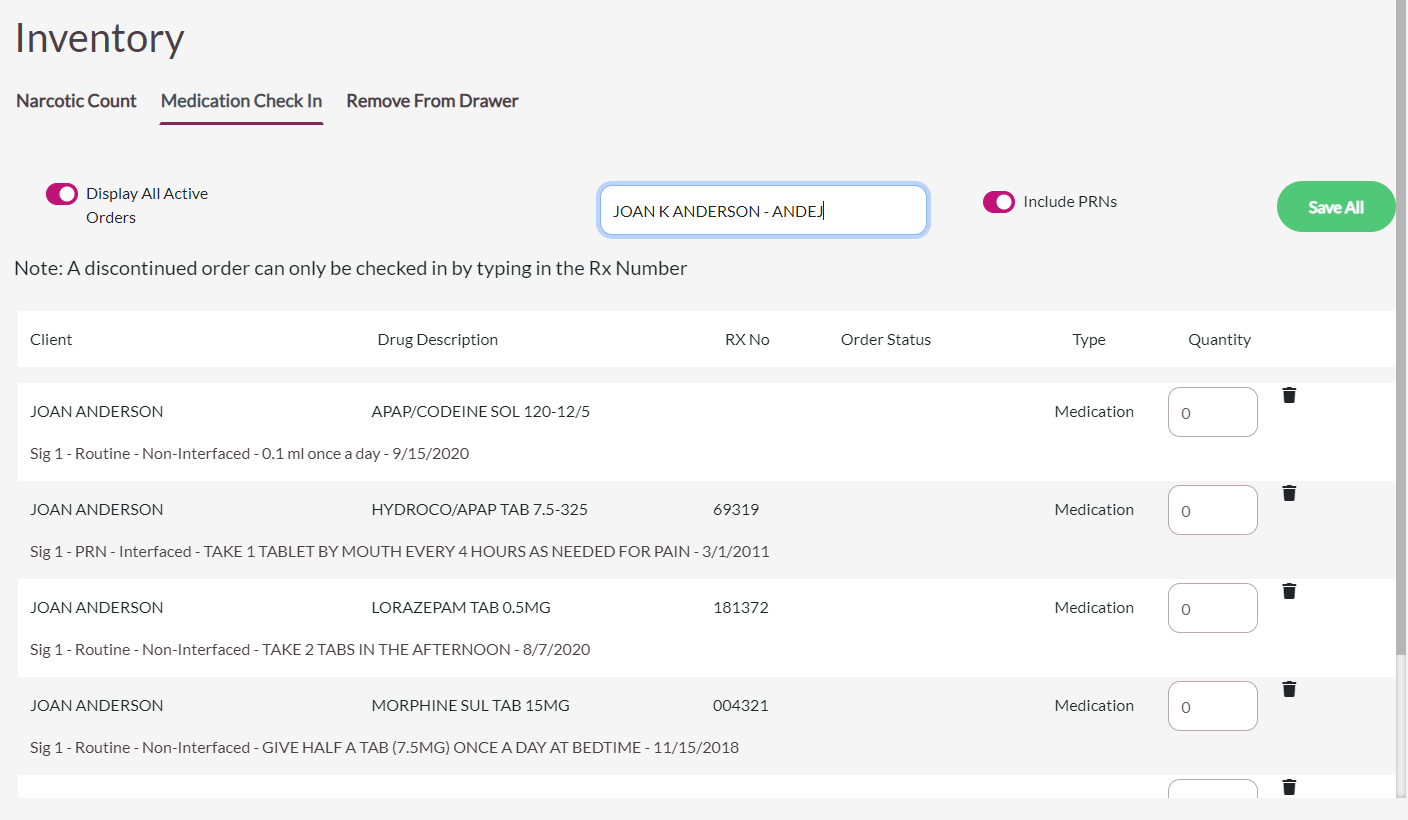
Step 2: Type the resident’s name in the Type Resident Name / ID field.
Step 3: Enter the quantity for each medication requiring check-in.
Step 4: Select Save All
If Check In Meds: Controlled Medications Require Double Signature is Active, two users will be required to complete the check in process.
- Only medication and specified Other orders that have been checked in will show in Controlled Substance Count. If any controlled order has been administered without being checked in a warning window will appear. This warning will direct the user to check in a quantity for the medication via Medication Check in.
Note: Use the Inventory Report to confirm quantity on hand / checked in.
Was this article helpful?
That’s Great!
Thank you for your feedback
Sorry! We couldn't be helpful
Thank you for your feedback
Feedback sent
We appreciate your effort and will try to fix the article