Overview
In this article we will review the Routine Order Tile and what information is provided, refill requests, procedure for requesting a refill, the results of requesting a refill too soon, as well as order types and order details.
Order Tiles
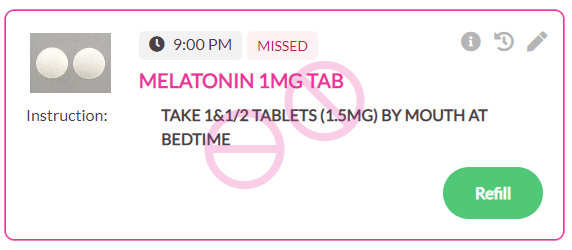
As pictured below, Routine Order Tiles display:
- Order Description (medication name and strength)
- The brand name of the medication in grey (if applicable)
- Order Instructions
- An image of the medication or the corresponding Order Type icon
- Refill button
- Give Time
- Additional Information Icon
- Order action icons, controlled substance icons, and non-interfaced order icons may also be present if applicable. See ALINE eMAR (ACCUflo) Colors and Icons for possible icons.
- The following may also be present when applicable: New, Ending, Discontinued, Possible Duplicate Therapy, and Requires Reconcile.
- Refer to ALINE eMAR (ACCUflo) Administering Orders for additional information pertaining to charting options.
Additional Information
Additional information about an order is available on each order tile. Users should select the Additional Information icon to display the menu options available.
To access the Additional Information:
Step 1: Select Edit to display the Order Detail screen for the specific order.
Step 2: Select Recent Admins to display recent administrations for the order as well as an order actions that have been charted.
Step 3: Select Recent Admins to display recent administrations for the order as well as an order actions that have been charted.
Note: The default numbers of days to display is five; however, users can increase or decrease this number in increments of 5 days.
Recent Administrations
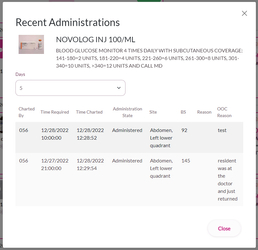
The following information will display when Recent Administrations is selected:
- Username of the person who charted the order
- Order Actions that have been charted.
- Time the order was due
- Time the order was charted
- Administration state (Administered or Did Not Administer) and the reason if the order was charted as Did Not Administer
Order Info
On the order info screen, to display additional information for the order to be administered, select the select More Info button.
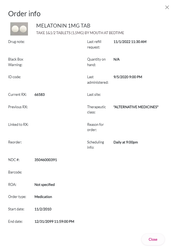
The following information will appear if available:
- Drug Image
- Drug Note
- Last Refill Request
- Black Box Warning
- Quantity on Hand
- ID Code
- Last Administered
- Current Rx
- Last Site
- Previous Rx
- Therapeutic Class
- Linked to Rx
- Reason for Order
- Reorder #
- Scheduling Info
- NDC #
- Barcode
- ROA
- Order Type
- Start Date
- End Date
Order Types and Details
The various types of orders display in different colors to provide users visual cues as to the type of order. Icons may also appear on the order tile to alert users an action needs to be taken. When the order is selected or scanned for administration, the tile will get a check mark, the background will go from white to color, and the border will be darken indicating that the order has been selected for administration. See ALINE eMAR (ACCUflo) Colors and Icons for an explanation of the colors, icons, and their meanings.
Was this article helpful?
That’s Great!
Thank you for your feedback
Sorry! We couldn't be helpful
Thank you for your feedback
Feedback sent
We appreciate your effort and will try to fix the article