Overview
In this article we will discuss the procedure for updating settings in Facility Maintenance.
To get to Facility Maintenance:
- Select the Waffle Menu, Facility Maintenance from the header of any screen in ACCUflo.
| Settings | Facility Settings is used to establish parameters and activate/inactivate features specific to the community. |
All Facility Maintenance options are community specific. These options are reviewed during the implementation process and changes should be made only after careful consideration. Please contact your Aline Implementation Specialist or Account Manager for assistance with these features.
Note: If changes are made, to ensure all changes take effect, please log out and log back into ACCUflo.
Procedure for Controlled Substance Count Features
Step 1: From the Main Resident screen, select Maintenance, Facility Maintenance, Settings.
Step 2: Select Controlled Substance Count
Step 3: View and/or make changes to the features (see detail below).
- Uncheck box next for setting to make it Inactive.
- Check box next for setting to make it Active.
Step 4: If changes are made, select Save.
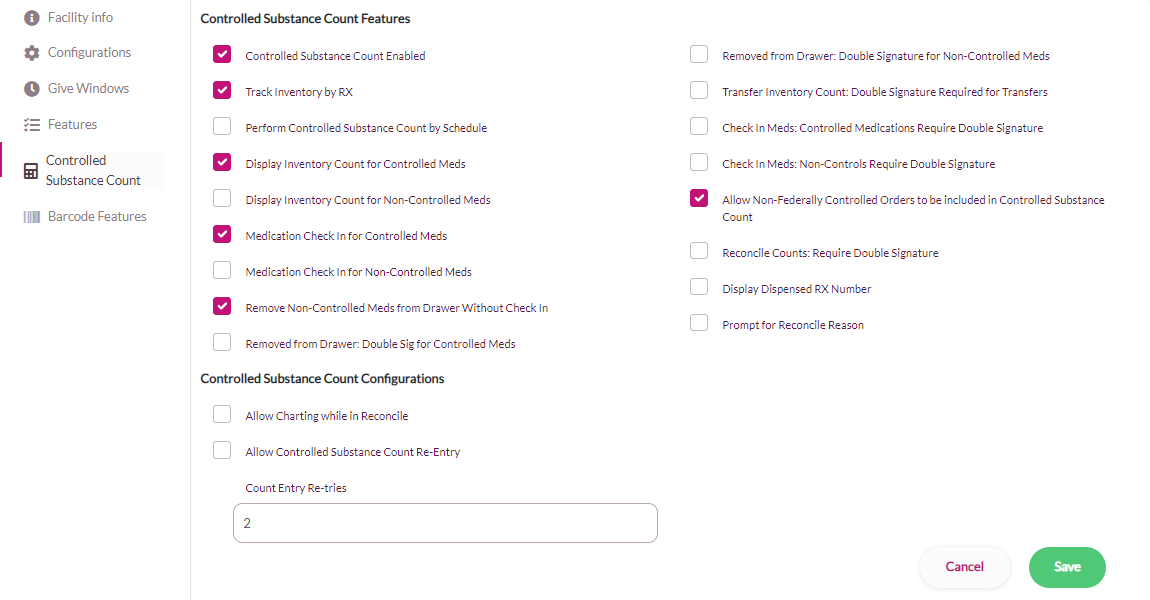
| Controlled Substance Count Features | |
| Controlled Substance Count Enabled | Active enables the Controlled Substance Count feature which allows users to count controlled substances. |
| Track inventory by Rx | Active allows the user to link discontinued RX numbers to new RX numbers. Linked orders will display separately in Controlled Substance Count so the user can enter the number of pills in each RX card. If Active, Transfer Count cannot be used. |
| Perform Controlled Substance Count by Schedule | Active adds a filter for narcotic schedule to the inventory pages (Check-In, Remove from Drawer, Controlled Substance Count). Only users with the nurse role or C2 permission will be permitted to interact with C2 narcotics for inventory functions. |
| Display Inventory Count for Controlled Meds | Active displays the count for the medication on the order detail screen. Do not set to Active unless Medication Check In for Controlled Meds is also Active. |
| Display Inventory County for Non-Controlled Meds | Active displays the count for the medication on the order detail screen. Do not set to Active unless Medication Check In for Non-Controlled Meds is also Active. |
| Medication Check In for Controlled Meds | Active allows the user to check in controlled medications. Must be Active if Controlled Substance Count is Active. |
| Medication Check In for Non-Controlled Meds | Active allows the user to check in non-controlled medications. |
| Remove Non-Controlled Meds from Drawer Without Check In | Active allows the user to use the Remove from Drawer feature to track where a medication is being sent. |
| Removed from Drawer: Double Sig for Controlled Meds | Active requires two unique logins to use the Remove from Drawer feature for a controlled medication. Do not set to Active if two users are not always available when medications are removed from the drawer. |
| Removed from Drawer: Double Signature for Non-Controlled Meds | Active requires two unique logins to use the Remove from Drawer feature for a non-controlled medication. Do not set to Active if two users are not always available when medications are removed from the drawer. |
| Transfer Inventory Count: Double Signature for Required for Transfers | Active requires two unique logins to use the Transfer Count feature. Do not set to Active if two users are not always available when the count may need to be transferred. |
| Check In Meds: Controlled Medications Require Double Signature: | Active requires two unique logins to Check In controlled medications. Do not set to Active if two users are not always available when medications are checked in. |
| Check In Meds: Non-Controls Require Double Signature: | Active requires two unique logins to Check In non-controlled medications. Do not set to Active if two users are not always available when medications are checked in. |
| Allow Non-Federally Controlled Orders to be included in Controlled Substance Count | Active enables the user to add non-federally controlled medications to be counted in Controlled Substance Count. If active, this feature is on the Order Detail page of a medication order. |
| Reconcile Counts: Require Double Signature | Active requires two unique logins to use the Reconcile feature. An advanced or administrative role will be required for the initial login and the secondary login can be a limited or higher role. |
| Display Dispensed RX Number | Active allows users with appropriate role to change the RX number to the dispensed RX on an order for a controlled medication. |
| Prompt for Reconcile Reason | Active allows users performing Controlled Substance Count to add a potential reason for a medication miscount. |
| Count by Dose | Active causes all non-liquid orders to decrement by the number of doses charted instead of Quantity per Dose. Liquid orders ALWAYS decrement by the Quantity per Dose. |
| Controlled Substance Count Configurations | |
| Allow Charting while in Reconcile | Active allows the medpasser to continue charting the administration of a controlled substance despite there being a recorded discrepancy in the count of the controlled substance. |
| Allow Controlled Substance Count Re-Entry | Active allows a reentry of the controlled controlled substance count while using Controlled Substance Count if the initial entry is incorrect. |
| Count Entry Re-tries | Users can specify how many attempts users will have to retry while performing Controlled Substance Count. |
| Display Quantity on Hand during Controlled Substance Count for liquid dose forms | Active shows the quantity on hand when entering inventory counts during controlled substance count for liquid orders, adds a liquid filter and icon to Check in and Remove From Drawer, and adds an Is Liquid flag to order detail. |
| Auto Approve Equivalent C2 Orders | When the feature Auto Approve Equivalent C2 Orders is active, Aline eMAR will automatically approve the old and the new order when specific conditions are met.
|
| Days to Match C2 DC Orders | The value in this field is used by the Auto Approve Equivalent C2 Orders |
Was this article helpful?
That’s Great!
Thank you for your feedback
Sorry! We couldn't be helpful
Thank you for your feedback
Feedback sent
We appreciate your effort and will try to fix the article