Overview
In this QRG article we will review when Residents are not showing on the Cart Computer.
Resident Not Appearing on Cart Computer
If a new resident is not appearing on the cart OR if a resident suddenly stops displaying on the cart, use the following trouble shooting technique to locate the resident:
Step 1: From the Main Residents screen, select the Waffle Menu and then Residents Maintenance.
Step 2: Select the Discharge (DC) button to display discharged residents.
Step 3: Enter the resident’s name in the green field:
Step 4: If the Resident Status is discharged (apparently by accident), contact the pharmacy. All orders for this resident will have to be re-entered.
Step 5: If the resident is not on the list, contact the pharmacy to verify they received admission papers.
Step 6: Enter a temporary resident if the pharmacy is closed.
Step 7: Select Maintenance, Add New Residents to access the Add Resident screen.
If a resident has been entered by the pharmacy and the location doesn’t correspond with a location assigned to a group, the resident will display on the top row of the Main Residents screen with a location of
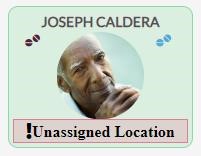 “Unassigned Location” (see Fig. 1). To assign the resident to a valid location:
Step 1: Select the resident.
Step 2: Select Residents Maintenance on the bottom left menu.
Step 3: In the Location Field, select the correct location from the drop-down.
Step 4: Select Save.
Fig. 1 | Unassigned Resident Tile
Was this article helpful?
That’s Great!
Thank you for your feedback
Sorry! We couldn't be helpful
Thank you for your feedback
Feedback sent
We appreciate your effort and will try to fix the article