Overview
In this article we will review the Procedure for Unlocking a User Account.
Description
Advanced and Administrative users can unlock user accounts.
Step 1: Select the Waffle Menu and then select User Maintenance.
Step 2: Search for the desired user and select the user.
Step 3: If a user is locked out of ACCUflo, the User Details will display a checkbox that is checked in the Locked Out field.
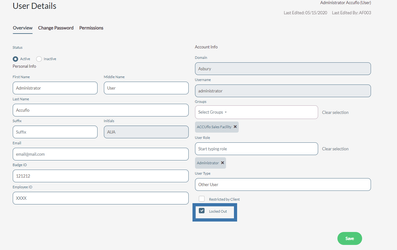
Step 4: Select the Locked Out checkbox to uncheck it and then select Save. This will unlock the user’s account.
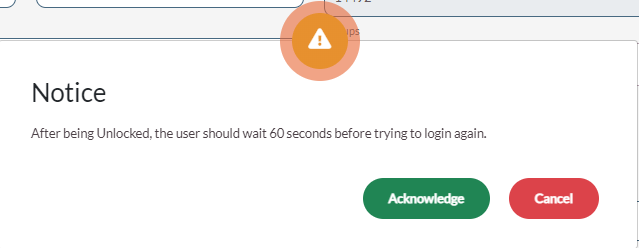
Information: If the user was locked out due to password issues, reset the user’s password while unlocking the user’s account. Any changed passwords will act as a temporary password, and ACCUflo will prompt the user to create their own password during the next user login.Step 5: Recently unlocked users should wait at least 60 seconds after having their account unlocked before attempting to login again.
Was this article helpful?
That’s Great!
Thank you for your feedback
Sorry! We couldn't be helpful
Thank you for your feedback
Feedback sent
We appreciate your effort and will try to fix the article