Overview
In this article we will review the ACCUflo Offline Notifications. More specifically we will review procedures for resolving offline notifications and the process of unlocking ACCUflo via Temporary Authorization Code.
Note: Local installed versions of ACCUflo have the ability to work without an internet connection as a fail-safe; however, these ACCUflo devices should be connected to the network as often as possible.Offline Notification
Local installs of ACCUflo that lose connection and stay offline will experience an Offline Notification warning box displayed on their screen.
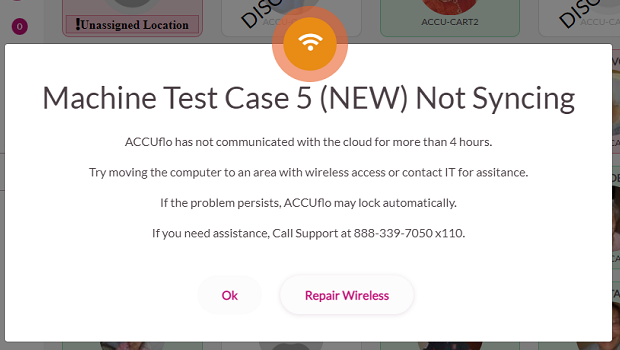
- This Offline Notification warning will display (by default) after being disconnected from the network for more than four hours. This default timing window can be adjusted by Aline Support if needed.
- The Offline Notification displays the cart name that is experiencing connectivity issues and instructs users to reconnect to the network. This can possibly be achieved through the following ways:
- Move the ACCUflo device back in range of a Wi-Fi signal.
- Manually reconnect the device to a functioning Wi-Fi signal.
- Select the Repair Wireless button. Selecting the Repair Wireless button launches an automated process designed to remedy simple connectivity issues—the Repair Wireless button will not fix connectivity issues in all situations.
- Contact Aline Customer Support for additional assistance.
Note: The Offline Notification can be closed by selecting OK, but the notification will display each time the user returns to the Main Residents Screen until the issue is resolved or until the machine is locked outProcedure for Resolving Offline Notification
Upon encountering an Offline Notification, users should:
Step 1: Move the cart, computer, or ACCUflo device to an area with better Wi-Fi connectivity.
Step 2: If network connection has not been restored by moving the device, users should select
Repair Wireless on the Offline Notification popup.
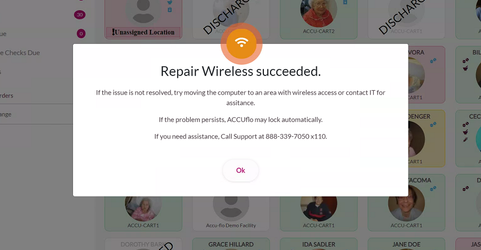
Step 3:If repair wireless is successful, the Repair Wireless succeeded prompt will display.
Step 4: If connectivity issues persist past the default cutoff of five hours, ACCUflo will lock users out of the device, and Aline Customer Support must be contacted for an authorization code to unlock the device.
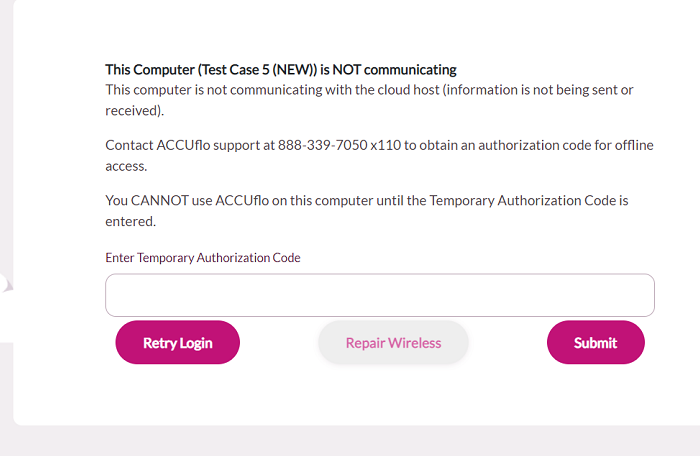
Note: Five hours is the default time period for connectivity lockouts. This setting is customizable and can be edited by Aline Customer Support.Procedure for Unlocking ACCUflo via Temporary Authorization Code
When ACCUflo has remained offline for five hours (default time), ACCUflo will be locked out and will require an authorization code from Aline Customer Support to be unlocked.
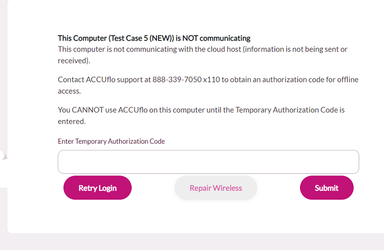
Step 1: If you see the Offline Notification message (pictured above), contact Aline Customer Support.
Step 2: An Aline Customer Support agent will provide you with a temporary authorization code that will unlock ACCUflo and allow users to sign back in.
Step 3: Aline Customer Support will attempt to resolve further connectivity issues during this process.
Was this article helpful?
That’s Great!
Thank you for your feedback
Sorry! We couldn't be helpful
Thank you for your feedback
Feedback sent
We appreciate your effort and will try to fix the article