On Med Management is an option in resident maintenance that has impacts throughout the application.

Non-Interfaced Orders
When the On Med Management flag is set to No, users can ONLY had Non-Facility Administered orders to the resident.
Interfaced Orders
When the On Med Management flag is set to No, ALL interfaced orders will be set to Non-Facility Administered and automatically approved as they are received regardless of the order type specified in the HL7 Message.
Changing the flag from Yes to No
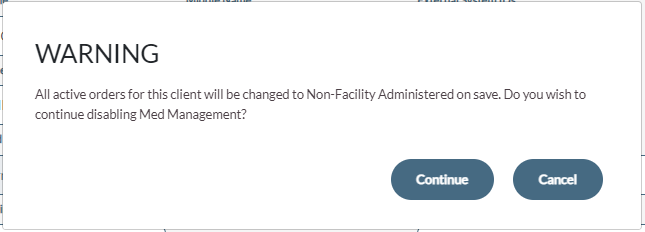
When the On Med Management flag is changed from Yes to No users will receive a prompt stating: “All active orders for this resident will be charged to Non-Facility Administered on save. Do you wish to continue disabling Med Management?”
Changing the flag from No to Yes
When the On Med Management flag is changed from No to Yes, all of the resident’s orders will be returned to pending for review, if the community utilizes order approval. All orders will be changed to Medication. Users should review each order and ensure they are assigned the correct order type, and all details of the order are current and accurate. If not, they should follow their standard community policy for updating the orders.
When the On Med Management flag is set to No, the resident remains active for all purposes within the application, however they will not have a tile displaying. Users can search for a resident profile and include the resident in reports like the Census reports, but they will not have an active tile on the medpass.
Order Maintenance
- If “On Med Management” is No on a resident’s profile:
- Any new order that comes into pending will be changed to an order type of Non-Facility Administered and will be automatically approved.
- If any order is Edited and or Added at the facility level, then only the NFA order type will be available for selection.
Note: Non-Facility Administered orders will appear on the MAR report with blank boxes on the days orders are due. X's will appear on the report the days the orders are not due.Procedure for Changing “On Med Management” Flag for a Resident
- Select Maintenance, Resident Maintenance from the Main Resident Screen.
- Select the Resident.
- On the “On Med Management” Flag, select Yes if the community is responsible for the resident’s medication or No if the resident (or other third party based on community policy) is responsible.
Was this article helpful?
That’s Great!
Thank you for your feedback
Sorry! We couldn't be helpful
Thank you for your feedback
Feedback sent
We appreciate your effort and will try to fix the article