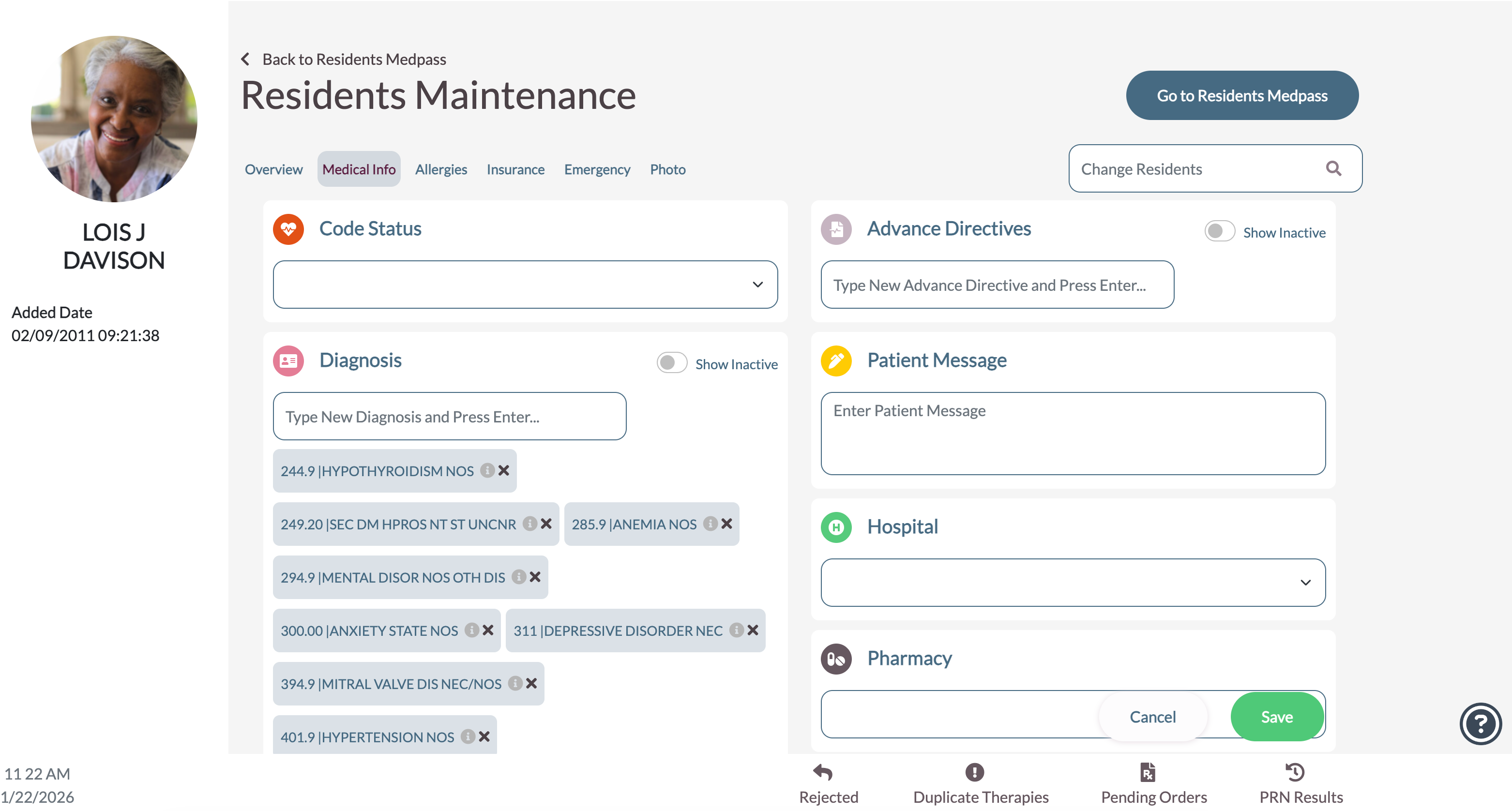
Review the information and make changes as needed.
- If changes are made, select Save on the Left Panel.
- Code Status: Set the Code Status for the resident with this field.
- DNR
- Full Code
- Limited Code
- DNR
- Diagnosis: Diagnosis information displays in this field. Users can edit Diagnoses from this screen
- New Diagnosis Procedure
- Select the Diagnosis field
- Type in new Diagnosis
- Press Enter
- Select the Diagnosis field
- Deactivating/viewing inactive Diagnoses
- To deactivate, click the x on the active Diagnosis.
- To view, click the Show Inactive toggle. Inactive Diagnoses will appear and be highlighted in light red.
- To deactivate, click the x on the active Diagnosis.
- Click View Right Side of POS Diagnosis to be taking to the RSPOS Diagnosis entries for the resident.
- New Diagnosis Procedure
- Diet: Diet information displays in this field. Users can edit Diets from this screen
- New Diet Procedure
- Select the Diet field
- Type in new Diet
- Press Enter
- Deactivating/viewing inactive Diets
- To deactivate, click the x on the active Diet.
- To view, click the Show Inactive toggle. Inactive Diets will appear and be highlighted in light red.
- To deactivate, click the x on the active Diet.
- Click View Right Side of POS Diet to be taking to the RSPOS Diet entries for the resident.
- New Diet Procedure
- Patient Message: Information in this field will flash on and off in a box on the resident’s screen.
- Hospital: Select correct hospital from drop-down menu.
- Pharmacy: Select correct pharmacy from drop-down menu.
- Healthcare Power of Attorney
- Name - This field is editable
- Phone Number - This field is editable
- Name - This field is editable
- Record Numbers: If required by the community’s policy, enter the numbers in the applicable fields.
- Medical Record Number
- Medical Record Number
- Code Status: Set the Code Status for the resident with this field.
- Medicaid Number
- Medicare Number
Was this article helpful?
That’s Great!
Thank you for your feedback
Sorry! We couldn't be helpful
Thank you for your feedback
Feedback sent
We appreciate your effort and will try to fix the article