Overview
In this article we will review the procedure for changing a password for user account.
Description
Step 1: Select the Waffle Menu.
Step 2: Select User Maintenance.
Step 3: Select the user whose password needs to be changed to display the Overview screen.
Step 4: Select Change Password on the Header Menu of the User Details Page.
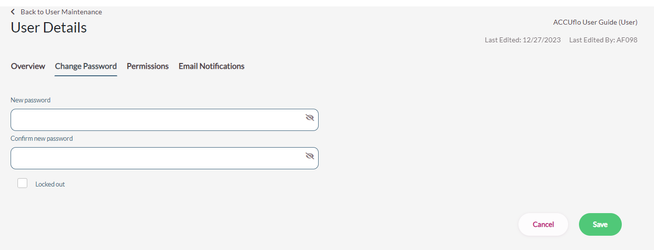
Step 5: Enter the new password. Aline recommends using the default password you enter for new users.
Step 6: Enter the new password again in the Confirm New Password field.
Step 7: Select Save.
Note: The user will be required to set a new password the next time they login.
Was this article helpful?
That’s Great!
Thank you for your feedback
Sorry! We couldn't be helpful
Thank you for your feedback
Feedback sent
We appreciate your effort and will try to fix the article