Overview
In this article we will review the process of editing a User.
Description
Step 1: Select the Waffle Menu.
Step 2: Select User Maintenance.
Step 3: Select the user that needs to be edited to display the Overview screen.
Step 4: If the user is no longer employed or if the username is incorrect, select the Inactive radio button.
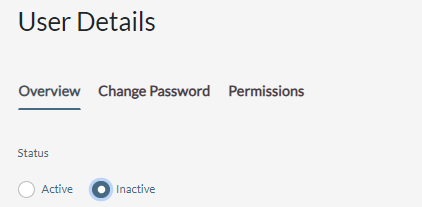
Step 5: Edit the First, Middle, or Last name as needed. These should be edited to correct spelling errors only. If the user has a name change, best practice is to deactivate the current user and add a new user.
Step 6: Edit the Name Suffix, Email, Badge ID, Groups, and Restricted by Resident as needed.
If Locked Out is checked, it can be unchecked to unlock the account.
Note: A locked out account may mean that the user has forgotten their password and requires a password reset. For more information see Procedure to Change Password.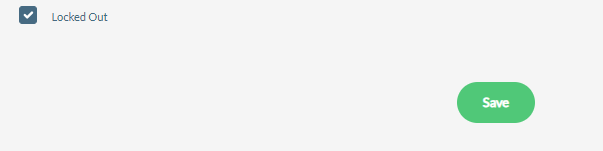
Note: The username and initials cannot be edited. If there was a spelling error, you will need to inactivate the old user profile and add a new user.
Was this article helpful?
That’s Great!
Thank you for your feedback
Sorry! We couldn't be helpful
Thank you for your feedback
Feedback sent
We appreciate your effort and will try to fix the article