Overview
In this article we will review the Remove from Drawer feature. We will look at the procedures for Remove from Drawer, and Removing from Drawer when scanning is not available.
The following features are used when Controlled Substance Count is enabled at a community. Please contact Aline Customer Support if your community would like to start using Controlled Substance Count.
This feature allows the community to remove controlled substances from the drawer, for active or discharged residents, to send back to the pharmacy (Discontinued/Expired orders), send with family for LOA’s, or for medications being destroyed.
If Controlled Substance Count by Schedule is enabled the Nurse role (or C-2 Permission) is required to removed C-2 medications from the drawer. Users with a Nurse role (or C-2 Permission) will have C-2 medications filtered by default. All other users will have C-3, C-4, C-5, and Non-Federally Controlled orders selected by default and will not be able to remove C-2 medications form the drawer but can be one of signers
Procedure for Remove from Drawer
Step 1: Select the Waffle Menu, then select Remove from Drawer from the header of any screen in ACCUflo.
Step 2: Scan the barcode
Step 3: The order will be automatically populated

Step 4: Enter the count being removed from the drawer and the reason.
Step 5: Repeat steps 1-4 for each order requiring removal from drawer for the resident. You may remove multiple orders from the drawer at one time, but they must all be for the same resident.
Step 6: Select Save All.
Note: If Removed from Drawer: Double Signature for Controlled Meds is active, two users will be required to remove from drawer. If the entire quantity on hand is removed from a discontinued/expired order that is linked to an active order, the order will automatically unlink since the count is now zero on the discontinued/expired order.Procedure for Remove from Drawer When Scanning is Not Available
Step 1: Type the resident’s name in the Type Resident Name / ID field.
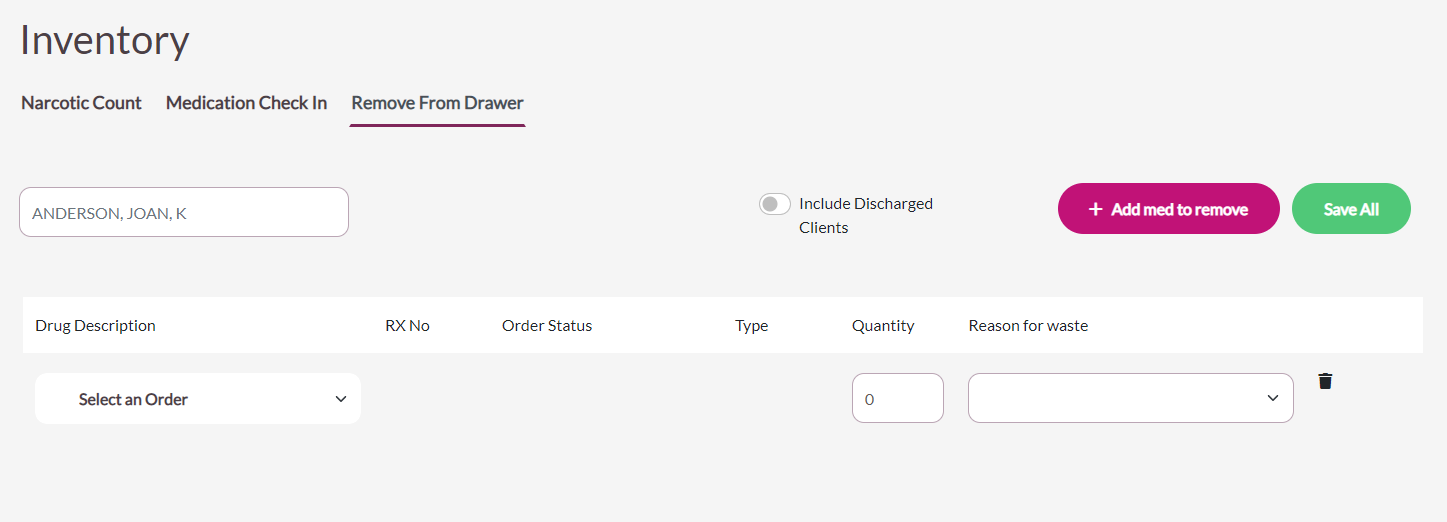
Step 2: Using the Select an Order drop down select the order to remove from the drawer
Step 3: Enter the quantity and reason for removal
Step 4: To add an additional order, select + Add med to remove
Step 5: Repeat steps 1-4 until all medications requiring removal have been entered.
Step 6: Click Save All
Note: If Removed from Drawer: Double Signature for Controlled Meds is active, two users will be required to remove from drawer. If the entire quantity on hand is removed from a discontinued/expired order that is linked to an active order, the order will automatically unlink since the count is now zero on the discontinued/expired order.
Was this article helpful?
That’s Great!
Thank you for your feedback
Sorry! We couldn't be helpful
Thank you for your feedback
Feedback sent
We appreciate your effort and will try to fix the article