Overview
There are two options for managing inventory in ACCUflo, transferring counts and tracking inventory by Rx number. In this article we will review the Track Inventory By Rx (Order Linking) feature.
Linking Orders
When Order Linking at the community is enabled, a resident's controlled substance order that is replaced with an updated order using the same controlled substance on hand must be linked together. In doing so, Aline eMAR will track all associated RX numbers with that inventory of controlled substances.
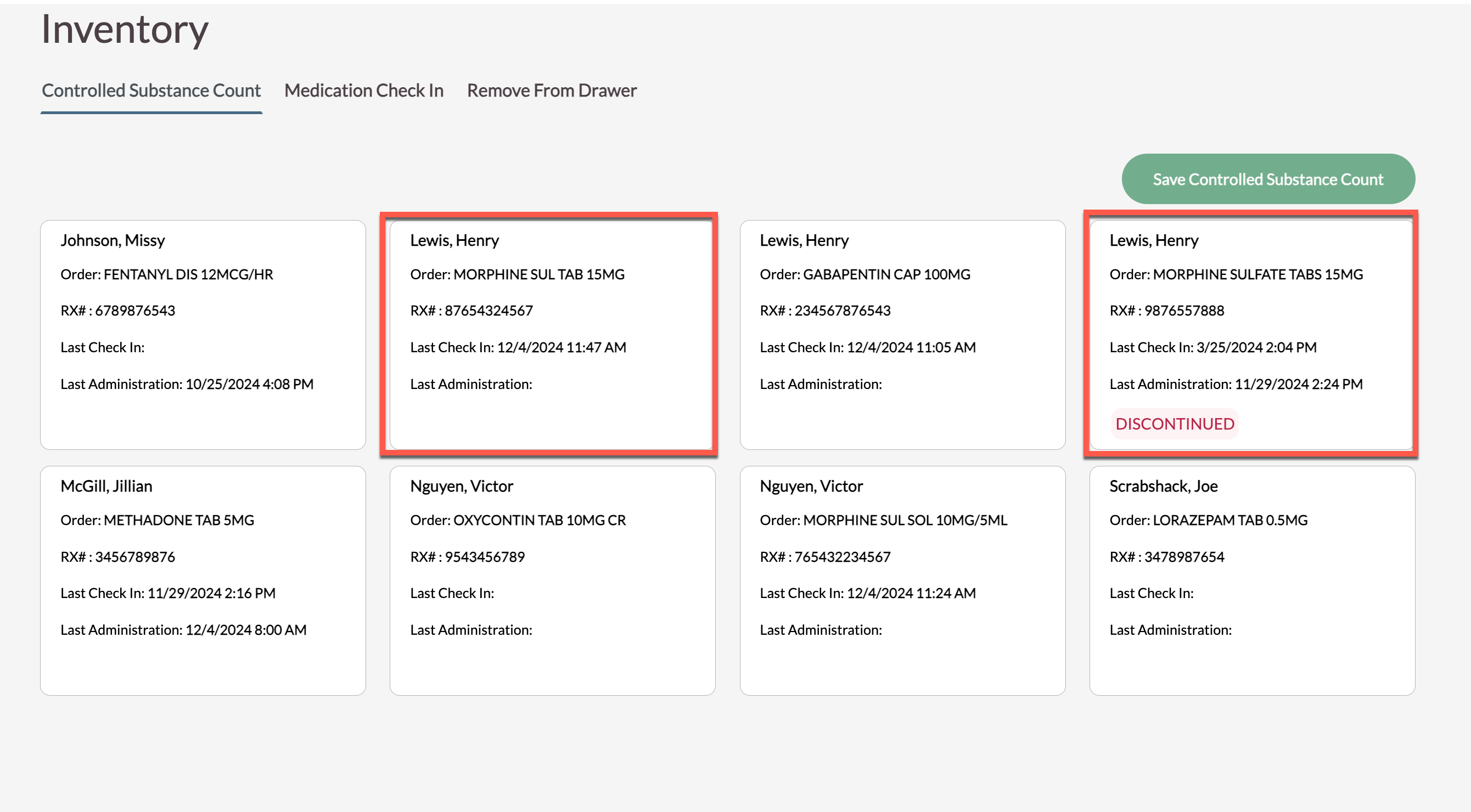
When controlled substance orders have been discontinued, the order will continue displaying in Controlled Substance Count until the order has been Removed from the Drawer or Linked and the quantity used up.
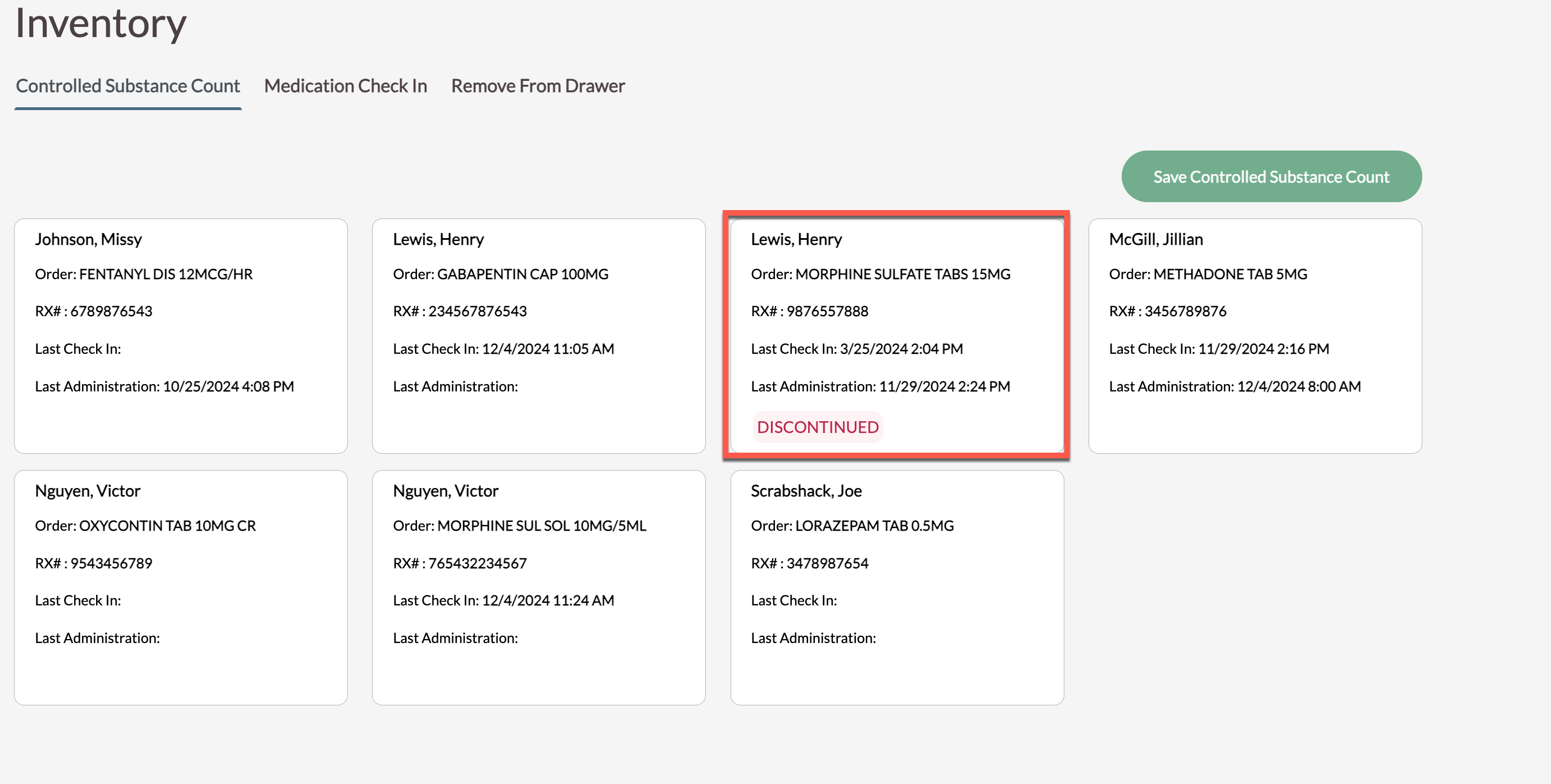
After a new, replacement order is received as a Pending Order, users should link the old, discontinued order to the new order in order for Aline eMAR to decrement the count correctly:
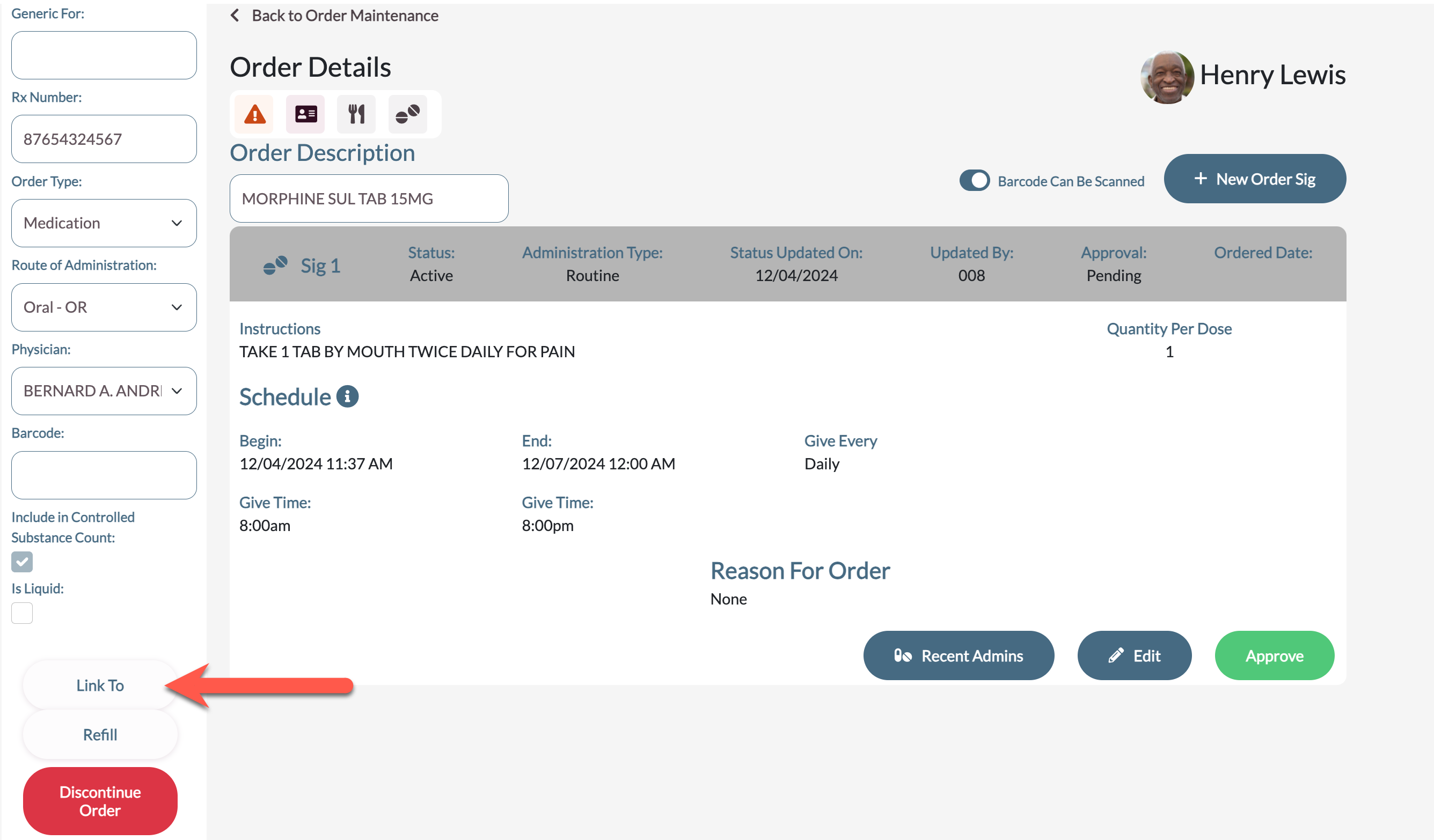
Step 1: Review the new Pending Order. Before approving the new order, select the Link To button on the left panel.
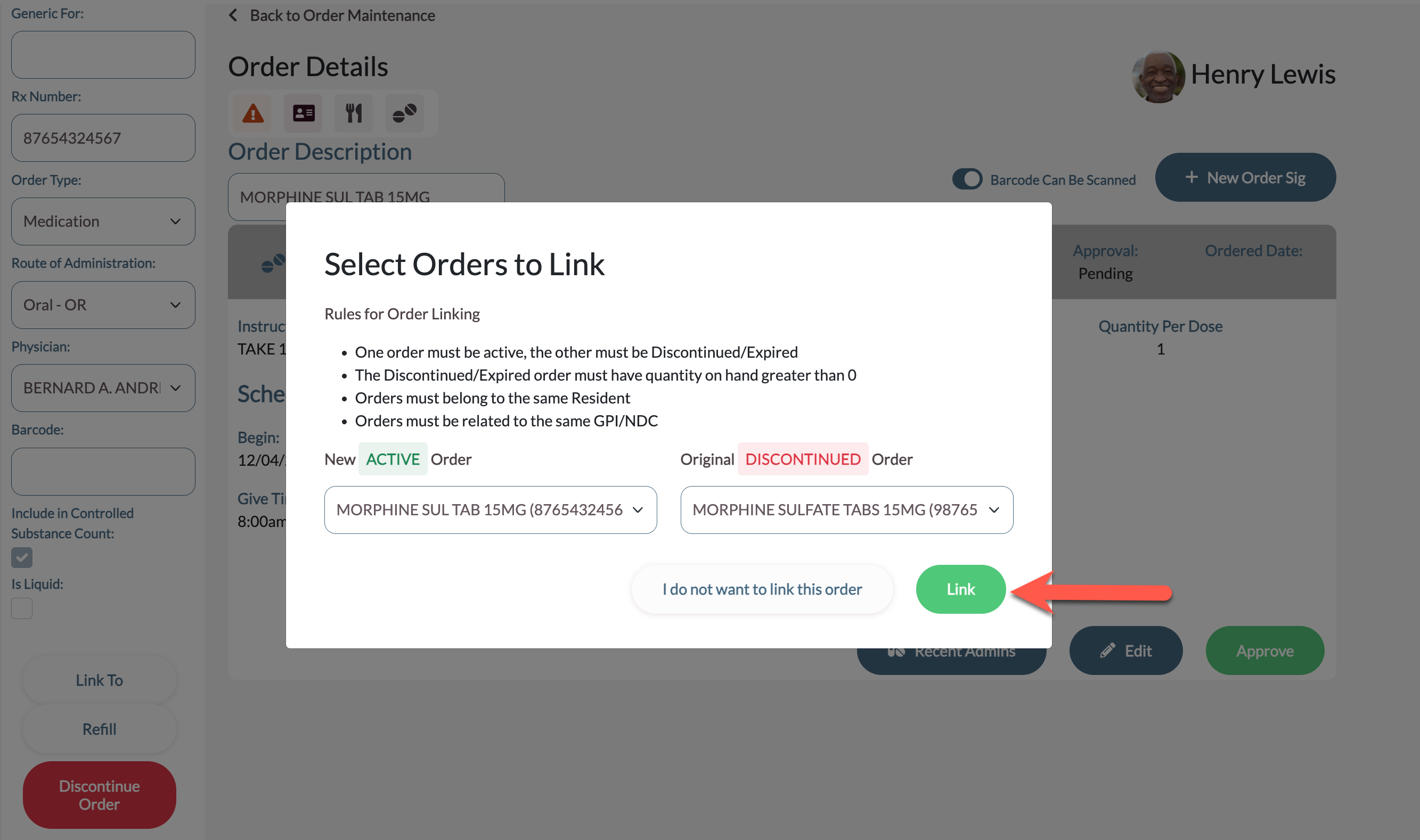
Step 2: Aline eMAR will then display the new order to link to a selected discontinued order. All therapeutically identical discontinued orders with inventory that are assigned to that resident will display. Ensure the correct order to link to is selected. Select Link.
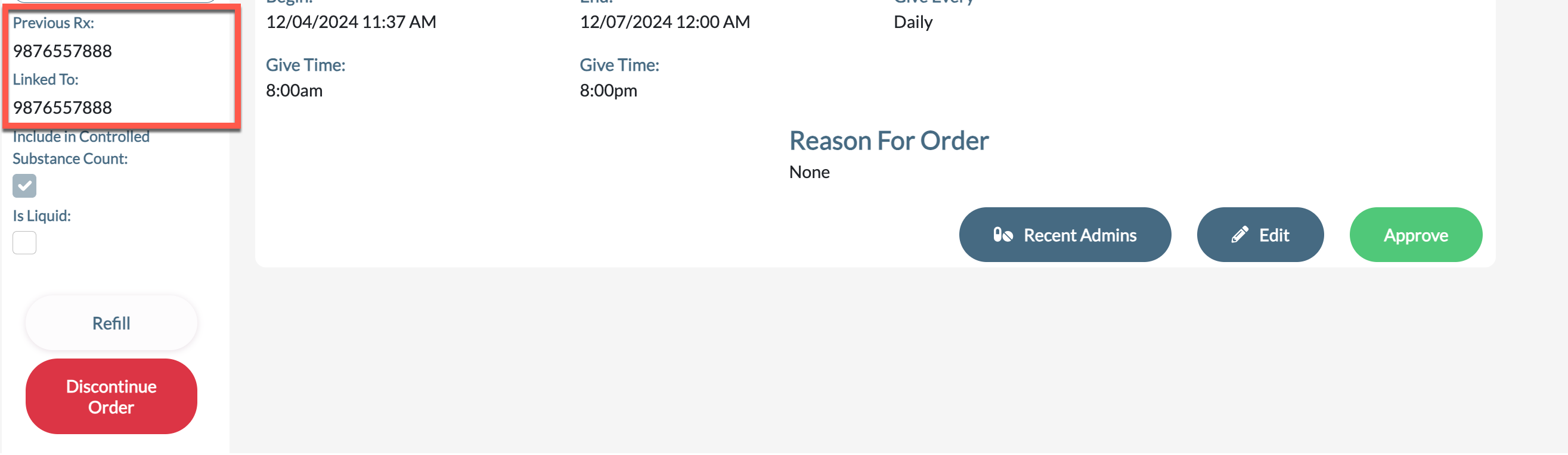
Step 3: The orders are now linked. The Order Details Screen will display the previous RX along with the current RX.
In the Controlled Count process, the order tile will also display as Linked:
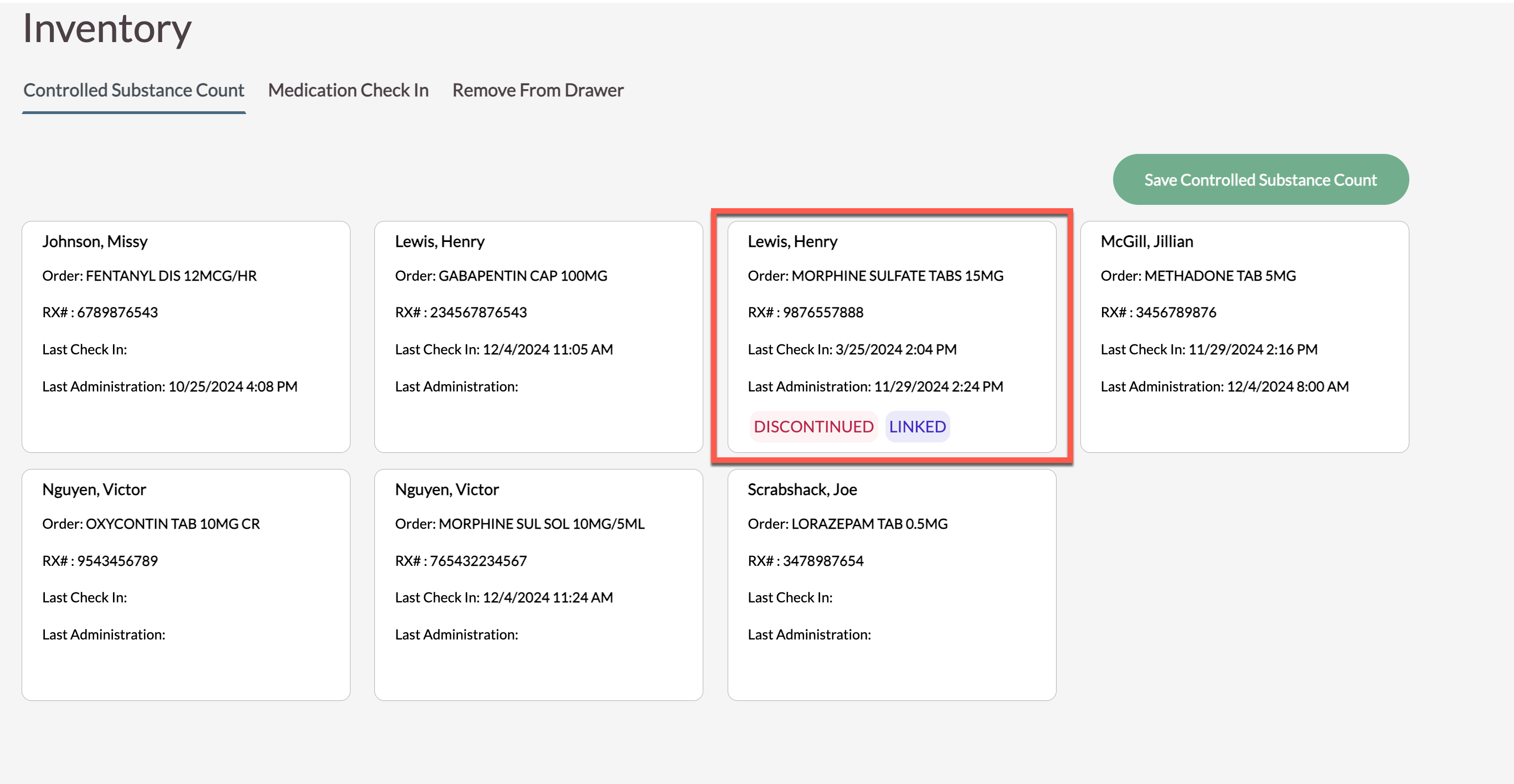
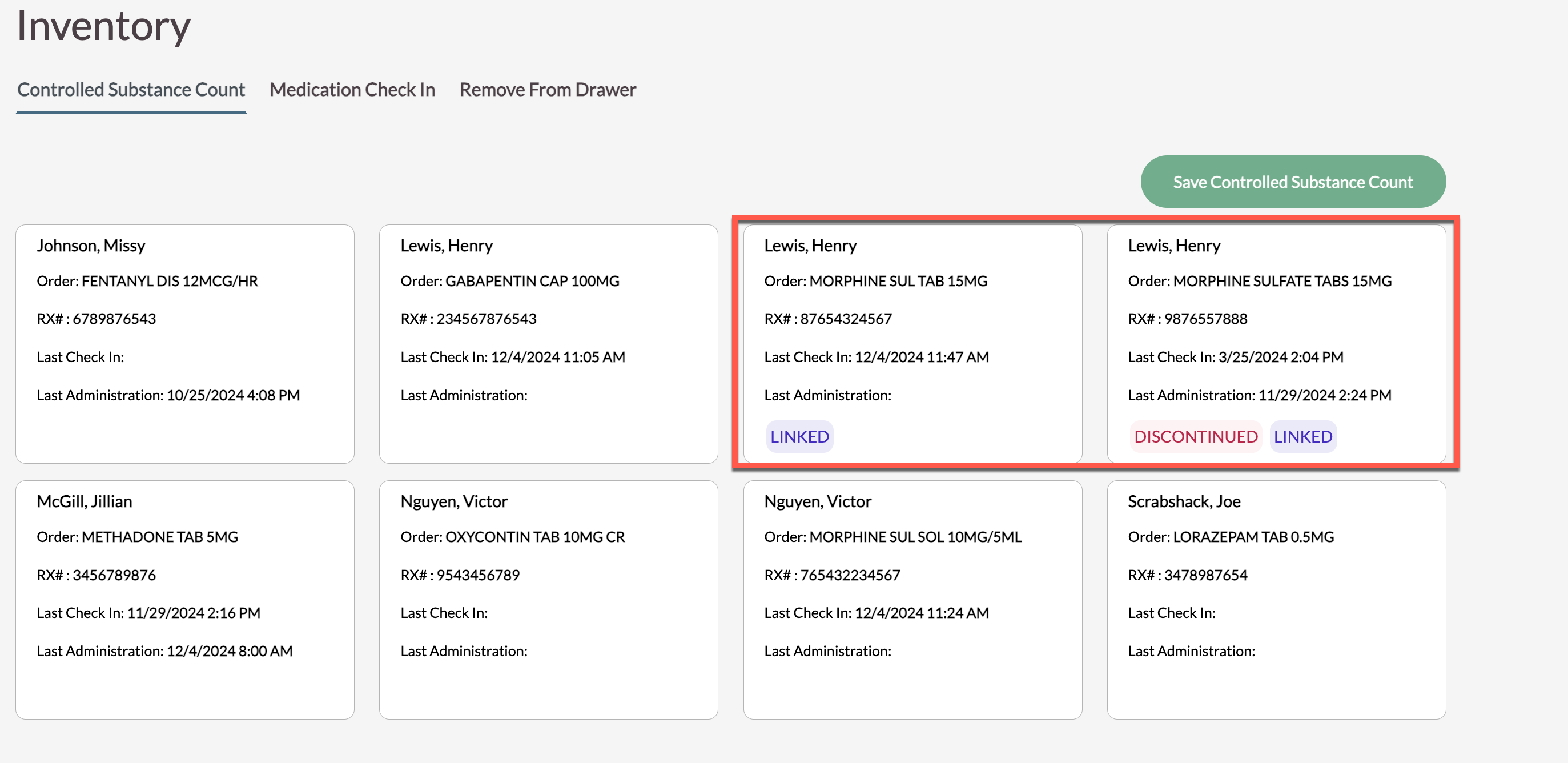
If the new, replacement order has an inventory checked in with it, both orders will display in Controlled Count and should be counted separately. The old inventory should be used up completely before using the new inventory.
Once the old inventory is used up, the discontinued order tile will disappear from Controlled Count:
Unlinking Orders
In some cases, unlinking orders may be necessary.
Step 1: Select the Waffle Menu and then select Order Maintenance.
Step 2: In Order Maintenance, select a desired resident.
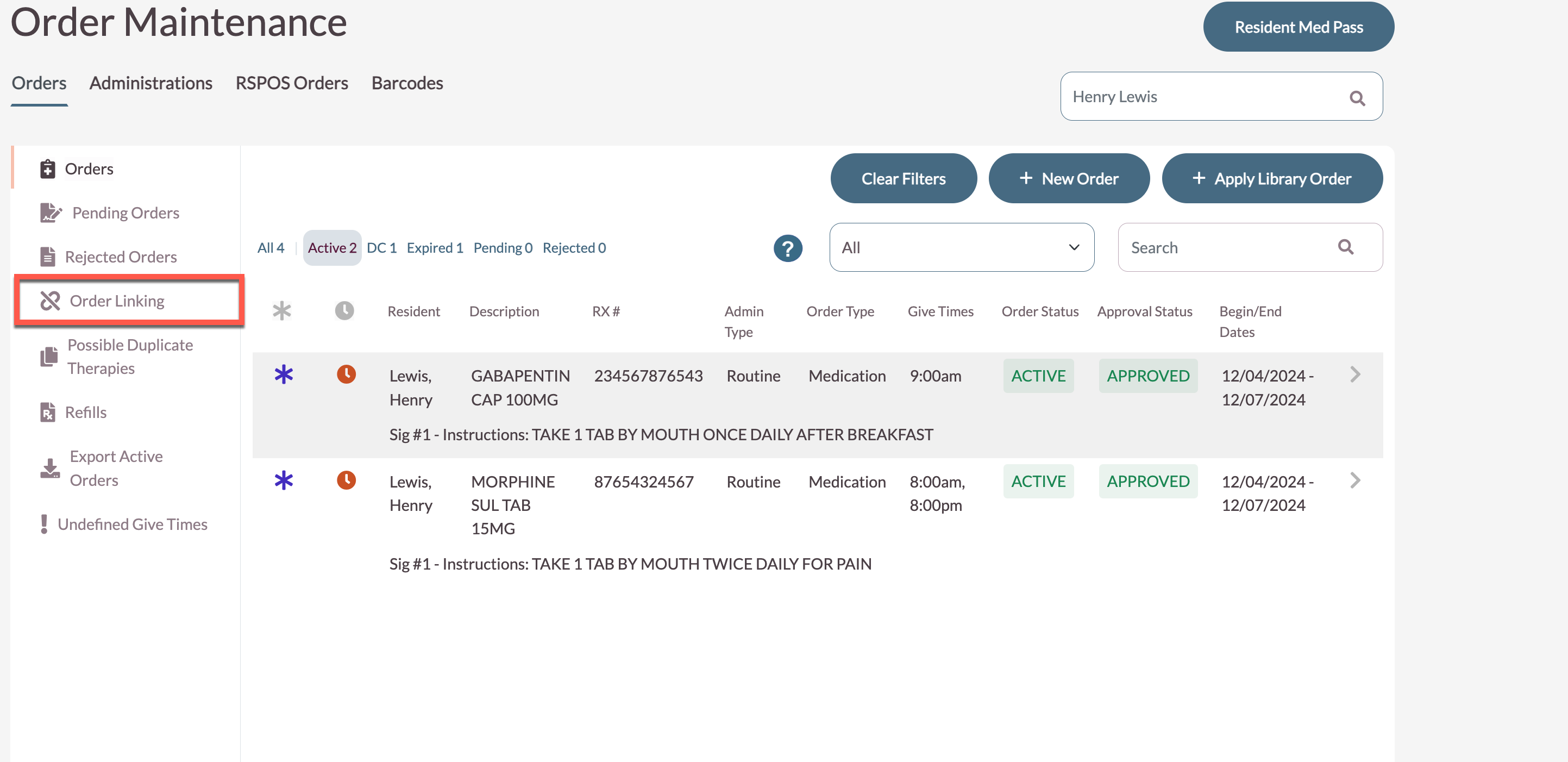
Step 3: Select Order Linking. This will display all of the resident's linked orders.
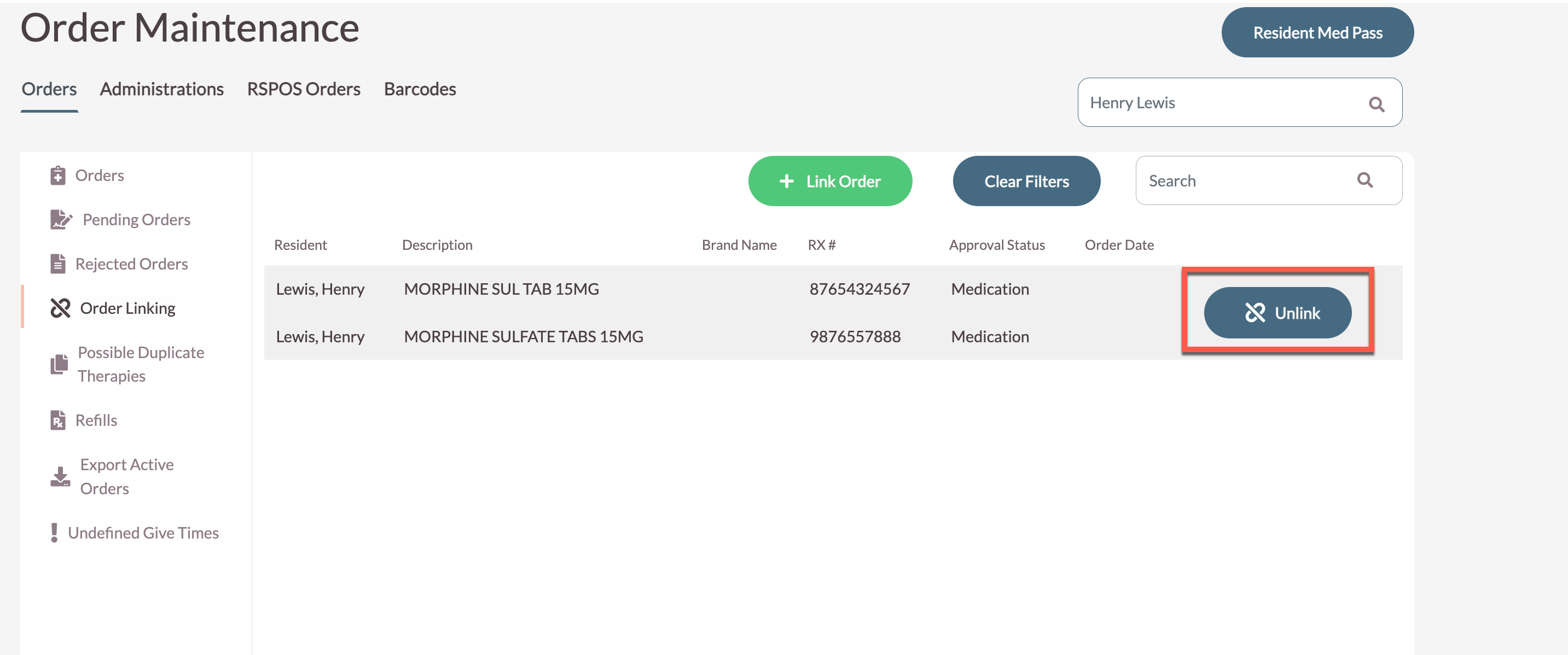
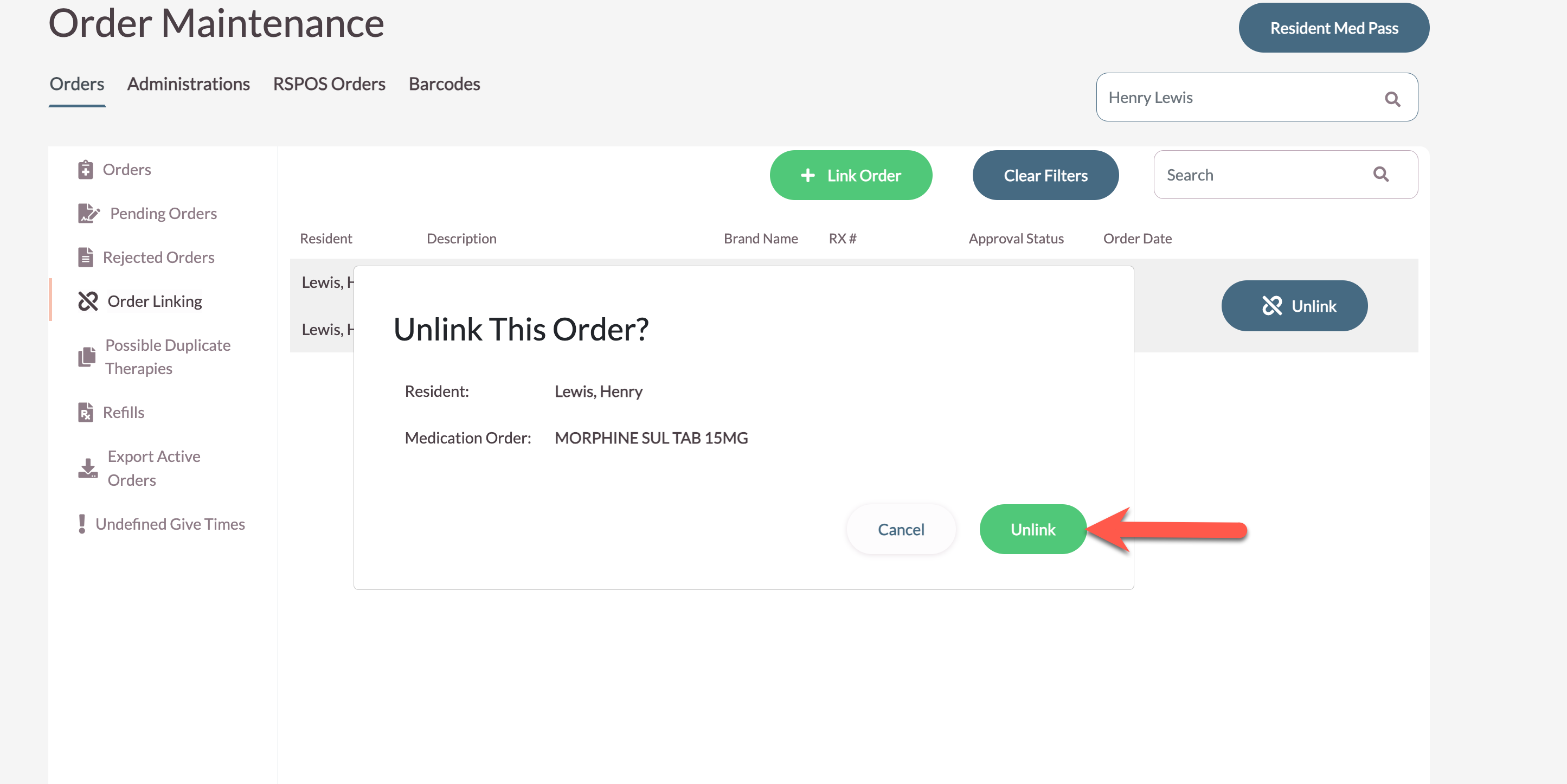
Step 4: Select Unlink to unlink the linked orders.
Step 5: Confirm that the orders are to be unlinked.
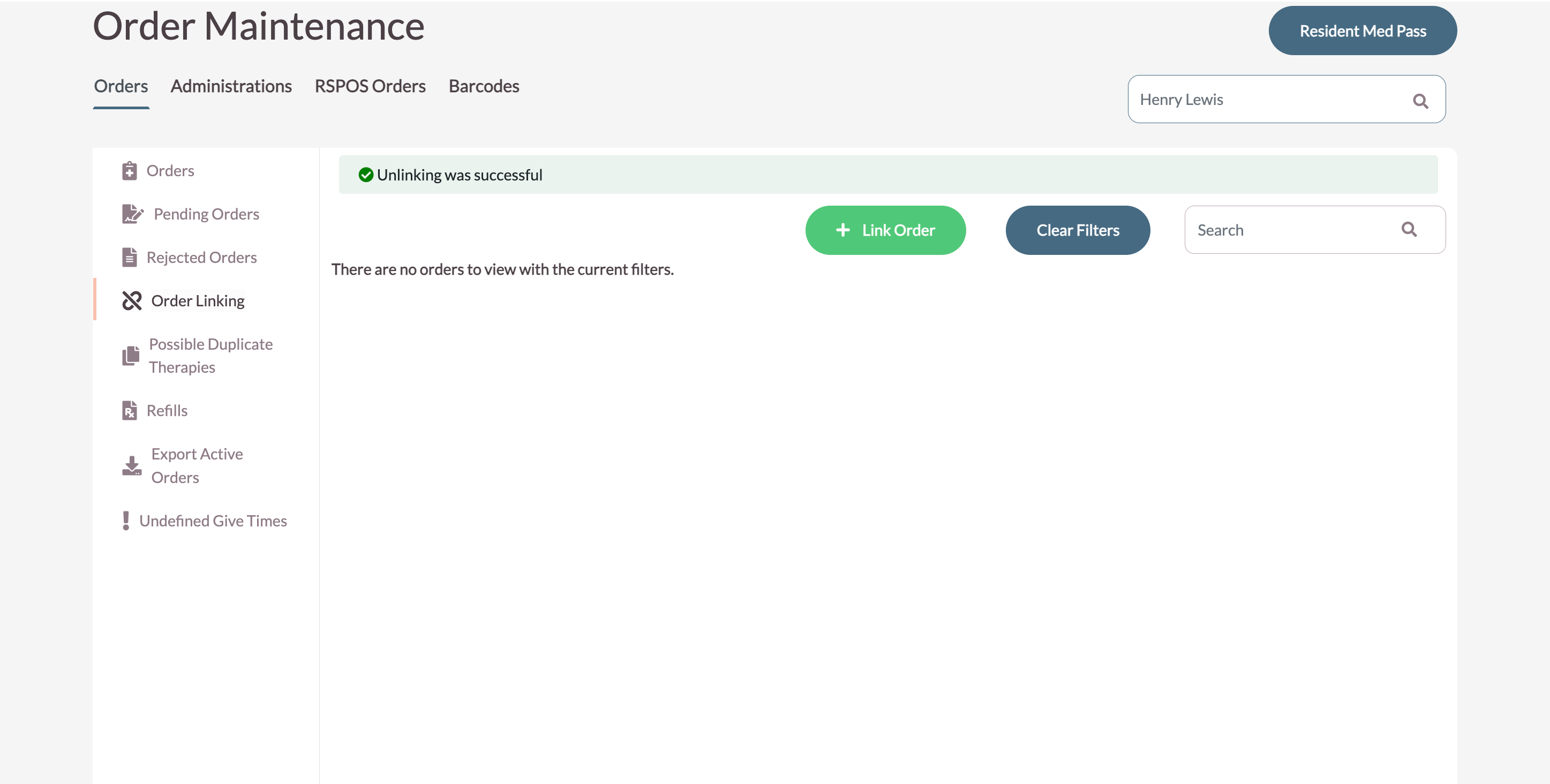
Step 6: The orders are no longer linked.
Was this article helpful?
That’s Great!
Thank you for your feedback
Sorry! We couldn't be helpful
Thank you for your feedback
Feedback sent
We appreciate your effort and will try to fix the article