Overview
In this article we will review the Date Range of Orders Feature. This feature, formerly called Out of Cycle, allows users to view orders due for a selected time range.
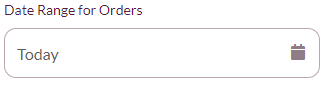
This feature may be used for a number of reasons:
- To determine if an order will display for administration at the correct time
- To administer an order early if requested to do so by the doctor
- To chart an order as Did Not Administer so it does not display when it would be due
- To chart a PRN that was given earlier but not charted
Using the Date Range of Orders Feature
Step 1: Select the desired resident.
Step 2: From the resident’s screen, select the Date Range for Orders menu in the left panel.
Step 3: From the menu displayed, select the desired timeframe for which orders should display.
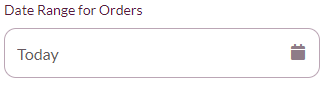
- To use a custom time frame, select Custom Date Range, then use the calendar icons to select the timeframe for which orders should display.
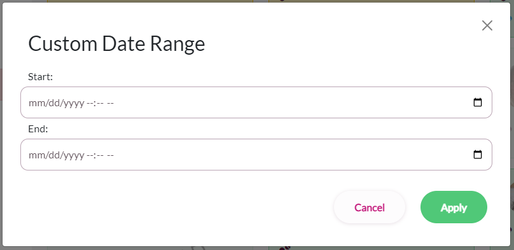
Step 4: Select Submit.
Step 5: The Date Range of Orders drop-down is now red and the OOC date and time range is displayed
- When a pre-defined range is selected, it will display in the drop-down.
Step 6: To cancel the Date Range of Orders selection, click the Remove Date Range link below the drop down. The Date Range of Orders drop-down will no longer be red.
Note: It is imperative that users remove their date range after using the feature in order to prevent charting orders at the incorrect time.
Was this article helpful?
That’s Great!
Thank you for your feedback
Sorry! We couldn't be helpful
Thank you for your feedback
Feedback sent
We appreciate your effort and will try to fix the article