Overview
In this article we will review the different procedures for reports.
To ensure an accurate report, prior to printing a report, users should verify there are:
- No Routine Orders due to be charted.
- No Pending Orders.
- No uncharted Results.
- No uncharted Missed Orders.
- No uncharted behaviors.
- No uncharted Missed Behaviors.
Procedure for Previewing Current Month’s Reports from the Resident’s screen
Step 1: Select Report Preview on the Left Panel of the screen.
Step 2: Select the desired report: MAR, TAR, POS, Behavior Monitoring, Vitals.
Step 3: The system will process the request and the current month’s report for the resident will display.
Step 4: Depending on the browser used and your community’s settings, users may be prompted to open the report or will the report will open in a separate tab.
Step 5: Scroll down to view all pages.
Step 6: Select the Printer icon to print the report.
Step 7: Select the Save File or Download icon to save the report.
Step 8: Select the X on the Preview tab to close the report.
Note: Save, Print and Zoom options vary depending on the browser. If you do not see any options, move the mouse or click on the screen to display the options.
Procedure for Generating Reports from Reports Tab
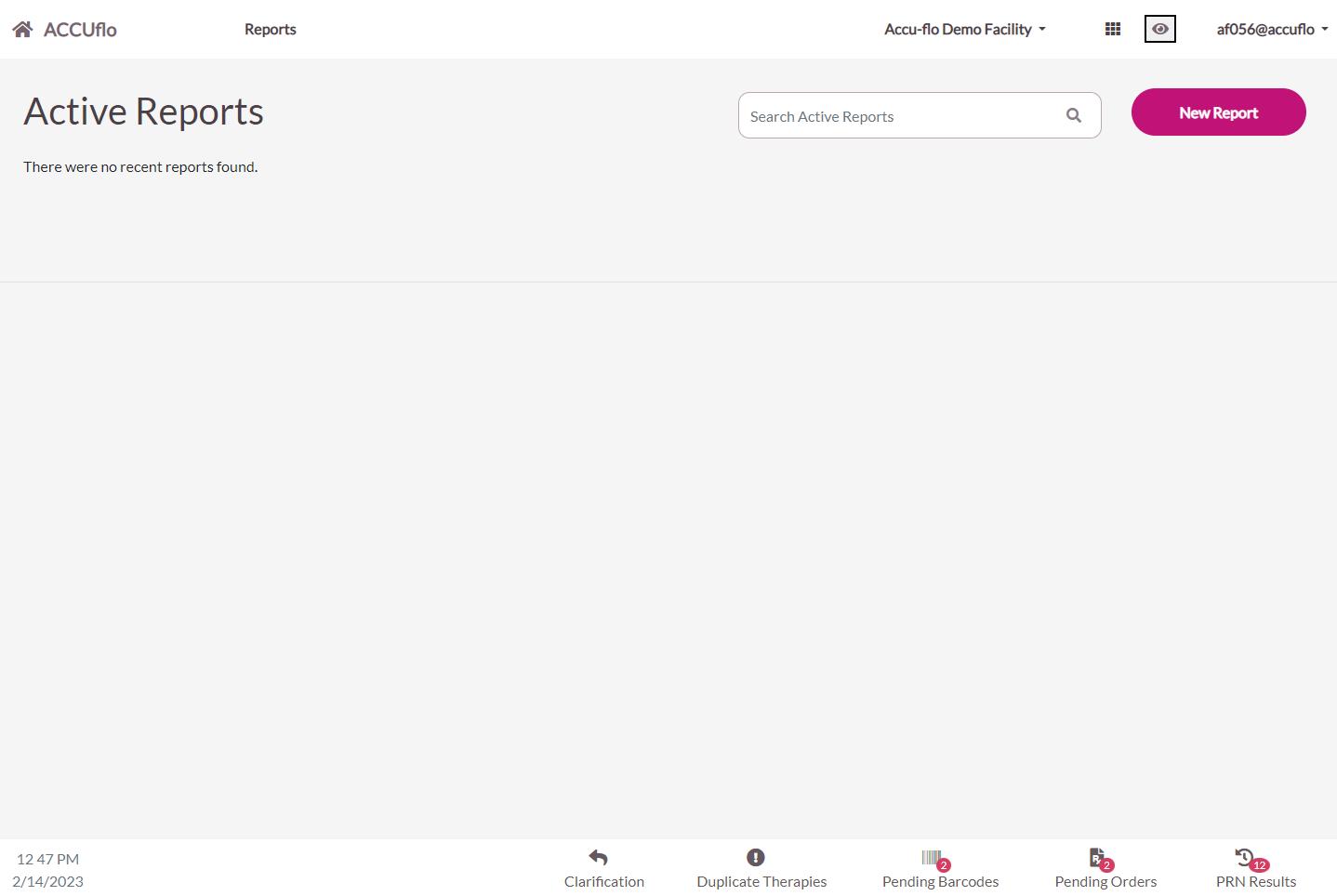
Step 1: Select Reports from the header of any screen in ACCUflo.
Step 2: Select New Report.
Step 3: Select the desired report from the list of reports or type in the search box to display the desired report from the list.
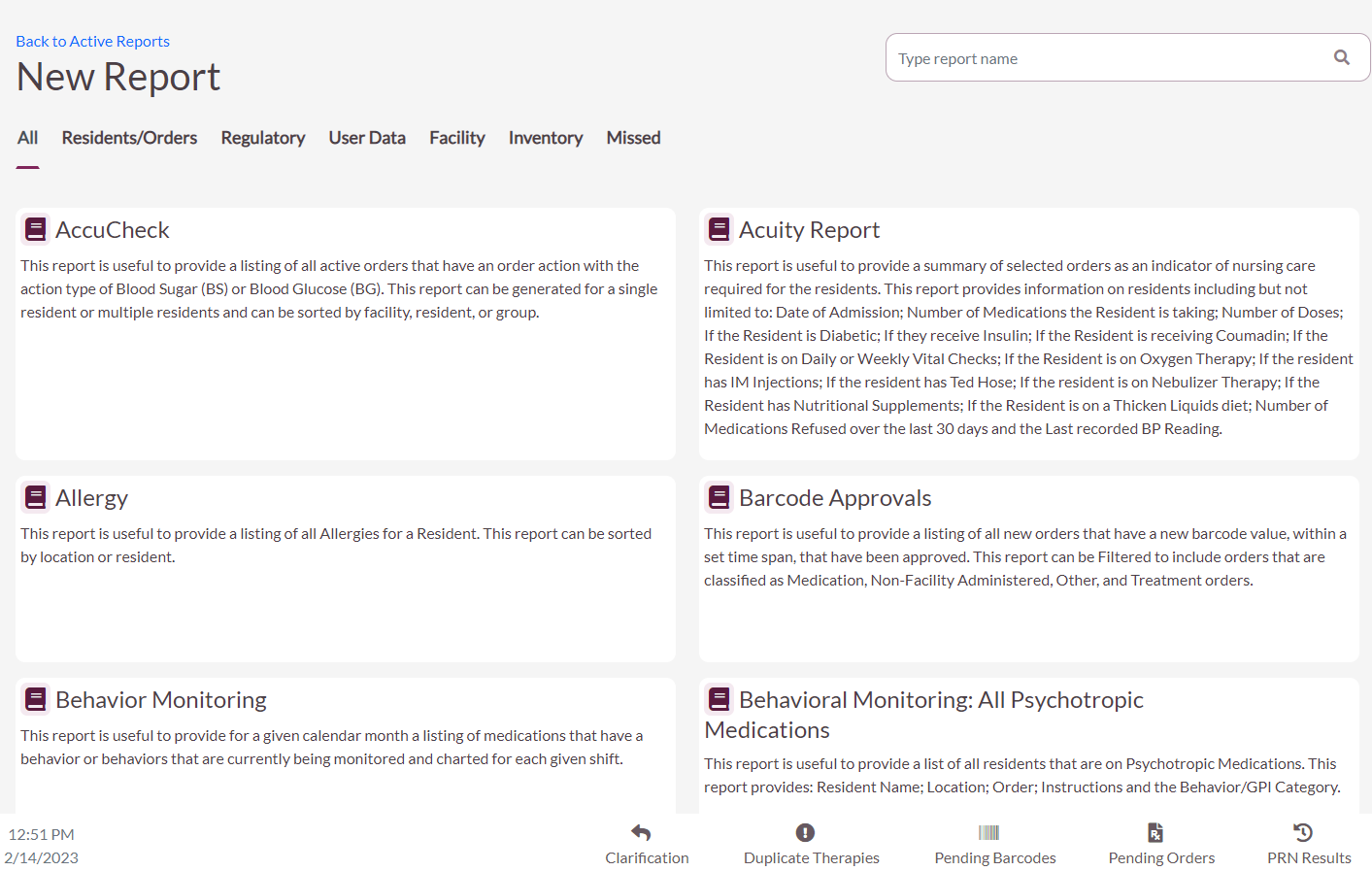
Step 4: Refine the report by selecting the appropriate criteria:
- Recipient: Users may choose one or more residents. If Reports is selected from a Resident’s screen, that resident will be selected by default.
- Groups: Users may choose one or more groups.
- If Reports was selected from the Main Residents screen and criteria for the report is not specified, the report will be generated for all residents in the community.
- Other criteria may also be available depending on the report; for example, order type, date, etc.
Note: Don't forget to refine the searches; otherwise ACCUflo will pull data for the entire community. Select Include Discontinued Medications, Include Notes, and Include Discharged Recipients, if needed. These options display based on the Report.
Step 5: Select the date/time range if applicable.
Step 6: Select the sort order if applicable.
Step 7: Select the report type, PDF or Excel
Step 8: Select Generate to run the requested report.
Step 9: The report will display run and display in a new tab.
Step 10: Once complete, the report will be available for viewing and printing from the report queue.
Note: Depending on the size of the report, it may not be immediately available for viewing.
Viewing Reports in User’s Queue
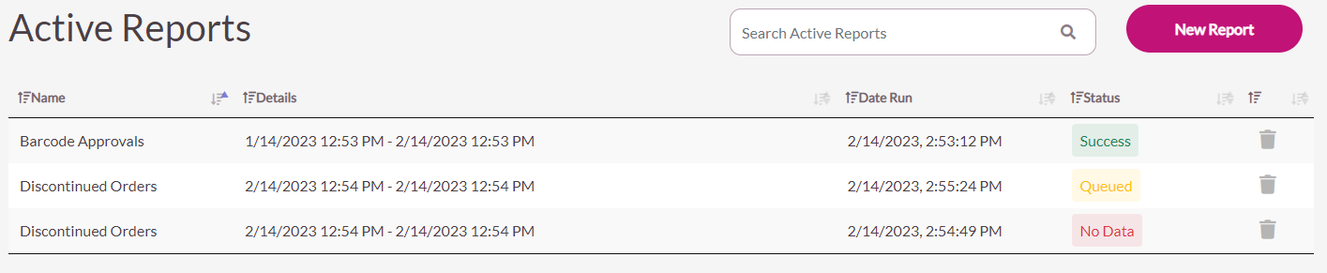
Step 1: Select the Reports icon in the header of the screen.
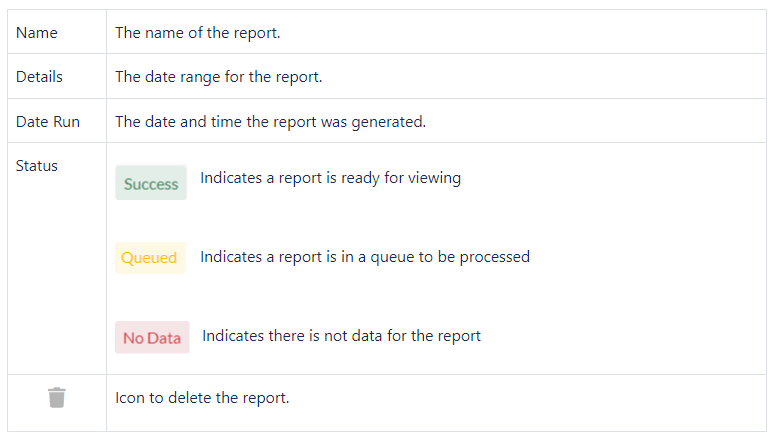
- The Report screen will display any reports the user has generated.
Procedure for Viewing Reports
Step 1: Select desired report.
Step 2: ACCUflo will display the requested report.
Step 3: Scroll down the screen to view all pages.
Step 4: Select the Printer icon to print the report.
Step 5: Select the Save File icon to save the report.
Step 6: Select Close to exit Reports or Back to Report List to view or add more reports.
Note: Report data is accurate only as of the time it was generated. Check the dates to ensure you are viewing and printing reports for the desired time period.
Procedure for Deleting Reports
Step 1: On the Report screen, select the Trash Can next to the status.
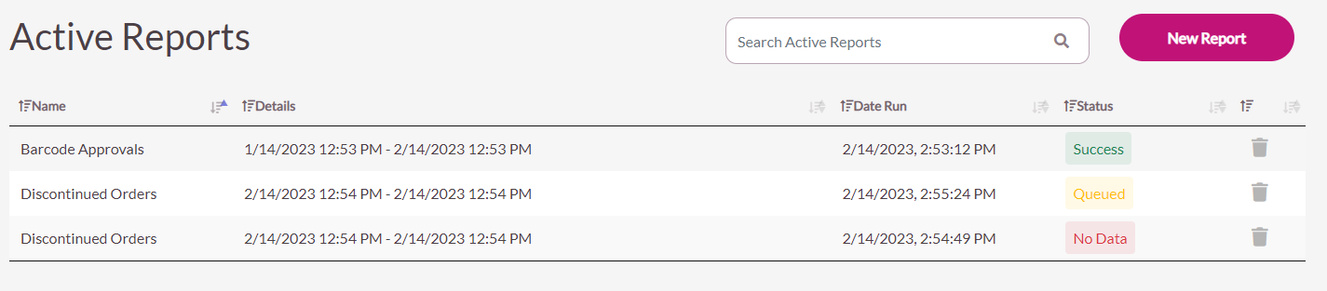
Note: Best practice is to delete reports after they have been viewed, printed, and/or saved.
Was this article helpful?
That’s Great!
Thank you for your feedback
Sorry! We couldn't be helpful
Thank you for your feedback
Feedback sent
We appreciate your effort and will try to fix the article