Overview
In this article, we'll dive into Incident Reporting in Aline eMAR!
Incident Reporting in Aline eMAR allows users to document, review, submit, and track resident incidents within the community and all from the Incident Dashboard. Users can access the Incident Dashboard to review incident activity or begin a new incident report directly from the menu.
The Incident Dashboard & Submitting New Incidents
Access the Incident Dashboard
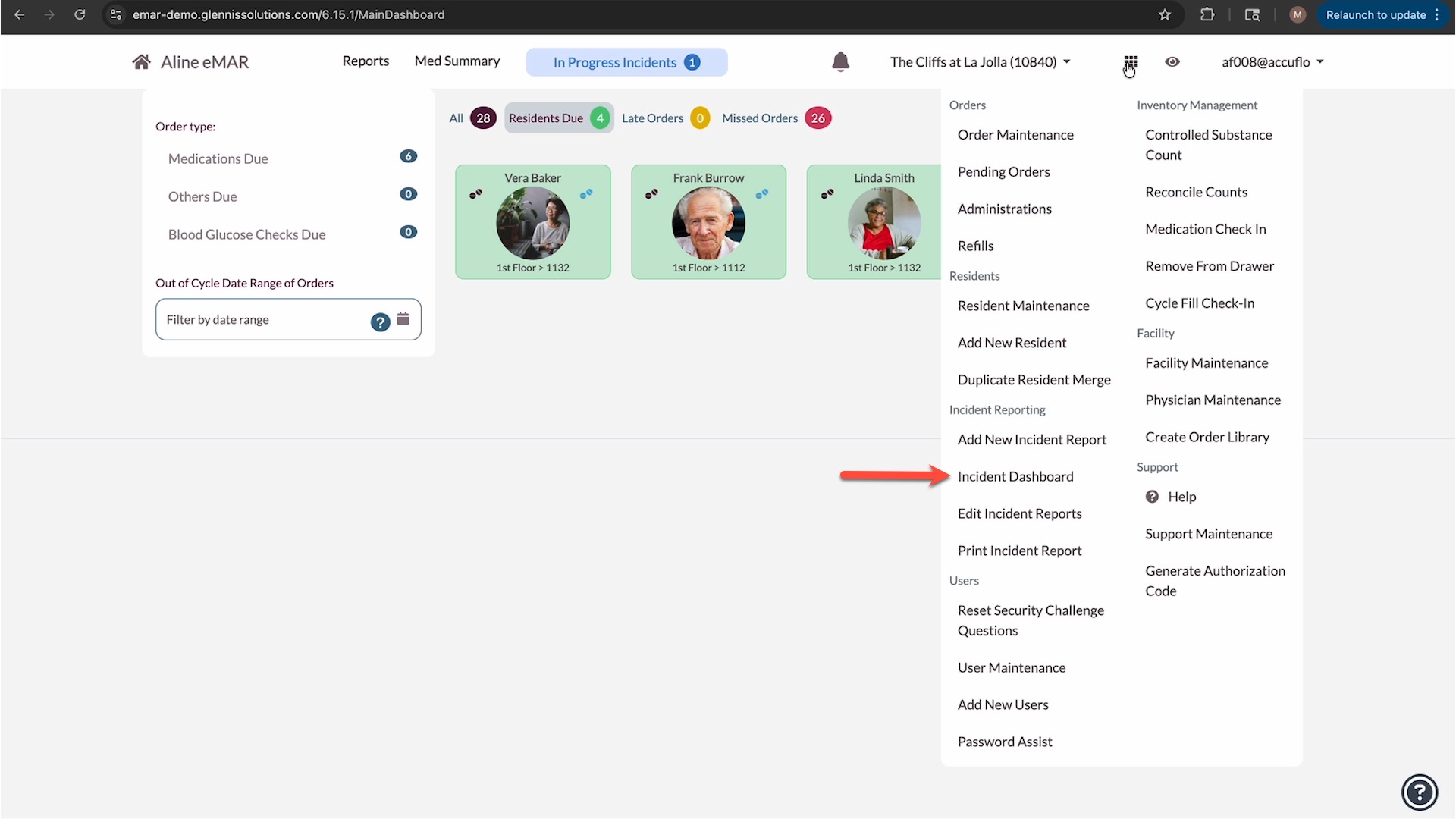
- Once logged into Aline eMAR, select the waffle menu.
- Select Incident Dashboard.
The Incident Dashboard displays incident activity, including:
- Incidents Created Today
- Incidents in Progress
- Incidents That Need Approval
- Incidents Waiting for Approval
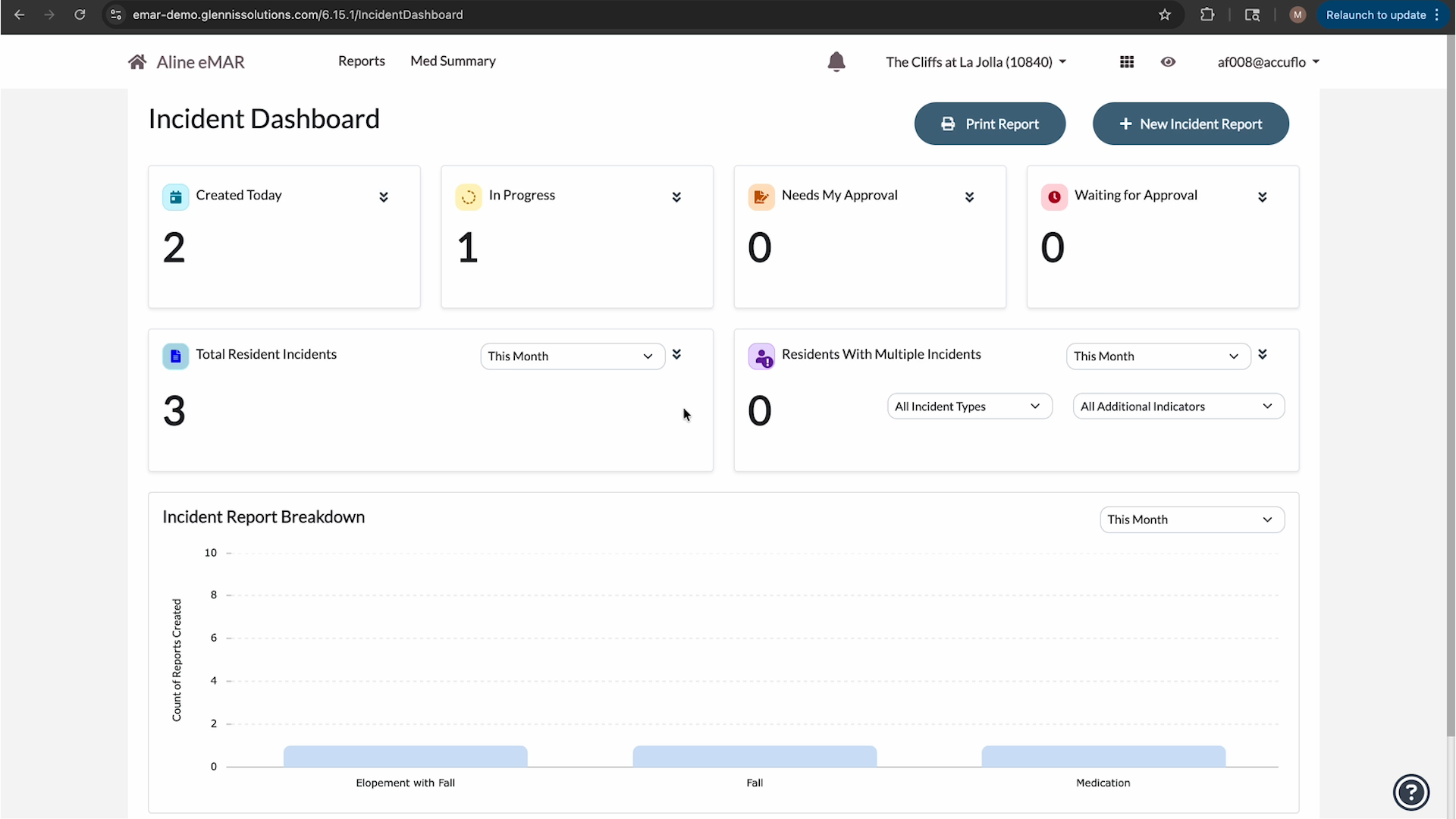
Select the down arrow beside a section to expand it. Select an incident to open the incident report.
Reporting is also available, including Total Resident Incidents, Residents with Multiple Incidents, and Incident Report Breakdown. Note that each of these reporting modules can be filtered by date range.
Create a New Incident Report
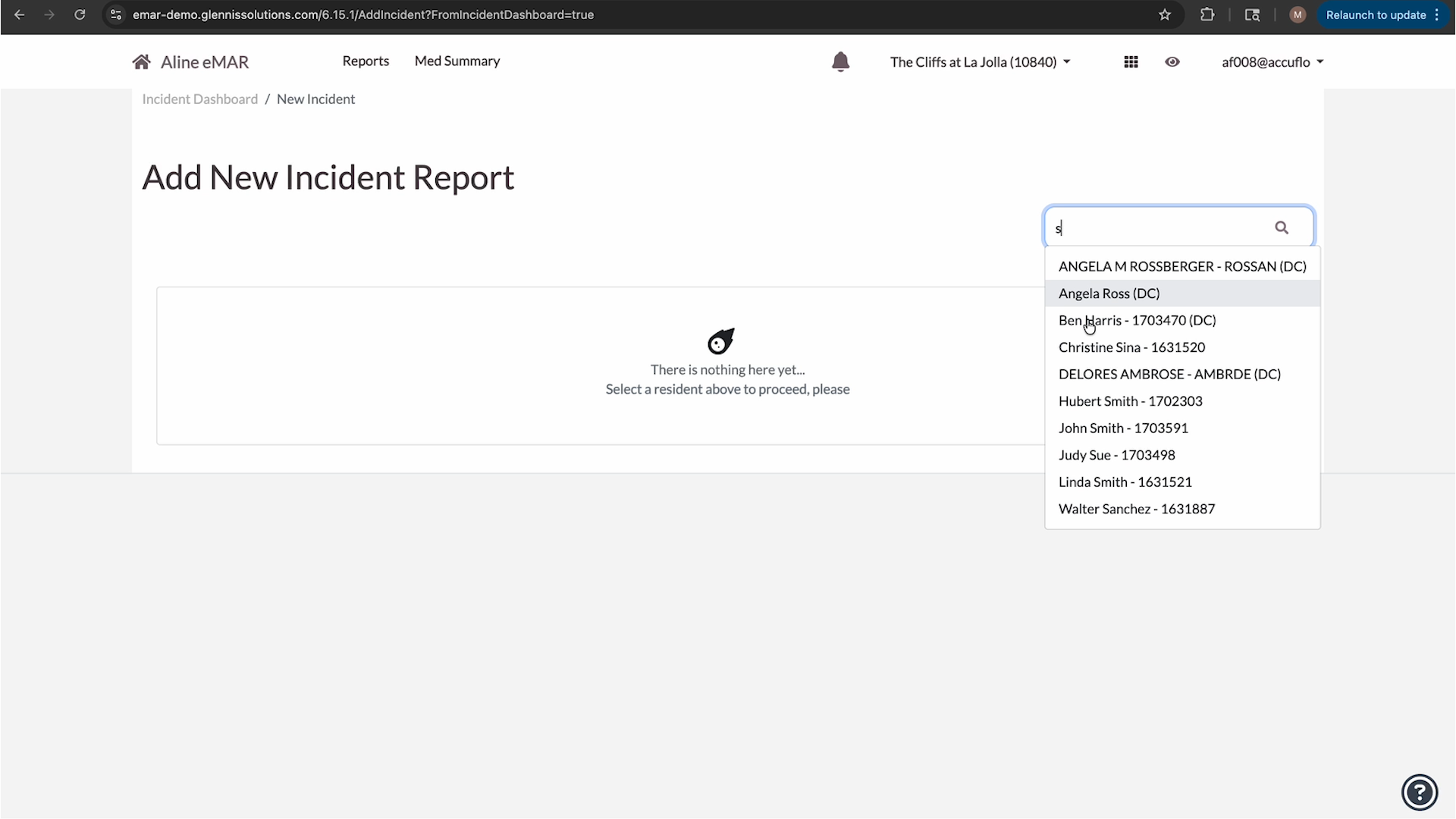
- Select the waffle menu and then select Add New Incident Report, OR
- From the Incident Dashboard, select + New Incident Report.
- Using the search box, search for the resident associated with the incident and select them.
Complete Incident Details
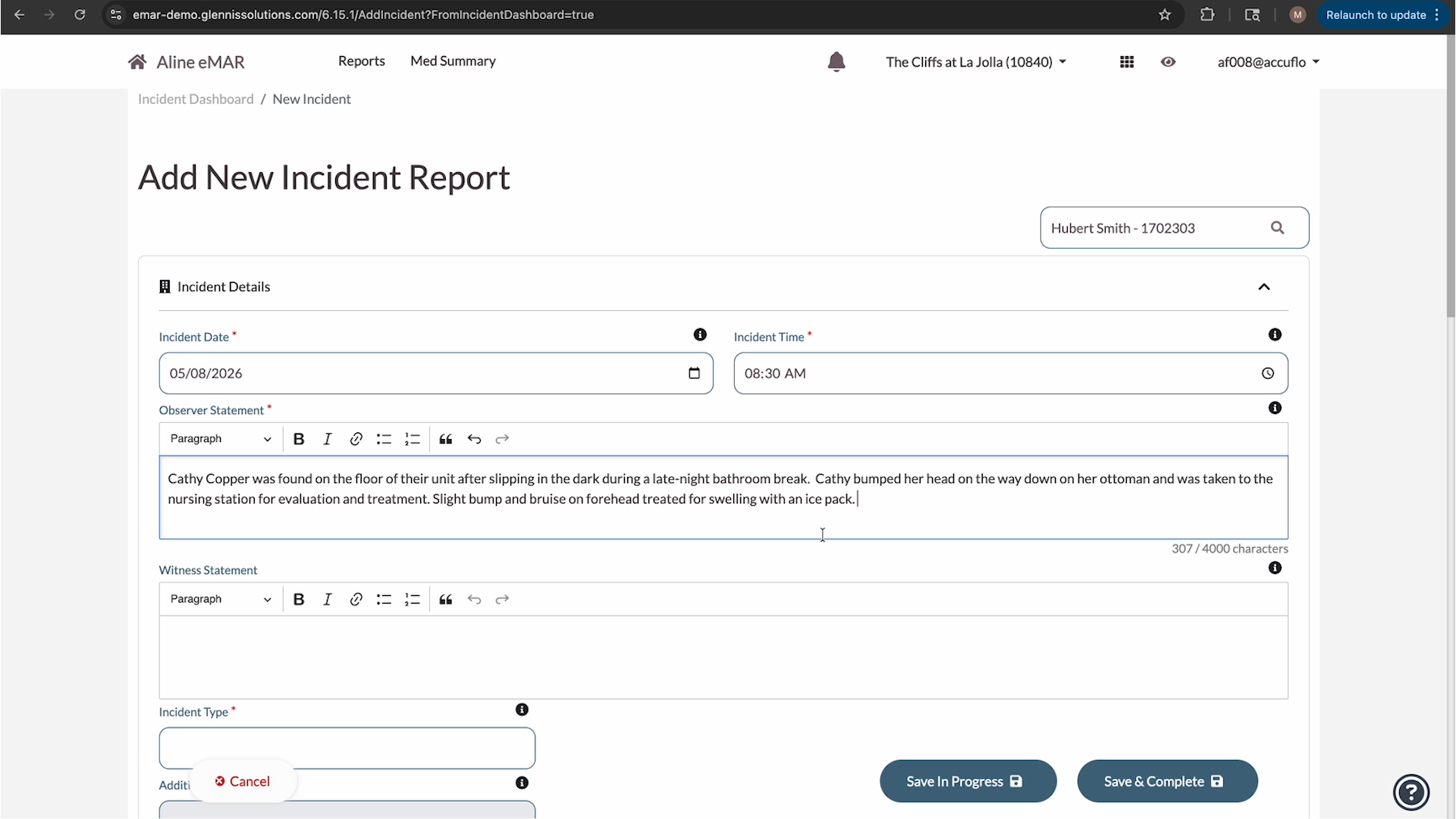
Once the associated resident is selected, a blank incident form will load. Note, all fields denoted with a *red asterisk are required fields and must be completed before submitting the incident.
Incidents can be saved in progress can be saved at anytime by selecting Save in Progress. To discard the incident entirely, select Cancel.
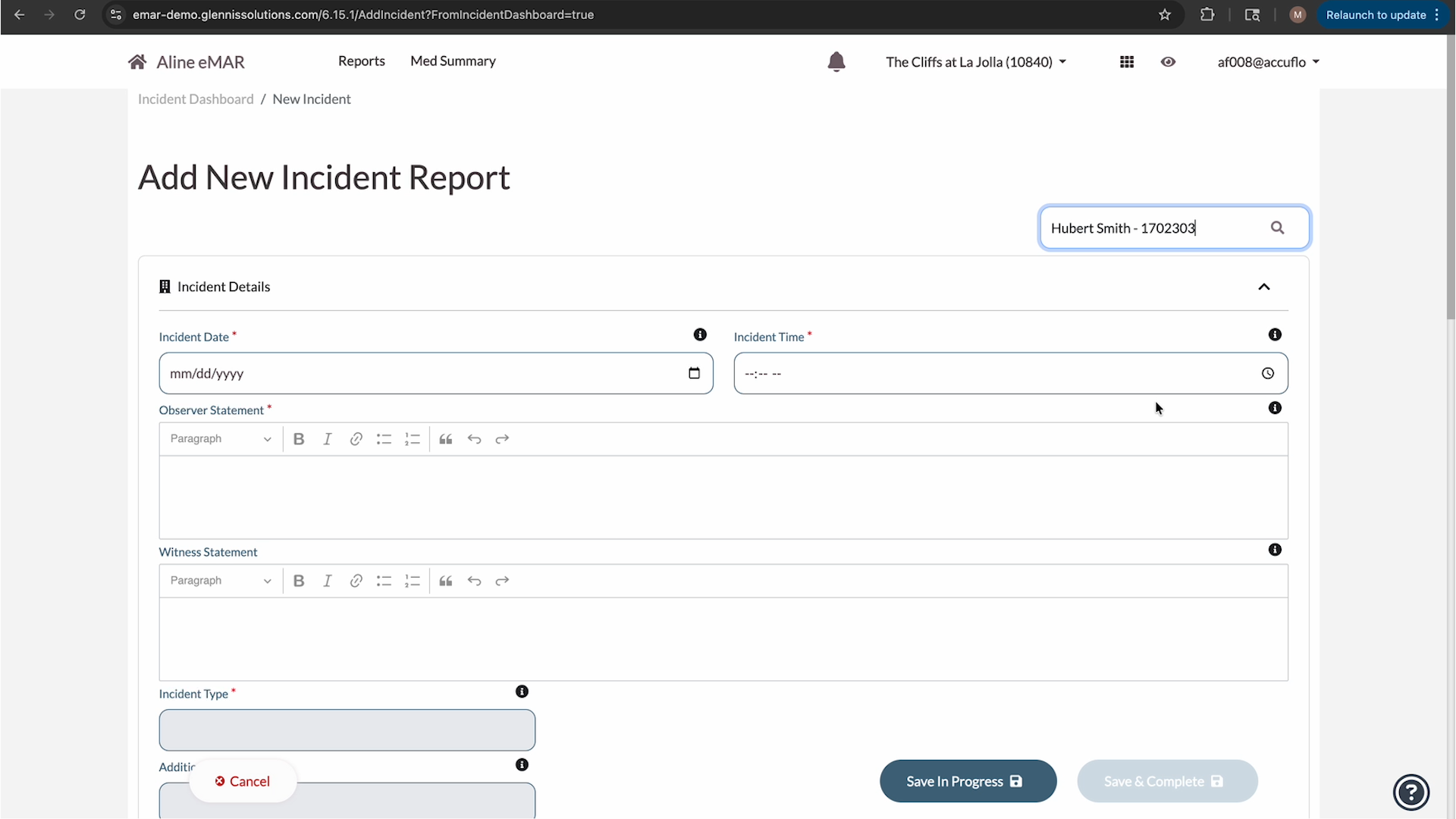
- Enter the Incident Date.
- Ensure the entered date is the date the incident actually occurred.
- Do not future-date an incident.
- Enter the Incident Time.
- This may be the current time or an earlier time if the incident occurred previously.
Enter Statements
- Complete the Observer Statement.
- Describe, in detail, what was observed or reported at the time of the incident. Ensure that the Observer Statement adheres to all organizational policy and procedure.
- Complete the Witness Statement, if applicable.
- This field is optional.
Select the Incident Type & Additional Indicators
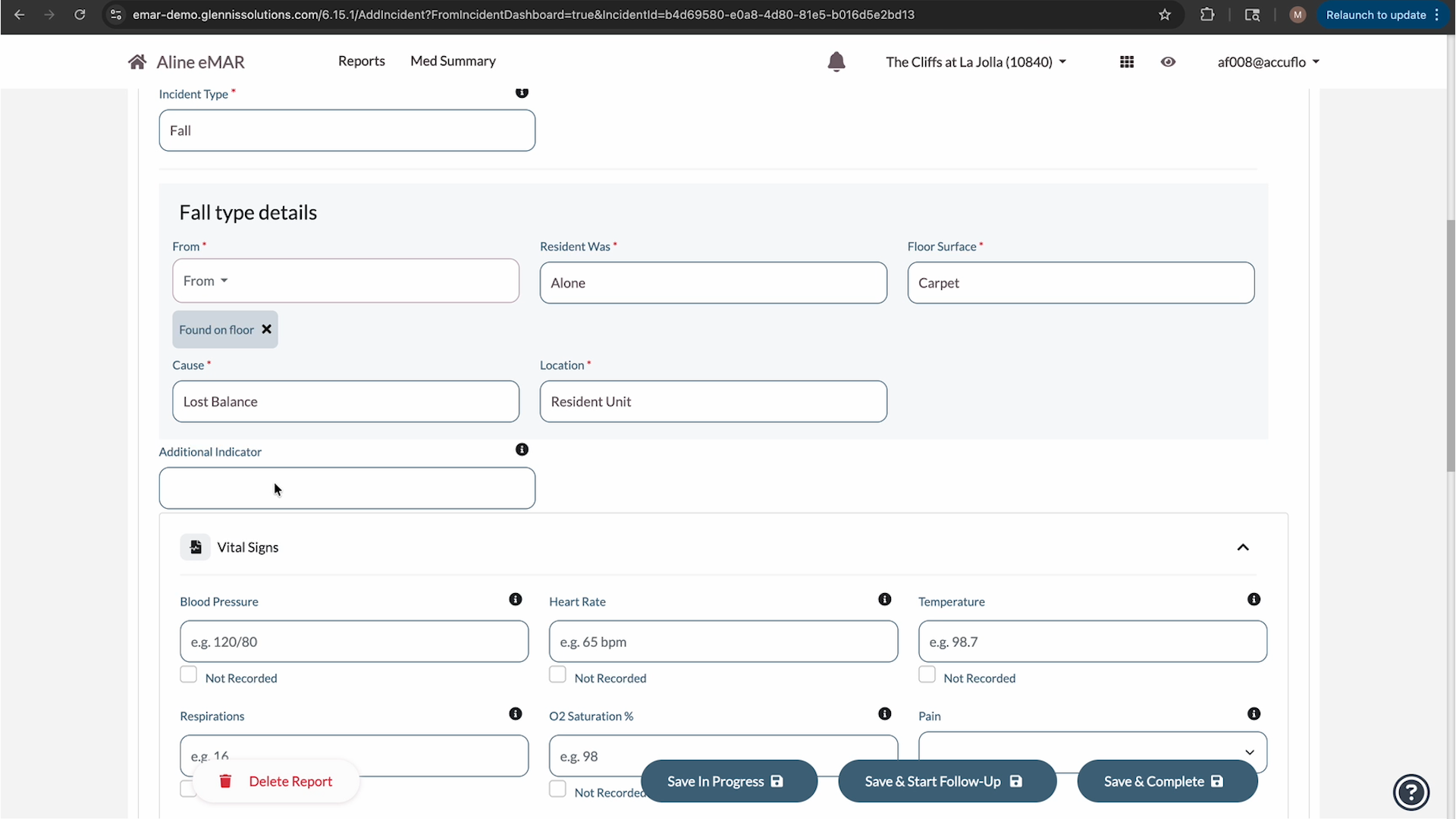
- Choose the appropriate Incident Type from the available selections.
- Complete any additional questions that appear - additional fields will display based on the incident type selected. For example, selecting Fall will display fall-specific questions.
- If applicable, add any Additional Indicators related to the incident. For example, if the incident resulted in an injury, add an Injury indicator and complete the related injury questions.
Record Vital Signs
Complete the Vital Signs section as needed.
If a vital sign was not recorded, mark it as Not Recorded.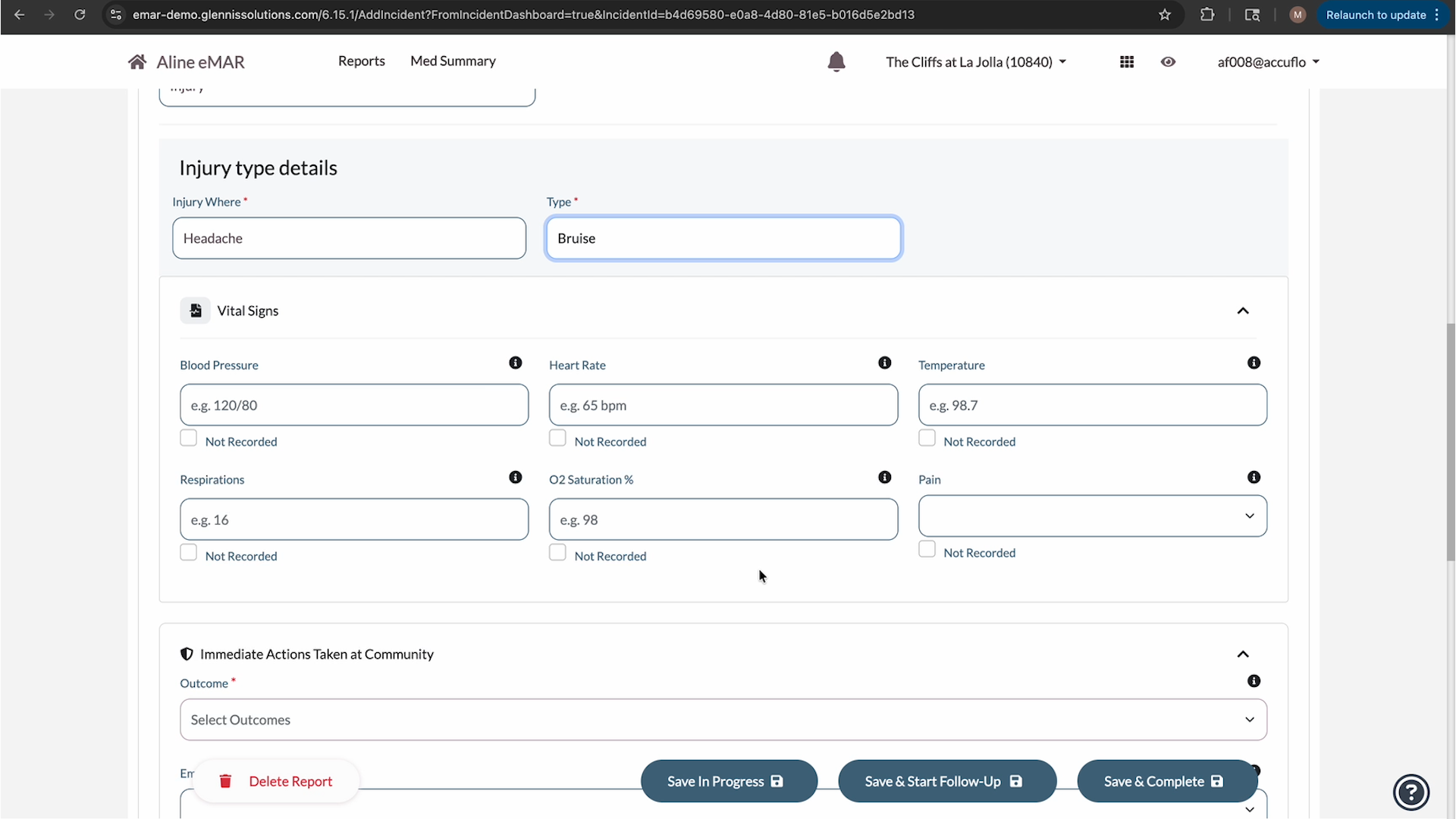
Complete Immediate Actions Taken
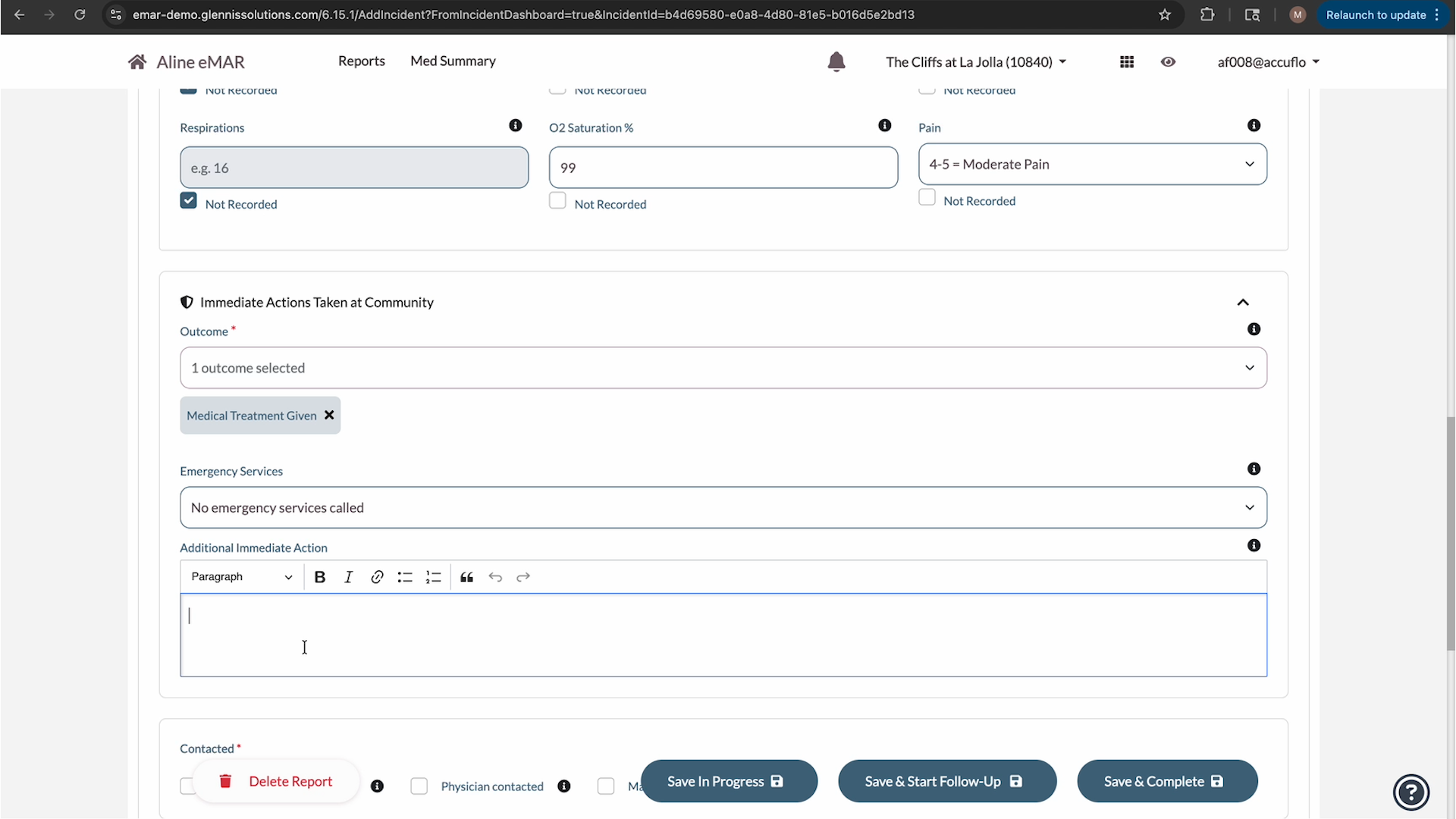
- Select the incident outcome from the available selection of outcomes.
- Examples include: medical treatment given, outcome pending investigation, hospital transfer, etc.
- Indicate whether emergency or non-emergency services were contacted.
- Enter, via text, any additional immediate actions, if applicable.
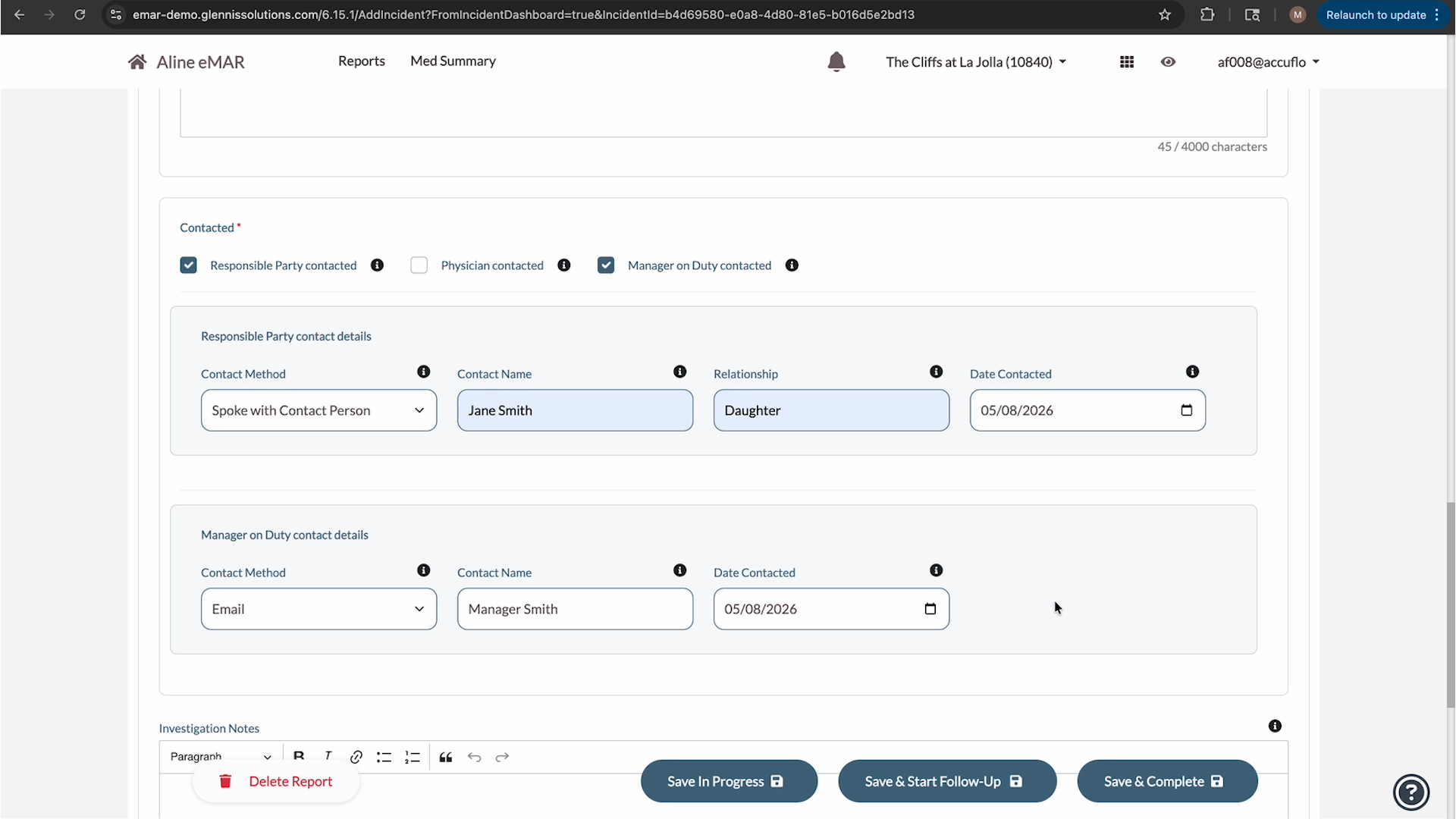
Complete Contacted Section
The Contacted section is required.
Use this section to document who was notified, such as:
- Responsible party
- Physician
- Manager on duty
After selecting a contact option, complete the additional fields that appear, such as contact method/result, person notified, and date of contact.
Add Follow-Up Details
Complete the following optional sections as needed:
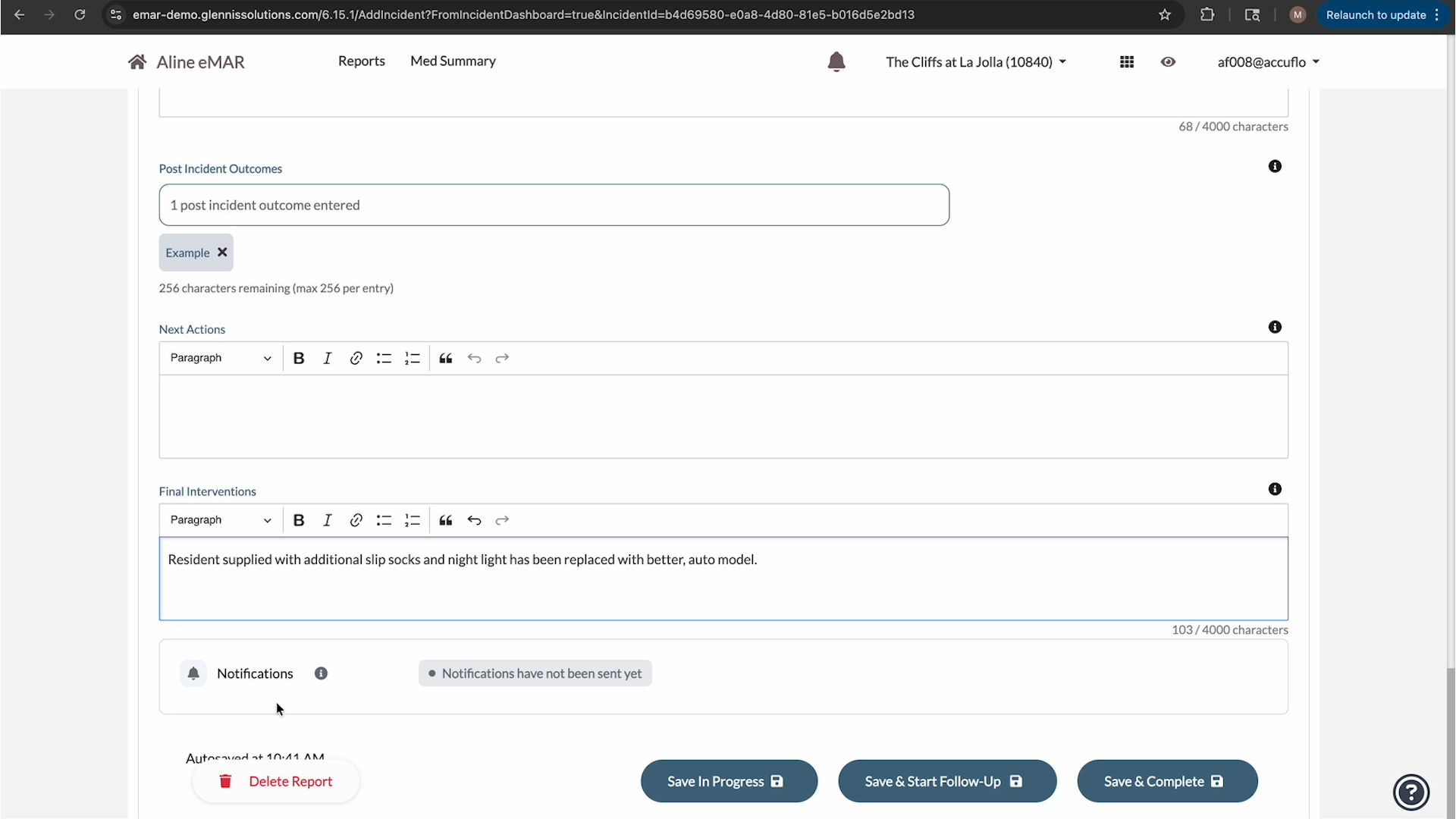
- Investigation Notes
- Post Resident Outcomes
- Next Actions
- Final Interventions
- Conclusion
These sections can be used to document additional review, outcomes, follow-up steps, preventative actions, and final report details. Generally, the specific use of these follow-up categories and documentations will vary dependent upon your organization's standard operating procedures.
Notifications
If notifications are configured for your organization, email notifications are sent automatically when the incident is submitted.
Save or Submit the Incident Report
At the bottom of the report, choose one of the following options:
Save in Progress
Select Save in Progress to save the report without submitting it.
The report can later be found on the Incident Dashboard under Incidents in Progress.
Save and Complete
Select Save and Complete when the report is ready to submit.
After confirming, the incident is submitted.
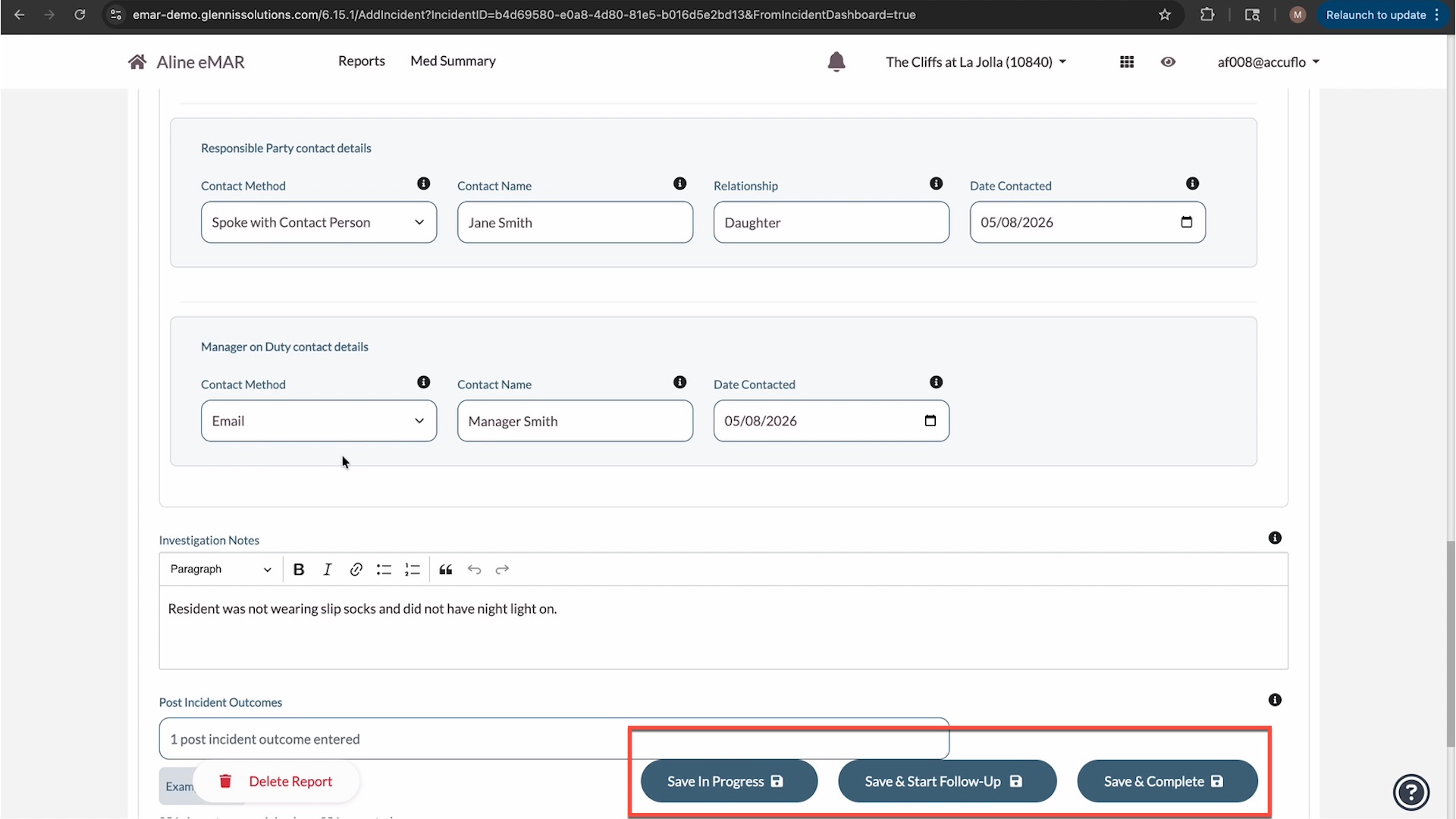 If your organization uses an approval workflow, the incident will move to Waiting for Approval until the appropriate reviewer approves it. If no approval workflow is used, the incident is completed immediately.
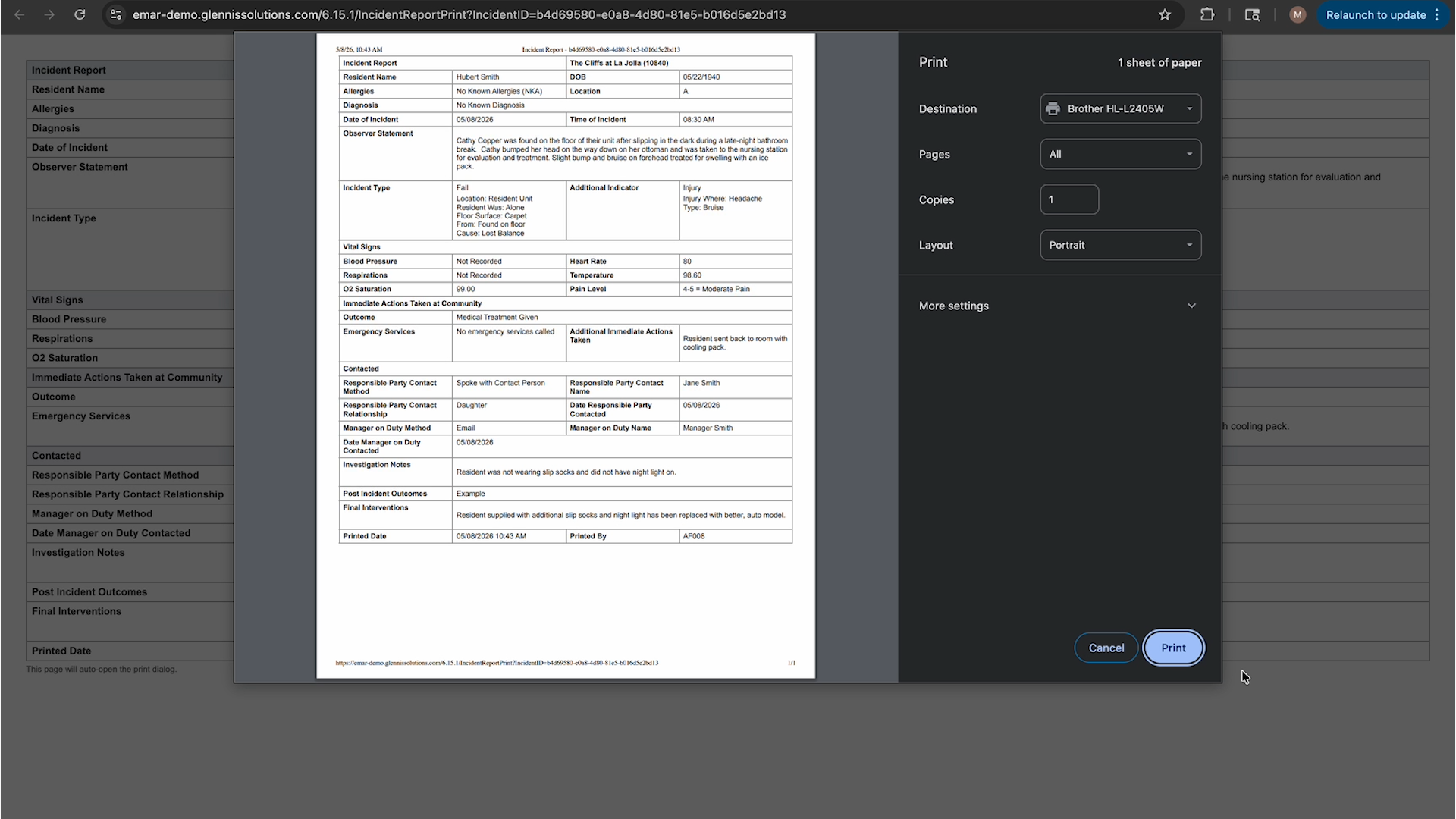
Printing an Incident Report
- Go to the Incident Dashboard.
- Select Print Report.
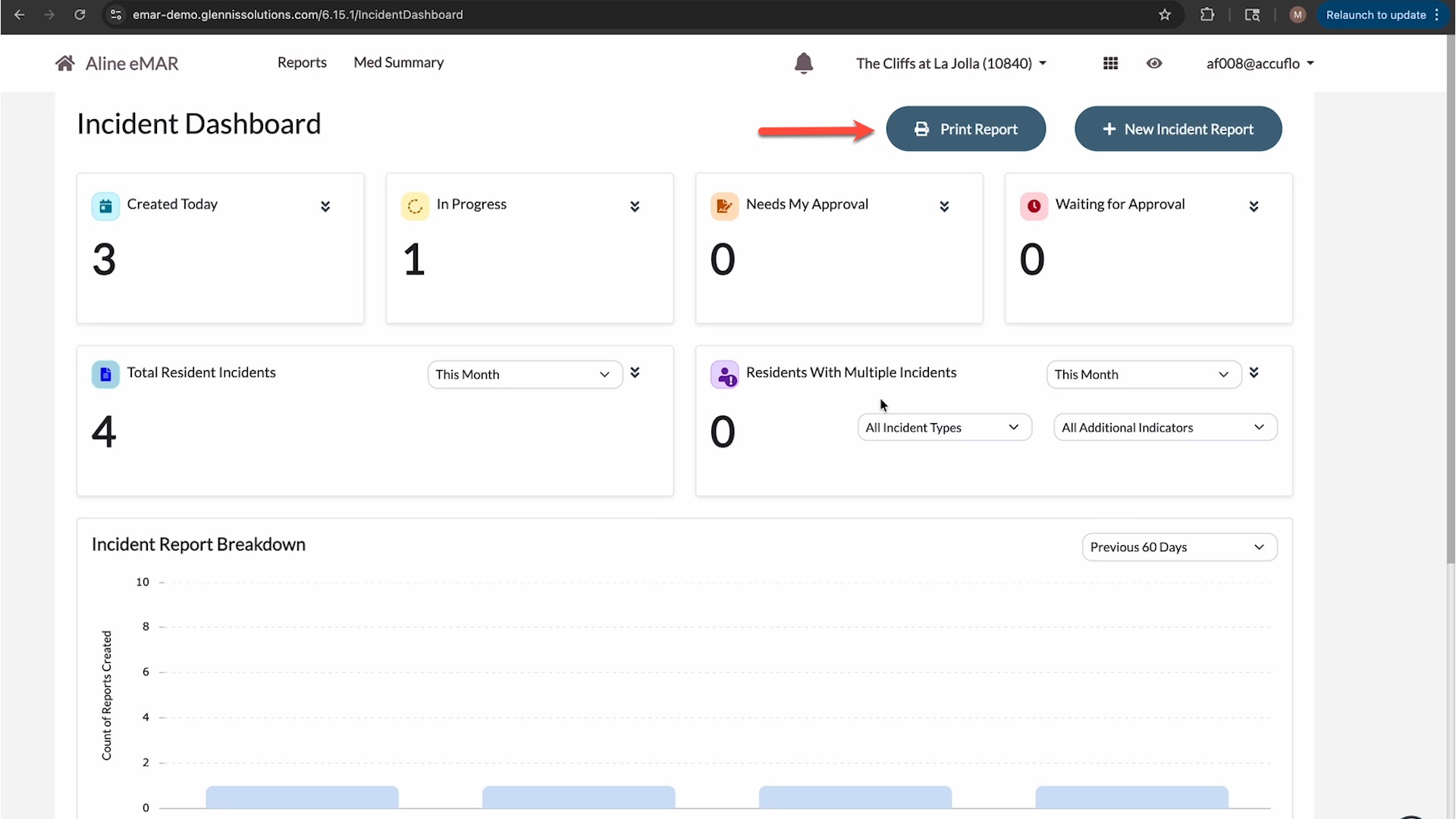
- Use the available filters to locate the incident.
- Select the incident.
- Print the detailed report.
Was this article helpful?
That’s Great!
Thank you for your feedback
Sorry! We couldn't be helpful
Thank you for your feedback
Feedback sent
We appreciate your effort and will try to fix the article