Overview
In this article we will review the feature 'Display Dispensed Rx Number'', which allows users the ability to edit the Rx number for an interfaced order. Controlled Substance Count has a feature that can be set to allow users the ability to edit the RX number for interfaced orders. This allows the RX for interfaced orders in Controlled Substance Count to match packaging that may not have an identifying number that matches the order’s RX. Orders that can also be edited will include Non-Federally controlled orders that have been selected to be included in Controlled Substance Count. The new dispensed RX will replace the old RX number and can be used throughout the system within any feature that lists the RX number. Users with permissions to edit orders will be able to alter the RX when the feature is Active at the community.
Procedure to activate Display Dispensed RX Number
Step 1: Select the Waffle Menu and Facility Maintenance
Step 2: Select Settings from left panel
Step 3: Select Controlled Substance Count Features tab
Step 4: Toggle Display Dispensed RX Number to Active
Step 5: Save Settings

Note: On the left panel of the order, the new Rx will show indicating its the dispensed Rx.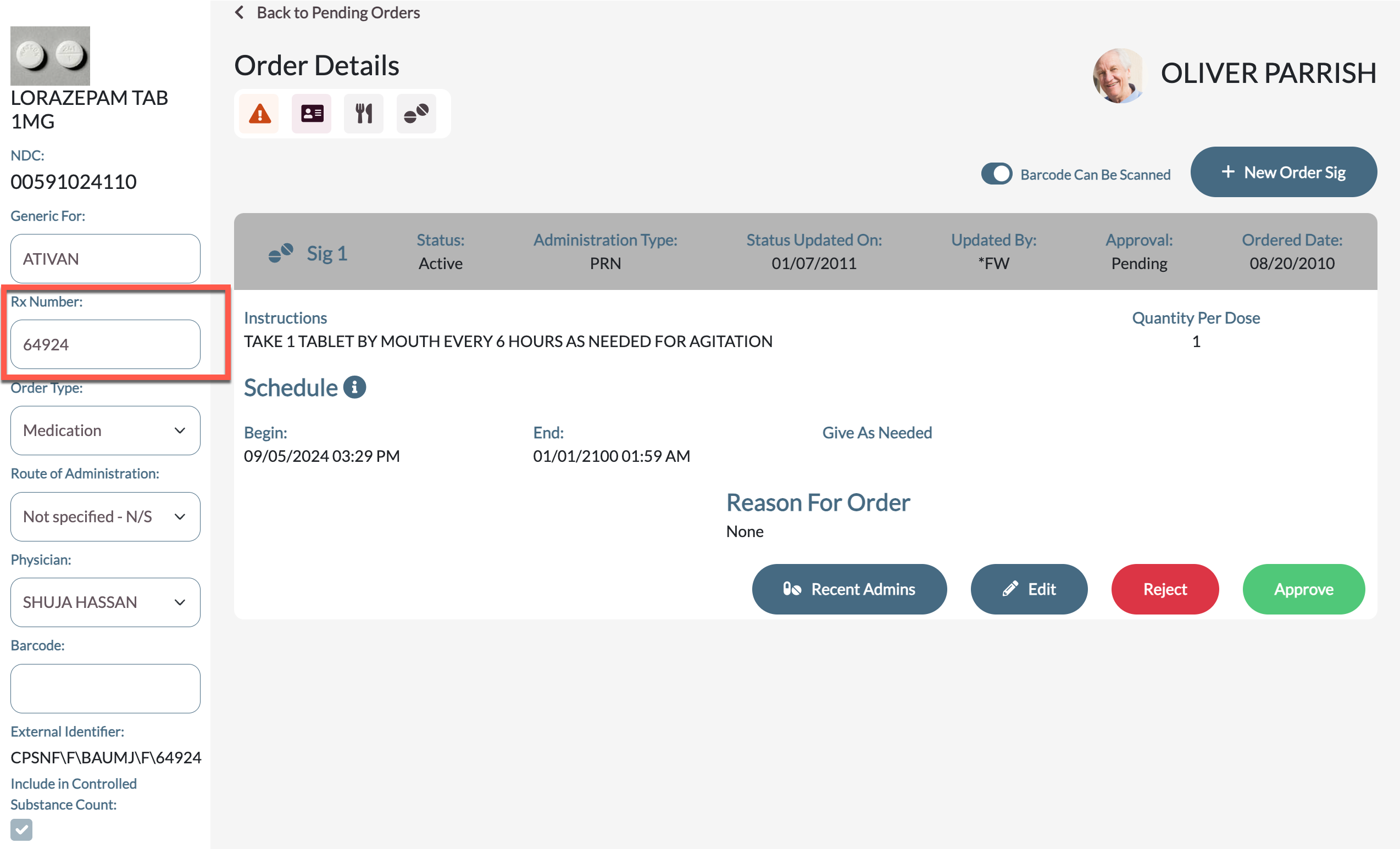
Procedure for Changing Rx Number
Step 1: Open the desired controlled order or non-federally controlled order that has been selected to be included in Controlled Substance Count.
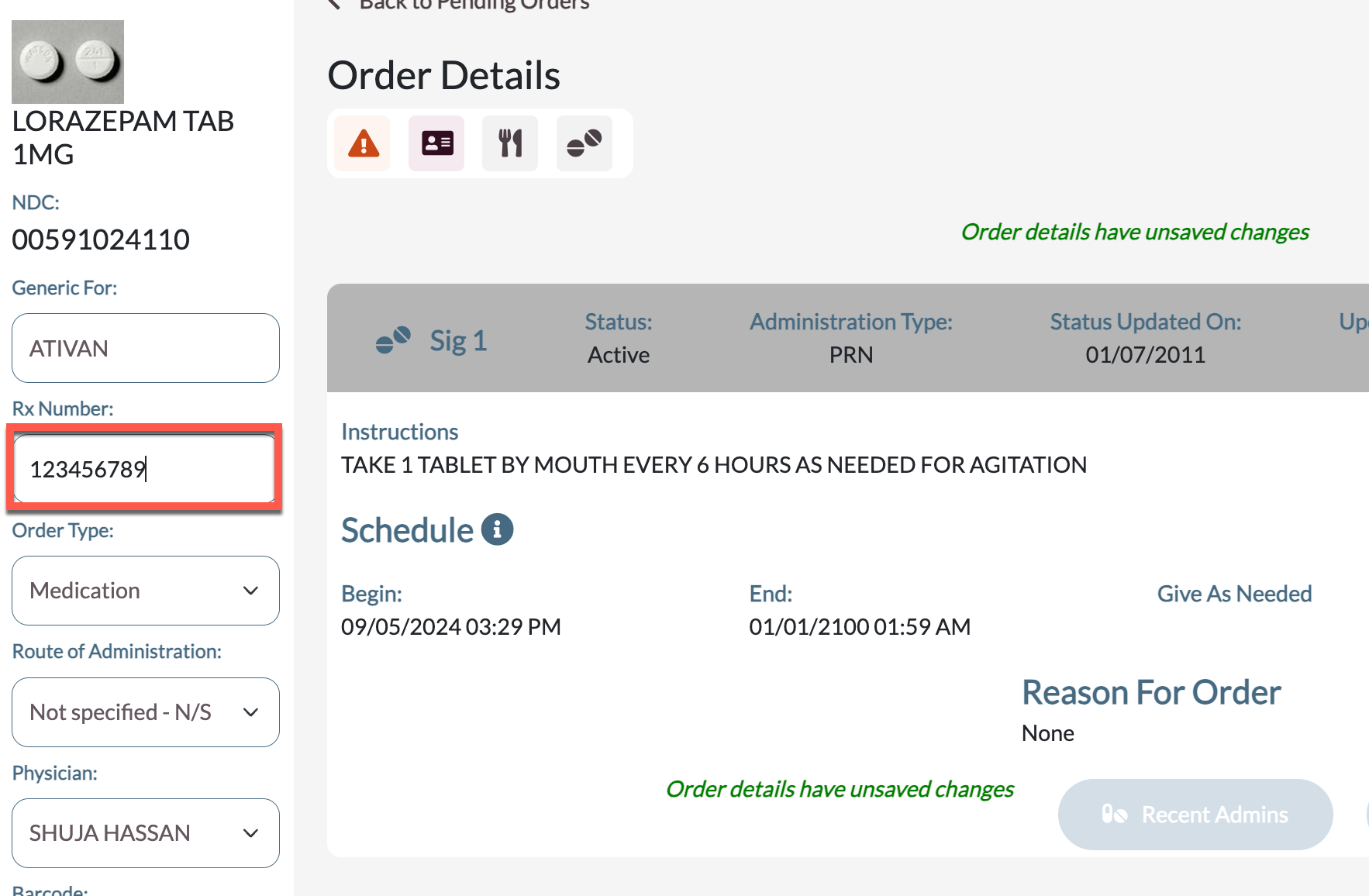
Step 2: Scan or type the desired RX number in the RX Number field
Step 3: Save the order
The dispensed RX can be viewed in Medication Check In and in Order Maintenance
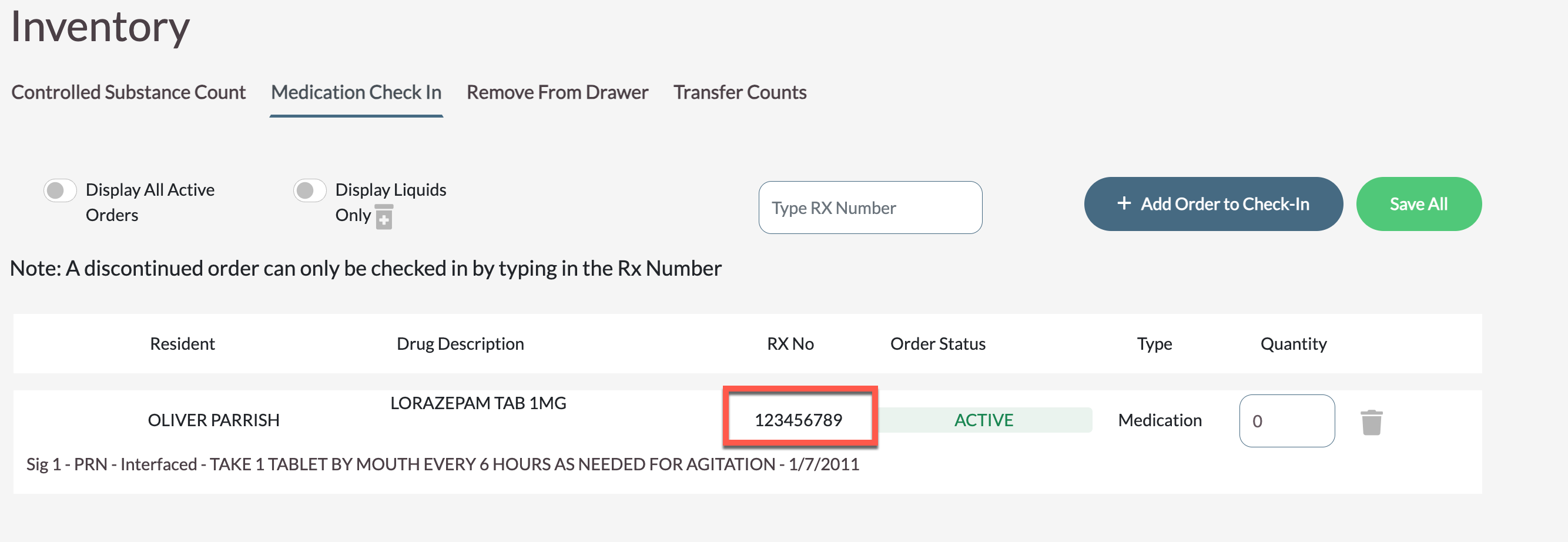
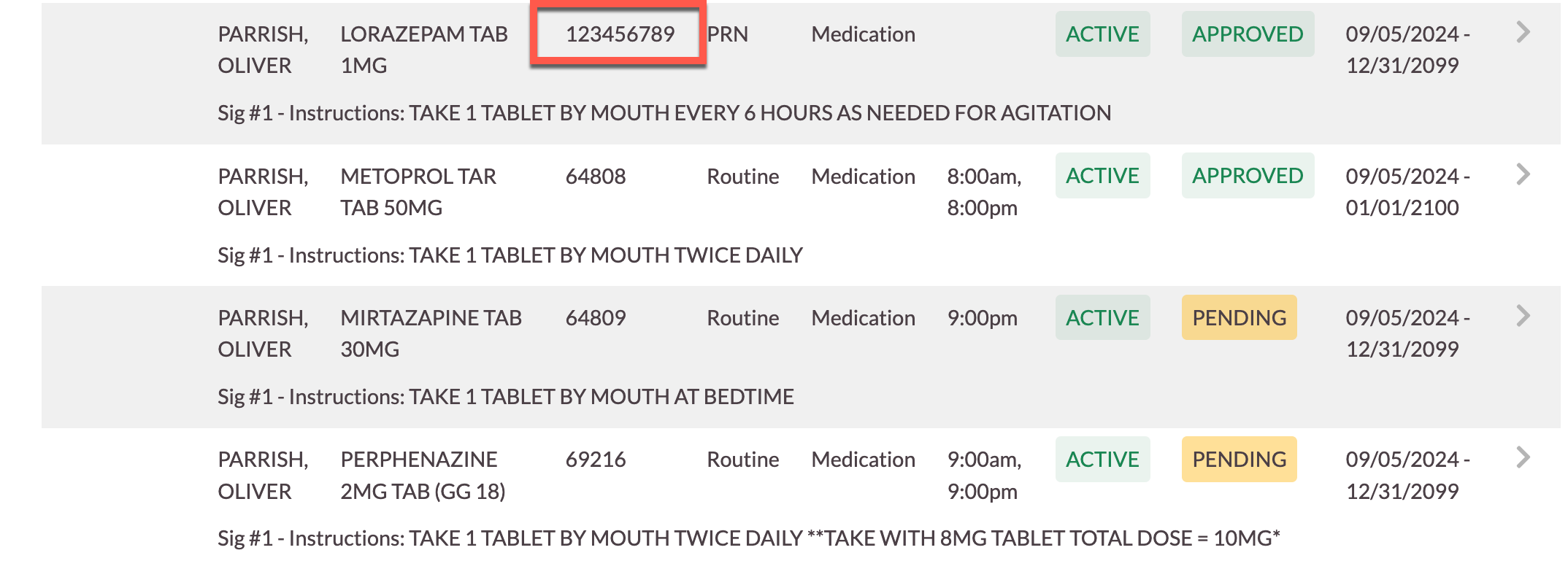
Note: If the dispensed Rx needs to be edited the above process should take place prior to checking in a medication for Controlled Substance Count.
Was this article helpful?
That’s Great!
Thank you for your feedback
Sorry! We couldn't be helpful
Thank you for your feedback
Feedback sent
We appreciate your effort and will try to fix the article