Overview
In this QRG article we will discuss the process when you have a new order in the Controlled Substance Count and the previous order is discontinued or expired.
Note: This document is only if your facility has Track Inventory RX enabled.New Order and the Previous Order is Discontinued or Expired
When you have a new order and the previous order is discontinued or expired and you still have medication on hand you will need to link the orders, to link the inventory count.
Linking at allows users to link a count from a discontinued or expired order to a new order with the same NDC/GPI (therapeutically equivalent). The two orders will be counted together in Controlled Substance Count with the active order’s RX listed. The barcode from either package can be scanned/entered. Best practice is to bind or rubber band the packages together with the discontinued/expired package on top to be used first.
Note: Linking the count Count will only be enabled if Track Inventory by RX is activated.If Controlled Substance Count by Schedule is enabled the Nurse role (or C-2 Permission) is required to transfer C-2 medications. Users with a Nurse role (or C-2 Permission) will have C-2 medications filtered by default. All other users will have C-3, C-4, C-5, and Non-Federally Controlled orders selected by default and will not be able to transfer C-2 medications.
Procedure for Linking Inventory Count
Step 1: Select Link To from the Order Detail Page of an active or pending order. The Rules for Order Linking display.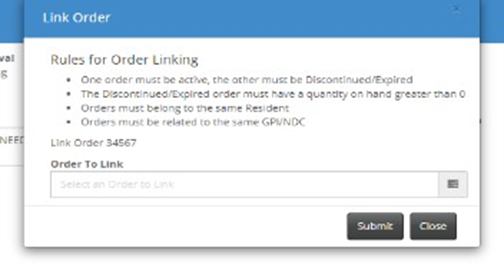
Step 2. Select in the Order to Link drop-down to display orders that can be linked.
Step 3. Select the discontinued or expired order. If multiple orders are listed, check the RX number and choose the appropriate order.
Step 4. Select Submit.
Step 5. Select Save.
Note: Always click the Link to button when approving a new controlled substance. If an RX number displays in the drop-down, then continue with linking the two orders together. If the drop-down is blank linking is not required for this order.Procedure for Unlinking Inventory Count
Step 1: Select Order Maintenance
Step 2: Select Unlink from the Left Panel
Step 3: Type the resident's name in the appropriate box.
Note: Any orders that have been linked will populate.Step 4: Select the order that will be unlinked.
Step 5: Select submit.
Was this article helpful?
That’s Great!
Thank you for your feedback
Sorry! We couldn't be helpful
Thank you for your feedback
Feedback sent
We appreciate your effort and will try to fix the article