Overview
In This QRG article we will review Pending Orders.
Pending Orders
Pending orders are orders newly added, updated, or discontinued from your community’s primary pharmacy. Pending Orders do not display for administration so it is essential orders are reviewed and verified in a timely manner.
Pending orders can be found on the Footer of the ACCUflo home screen as shown in Fig. 1.
Fig. 1 | Pending Orders icon on the Footer.
Step 1: Select the Pending Orders icon.
Step 2: Select on the order that needs to be reviewed and have the physician’s order available to verify the various components of the order are correct.
Step 3: Review the following items on the Order Detail Screen and make edits as necessary: Order Type, Order Description, Route of Administration (ROA), Physician, Order Status, RX Number (editable for controlled substances), and Barcode (if applicable).
Step 4: Select Review on the Order Sig.
Step 5: From the Order Sig Edit screen, verify the information is correct and/or update scheduling / Reason for Order information as necessary.
Step 5.1: Select Approve if the order is correct.
Step 5.2: Select Reject if the resident, order description, or instructions are wrong.
Step 6: The user will be returned to the Pending Orders List.
Step 7: Rejected orders will display in the Rejected tab on the Footer. If a Rejected Order needs to be undone, undo rejected orders from the Rejected tab.
Step 8: If a change to the order needs to be made but the user is not ready to Reject or Approve the order, users can select Update and then save from the Order Detail page to keep the order in the pending status.
Note: For discontinued orders, users are simply verifying the order should be discontinued. If the order should not be discontinued, reject the order. If the order is due soon, the user may want to call the pharmacy so the order can be reentered more efficiently by the pharmacy. 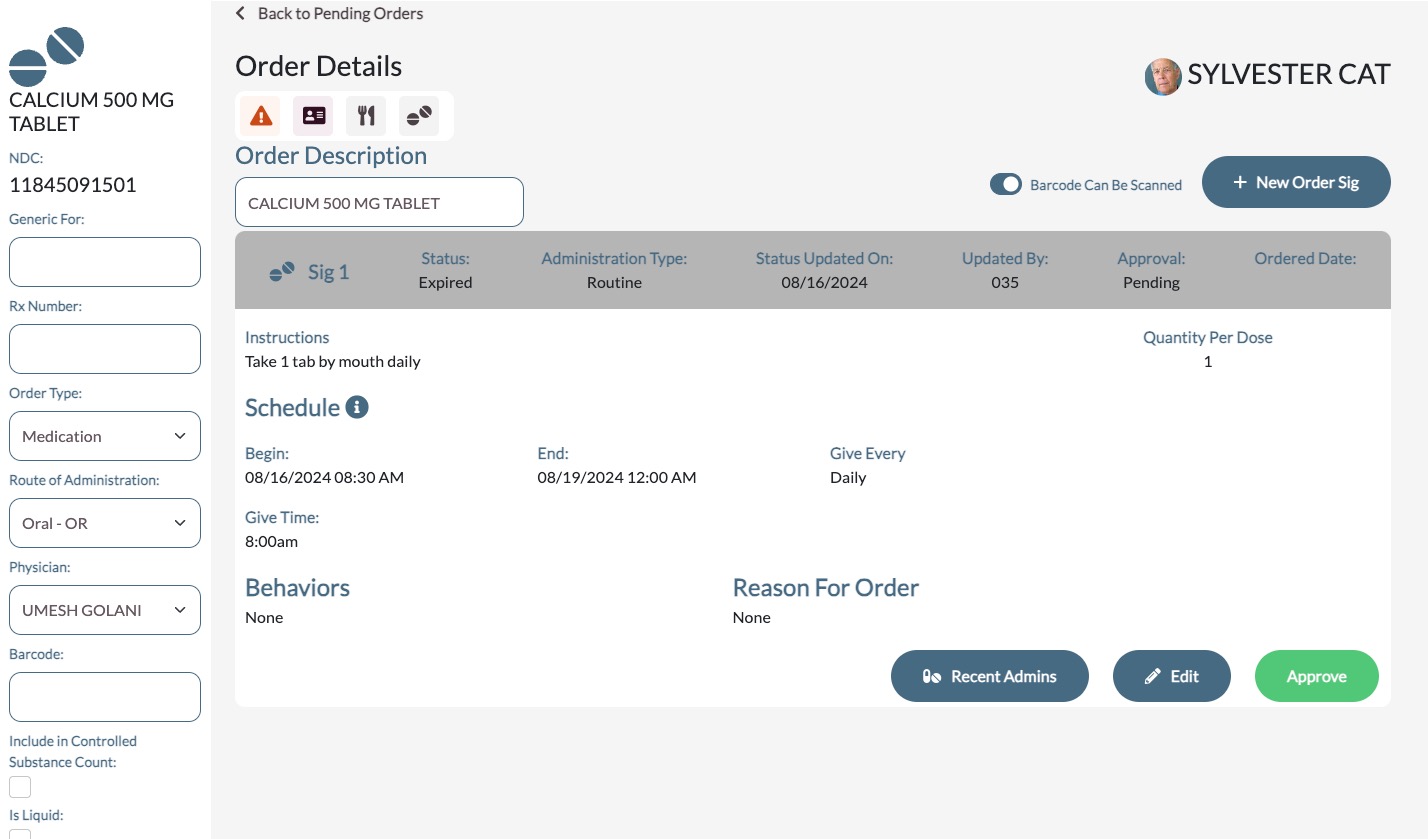
Was this article helpful?
That’s Great!
Thank you for your feedback
Sorry! We couldn't be helpful
Thank you for your feedback
Feedback sent
We appreciate your effort and will try to fix the article