Overview
In this article we will review the procedures for the Controlled Substance Count. Please contact your Aline Implementation Specialist or Account Manager to begin using Controlled Substance Count. A community cannot begin Controlled Substance Count in ACCUflo without coordinating with Aline.
Procedure for Controlled Substance Count
Step 1: Select the Waffle Menu, then Controlled Substance Count from the header of any screen in ACCUflo.
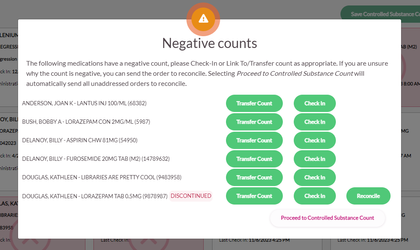
Step 2: All checked in orders will display for Controlled Substance Count. If an order has been administered and not checked in, a pop up box will display with options to check in the medication, Transfer count to the medication, or Link To the medication. Each order that has not been checked in will have to be addressed before Controlled Substance Count can begin.
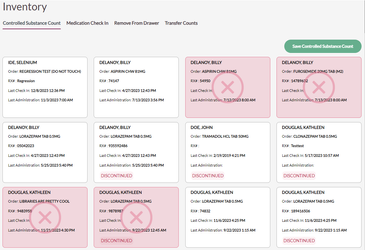
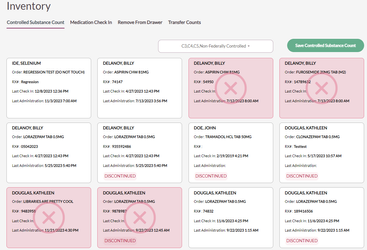
Step 3: If Controlled Substance Count by Schedule is enabled, a user with the C-2 permission (typically the nurse role) accesses the Controlled Substance Count page, by default, they will see only C-2 narcotics displayed for counting. If they desire, the user can select to count any additional drug classes (C-2, C-3, C-4, C-5, Non-Federally Controlled) they wish to count by using the filter page at the top of Controlled Substance Count.
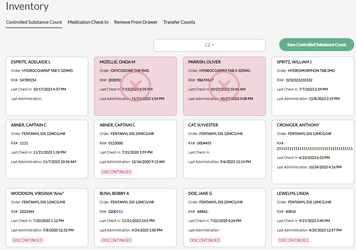
Step 4: If Controlled Substance Count by Schedule is enabled, a user without the C-2 permission (typically any role other than nurse) accesses the Controlled Substance count page, by default, they will see C3-C5 narcotics in addition to non-federally controlled drugs that have been included in Controlled Substance Count. If they wish, these users can de-select any drug class they do not wish to see or are not responsible for.
Note: These users will not be able to view C-2 Medications in Controlled Substance Count and there will be no option to select then in the filter.
Step 5: Scan the barcode or select the order and enter the quantity on hand.
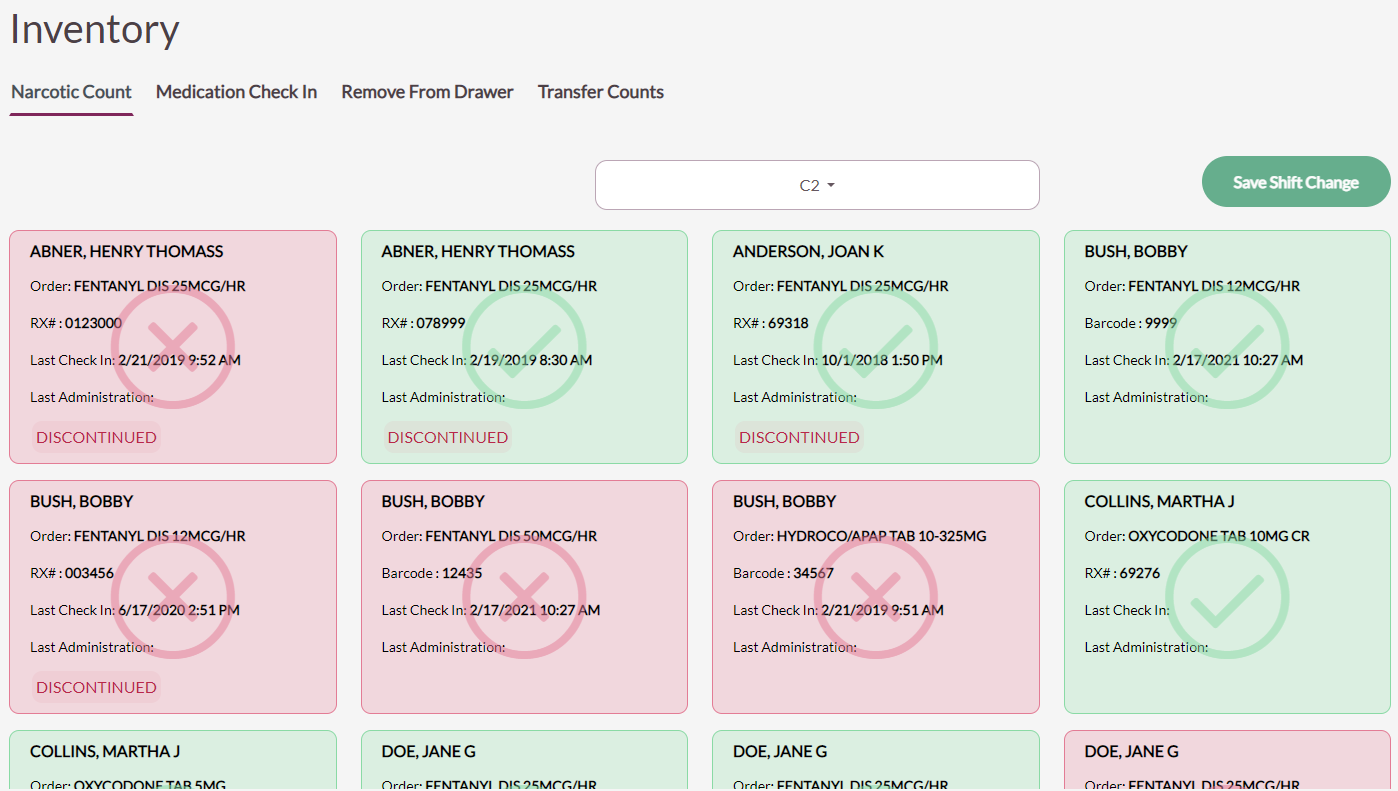
Step 6: Select Submit. The tile will turn green with a checkmark when the correct count is entered.
- Once Controlled Substance Count is started it must be completed. If Controlled Substance Count is interrupted users must start over. The Save Controlled Substance Count button will not be selectable until all controlled substances have been counted.
- Discontinued and Expired orders will appear in Controlled Substance Count until these medications are Removed from the Drawer, Transferred, or Linked To an active order or their quantity is zero (0). Expired or Discontinued will be identified in labels on the order tile.
- The RX number is listed on the order tile unless a barcode has been assigned to the order in which case the barcode number will be listed.
Note: Quantity is the number of pills/capsules or ML, bot the number of doses. For example, if there are 1/2 pills in each blister of a 30-blister pack the count is 15. Alternatively, if there are two pills in each blister of a 30-blister pack the count is 60.Step 7: If the count is incorrect, the tile will turn red with an X on the tile and the Count Mismatch options will appear.
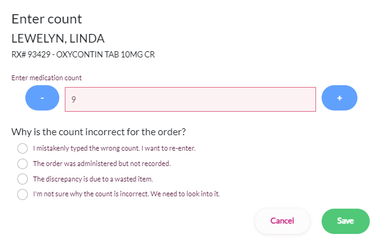
Count Mismatch Options
- “I mistakenly typed the wrong count; I want to re-enter” is an option that allows users to re-enter a count if it was entered incorrectly. This option will appear if the setting in Controlled Substance Count Configurations is set to Active. How many reentry attempts that will be allowed is configurable as well.
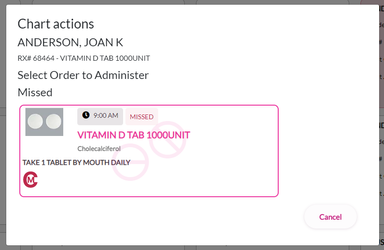
- “The Order was administered but not recorded.” If the order is routine, choosing this option will direct the user to a list of missed or due administrations for that order and allow documentation. If the order is PRN, the user will be directed to chart the PRN administration. After the order is charted users will be prompted for the count a second time in Controlled Substance Count.
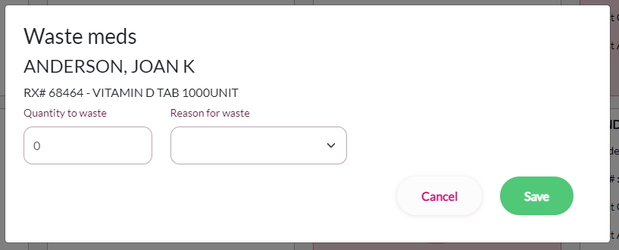
- “The Discrepancy is Due to a Wasted Item.” Choosing this option will direct users to document the wasted medication by entering the amount wasted and the reason (a second signature is required to waste a medication). If the user needs to return to the option list, they can select Cancel. After the order is wasted, the user will be prompted for the count a second time in Controlled Substance Count.
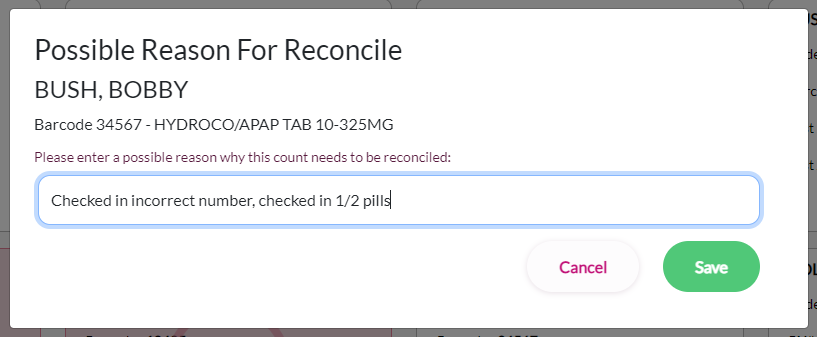
- “I’m not sure why the count is incorrect; we need to look into it.” Choosing this option will inactivate the order until an administrator reconciles the miscount in ACCUflo; however, the user will be able to complete this controlled substance count. If your community has selected the setting to allow users to enter an explanation for this option, then a box will populate that requires the staff to enter any explanation they may have for the discrepancy. The entered explanation will populate in Reconcile Counts as well as in Controlled Substance Reconciliation and the accompanying reports.
Step 8: While the medication count discrepancy is being investigated, the order cannot be administered. It is important that reconciliation happens in a timely manner. Per your community’s policy, notify the appropriate person immediately.
Step 9: Select Save Controlled Substance Count, two users must validate the count by entering their username and password. If Controlled Substance Count by Schedule is enabled one of the accounts must be the Nurse Role if they are Counting C-2’s.
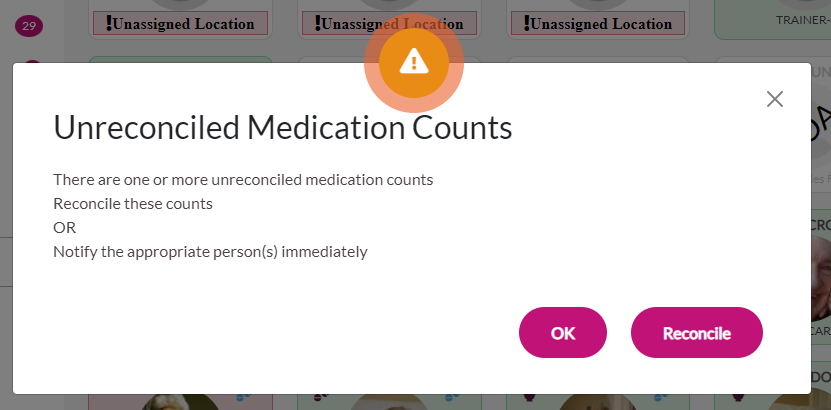
Step 10: Users will be directed to the Reconcile Count page if they have permissions to perform this function. Otherwise, the user will see a notification window directing them to notify their administrator to investigate and complete the reconciliation process.
The Unreconciled Medication Counts message will appear at log in if there are unreconciled orders that need to be investigated and reconciled by an administrator.
Note: Orders requiring reconciliation will display a yellow "Needs Reconciling" label on them.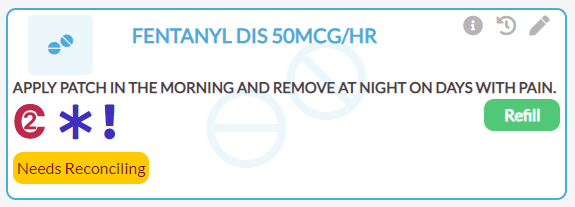
Note: Quantity is the number of pills/capsules or ML, bot the number of doses. For example, if there are 1/2 pills in each blister of a 30-blister pack the count is 15. Alternatively, if there are two pills in each blister of a 30-blister pack the count is 60.
Was this article helpful?
That’s Great!
Thank you for your feedback
Sorry! We couldn't be helpful
Thank you for your feedback
Feedback sent
We appreciate your effort and will try to fix the article