Overview
In this article, we will review how to utilize the Undoing Administrations page to undo one or multiple previously administered orders.
Undoing Administrations
If an error is made while charting orders, the administration can be undone by administrative users. Aline Support personnel cannot undo administrations on a community’s behalf. Users will need to contact community care leadership if they do not have permissions to undo administrations.
Step 1: Select the Waffle Menu and then Administrations.
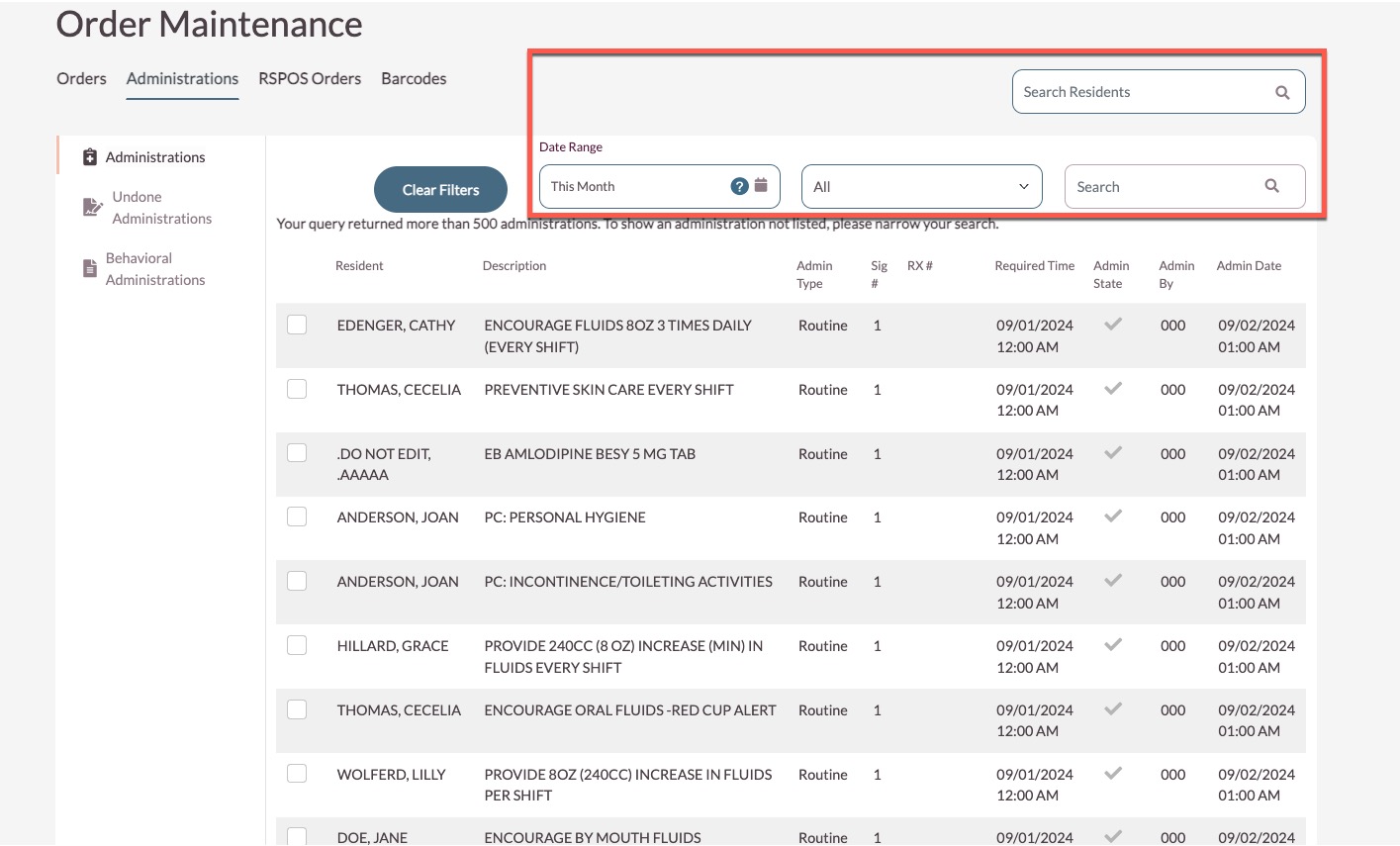
Step 2: On the Administrations page, filter results by resident, date range, order type, or order description.
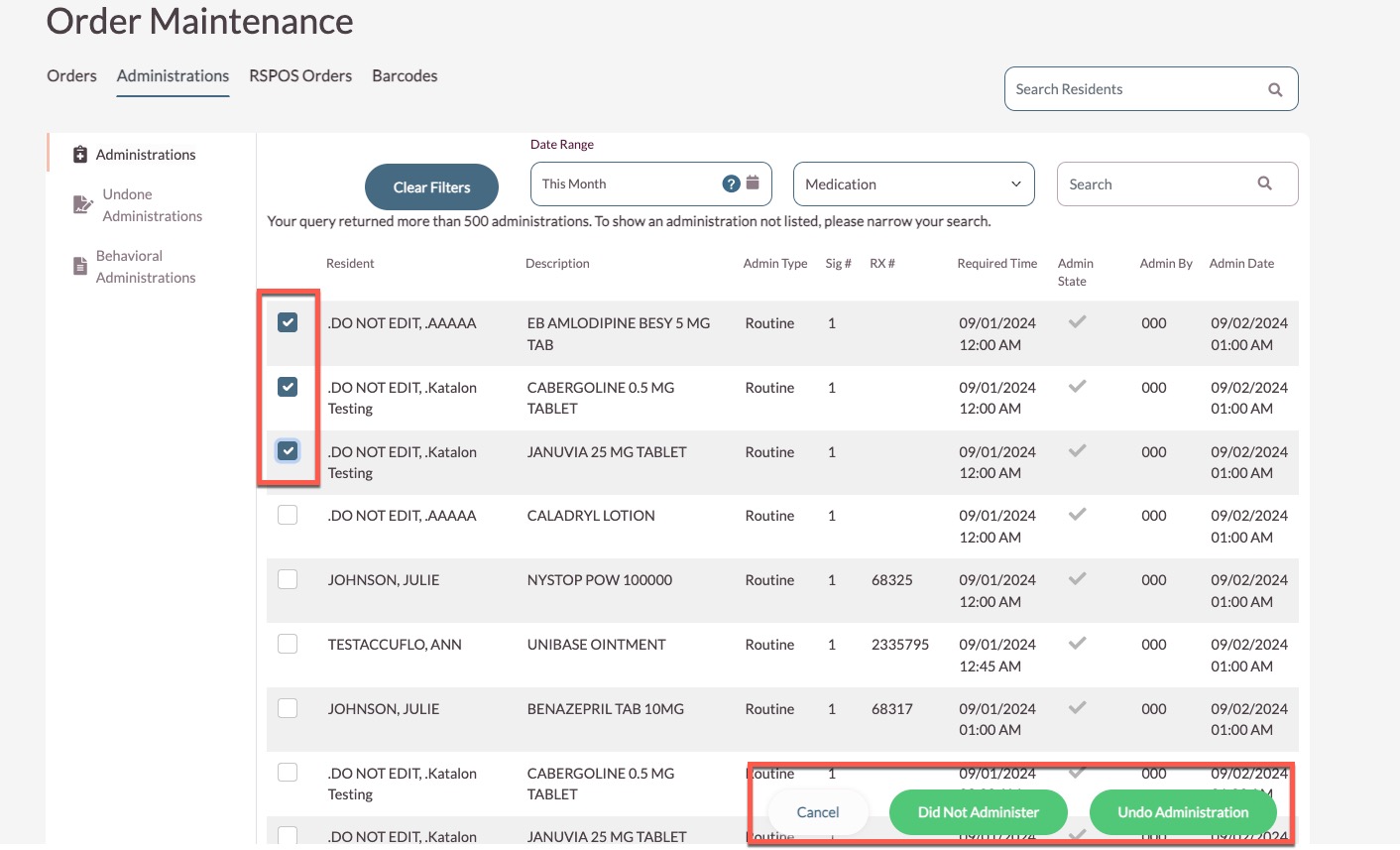
Step 3: Select the checkbox next to the order needing to be undone. Multiple orders can be selected at a time. Once all desired administrations have been selected, select Undo for orders containing charting errors, or select Did Not Administer to automatically change the order from Administered to Did Not Administer.
Step 5: Enter the Undo Reason / Did Not Administer Reason.
Step 6: If prompted, select the Disposition of either Wasted or Added Back. Note that, when multiple administrations are selected, the Undo Reason or Did Not Administer reason will apply to all selected administrations.
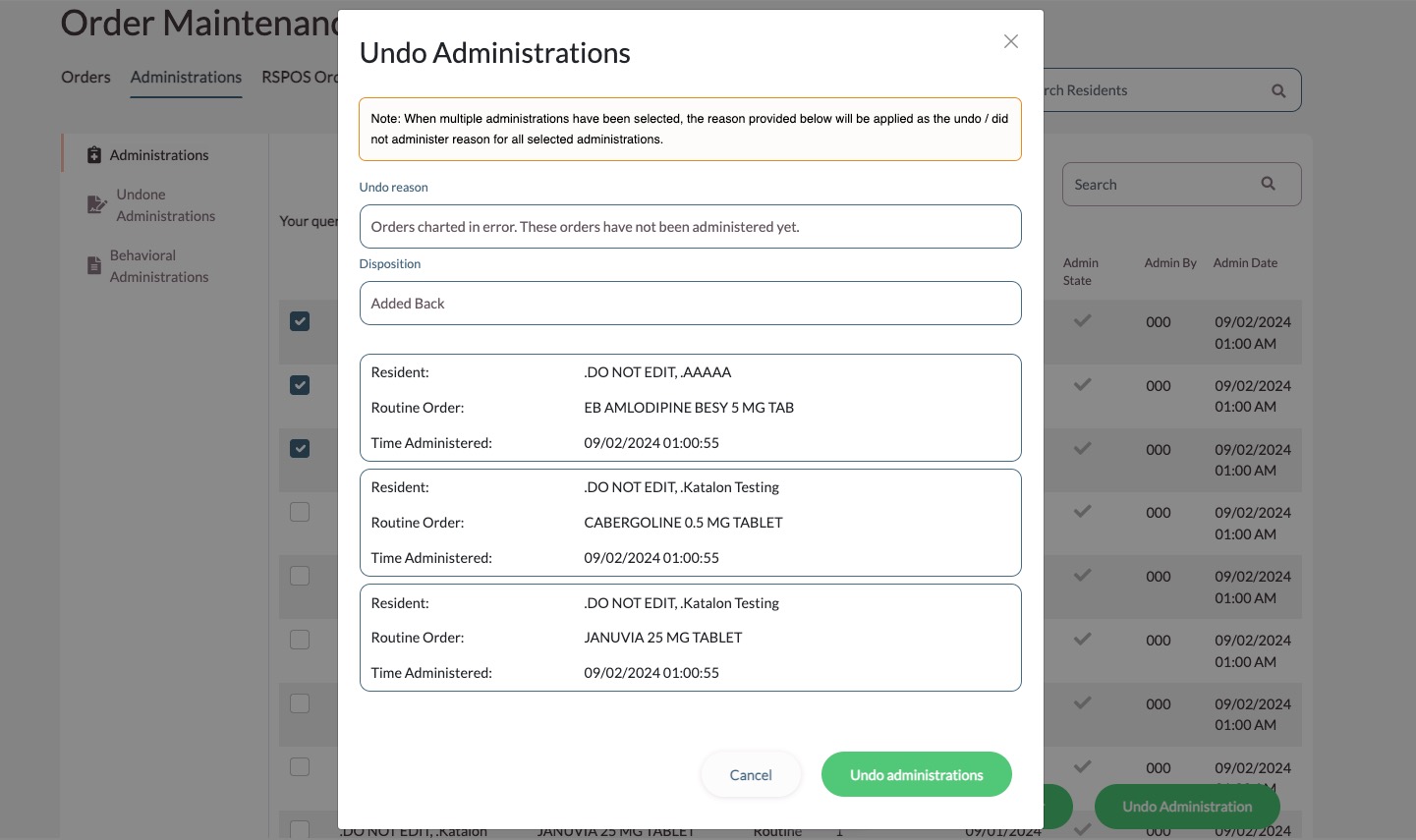
Step 7: Select Undo Administration.
Note: If Undo is selected, a routine order will either display for administration if it is still currently due, or the order will appear in Missed Orders if it is now past due. Was this article helpful?
That’s Great!
Thank you for your feedback
Sorry! We couldn't be helpful
Thank you for your feedback
Feedback sent
We appreciate your effort and will try to fix the article