Overview
In this article, let's take a look at an efficient way to review important data for your med pass operation using the Med Summary tool powered by Aline SmartGrid technology!
With Med Summary, Aline eMAR users can review their operation from a high level, sort and filter data as needed, and export the data out of the application.
Using Med Summary
Generally, Med Summary is available to advanced and administrative users only. Users without Med Summary permissions will not see the tool displaying on the eMAR header.
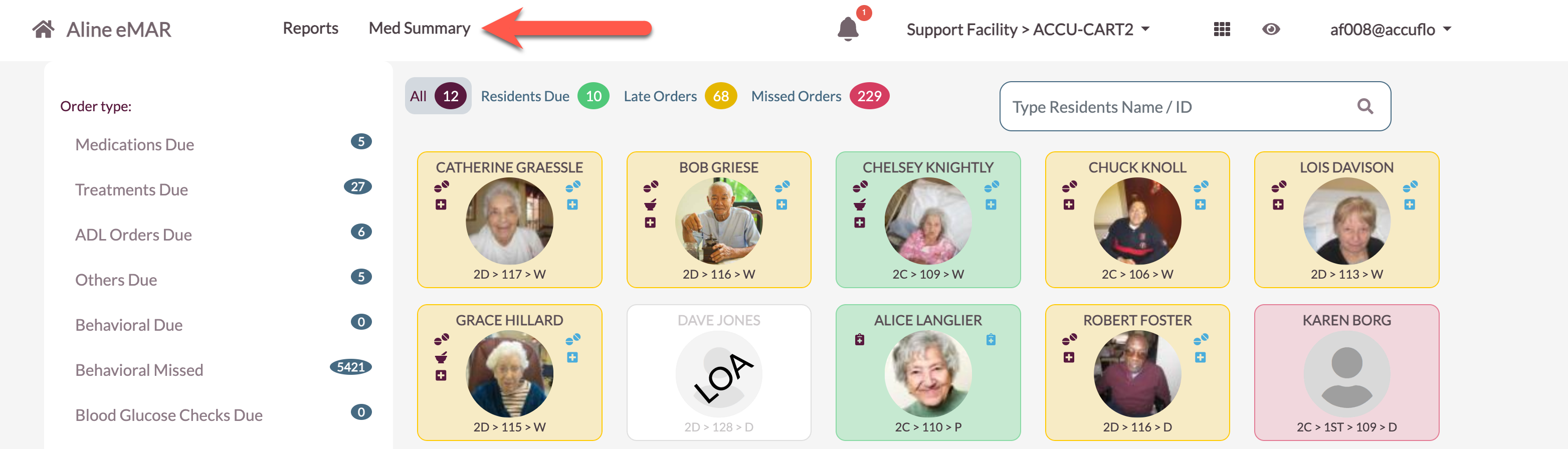
Step 1: After logging into the Aline eMAR application, select Med Summary at the top of the page.
Step 2: Select a desired category on the left panel. Categories include Med Pass Progress, Med Pass Progress by Resident, Missed Orders, Pending Orders, Did Not Administer, Orders in Reconcile, PRN Results, PRNs Given, Reorders Sent, Wasted Meds, Orders Expiring Soon, Duplicate Therapies, Rejected Orders, Scanned VS Touched, and Out of Cycle.
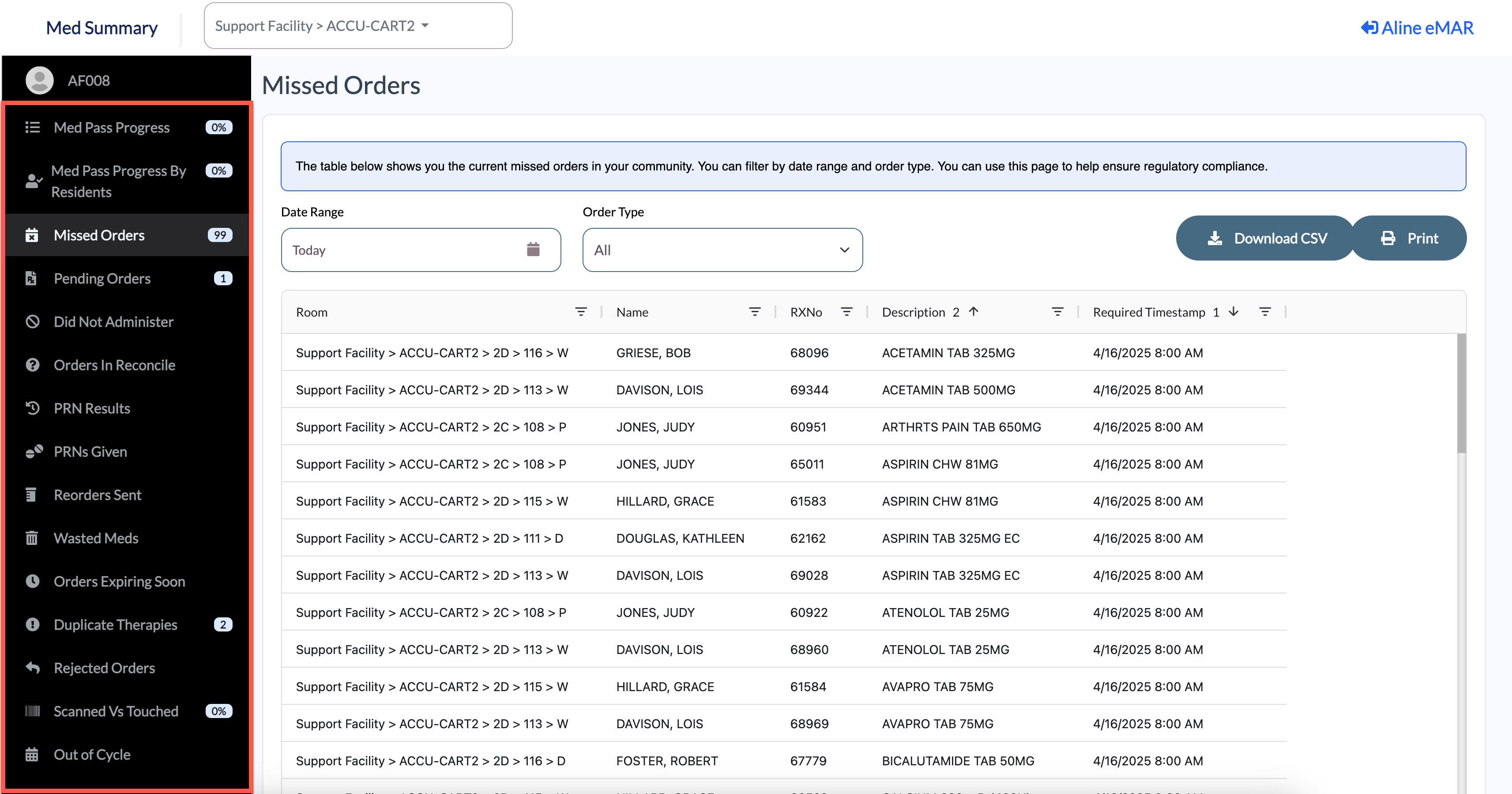
Step 3: The selected data will then display with a set of filters, such as Date Range or Order Type as seen in the example above. Columns can be sorted by selecting the column header, and columns can be filtered by selecting the filter icon.
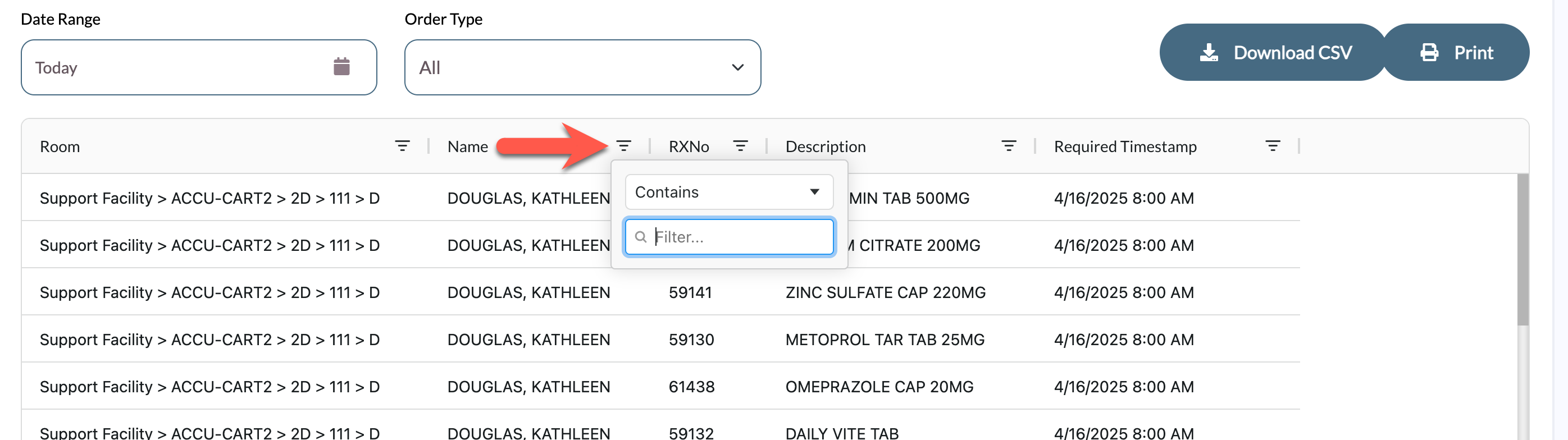
Columns cab also be dragged and dropped to reorder the information. Use the Print button to print the data or the Download CSV button the download the data to your device.
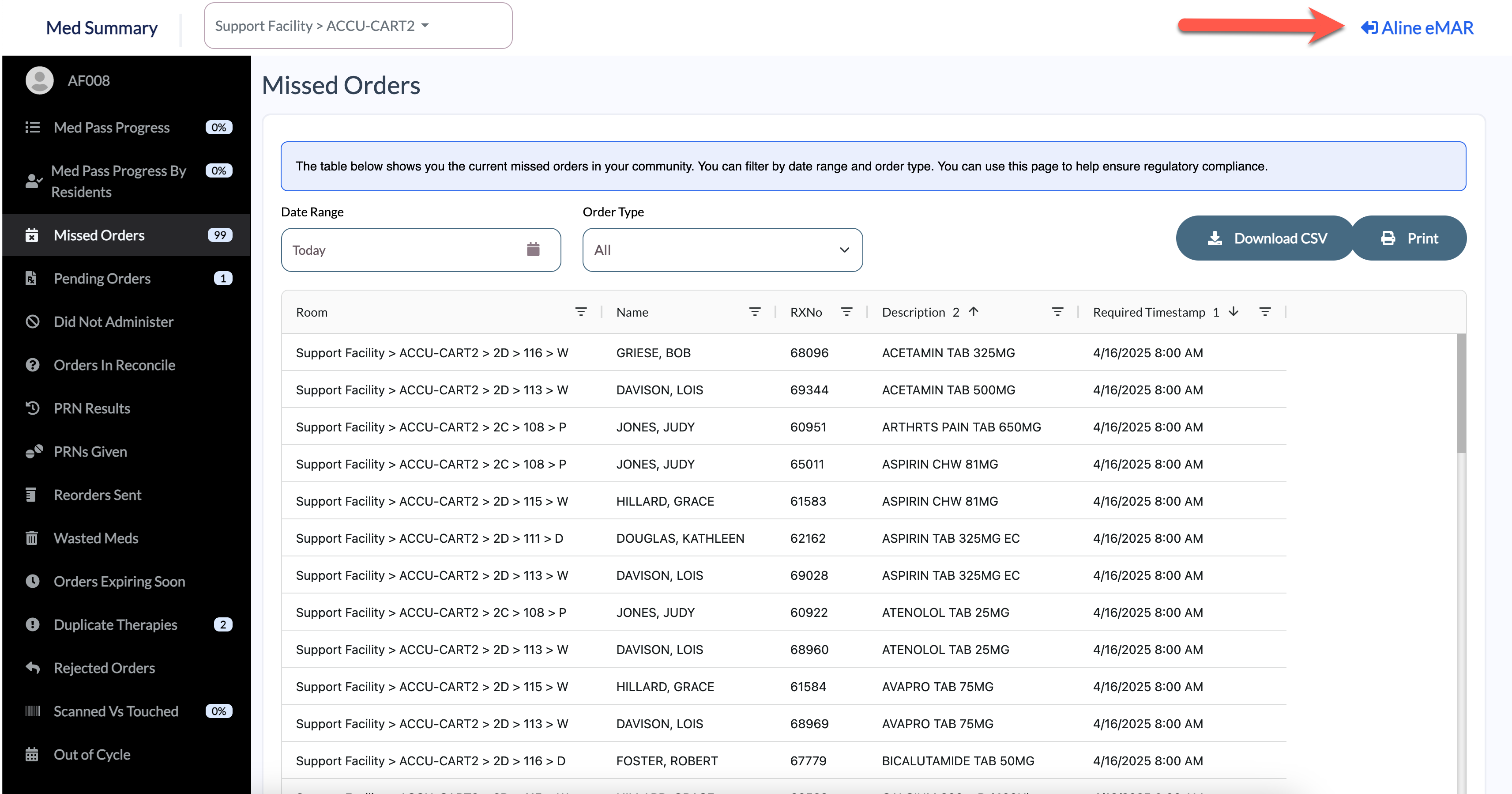
Step 4: To return to the Aline eMAR dashboard, select Aline eMAR in the upper right-hand corner.
Was this article helpful?
That’s Great!
Thank you for your feedback
Sorry! We couldn't be helpful
Thank you for your feedback
Feedback sent
We appreciate your effort and will try to fix the article