Overview
In this QRG article we will review Changing Your Selected Group
Medicine Techs: Changing Your Selected Group
The grouping of residents displaying on screen is listed at the top of the screen to the left of the waffle menu. These groupings may be certain halls, floors, or service types. Each med cart will likely have a preset Selected Group, but this selected group can be changed at any time.
To Change your Selected Group
Step 1: Select the dropdown arrow at the top of the screen to the left of the waffle menu. Username Menu at the top right of the screen.
Step 2: Select the Group you wish to change your view to.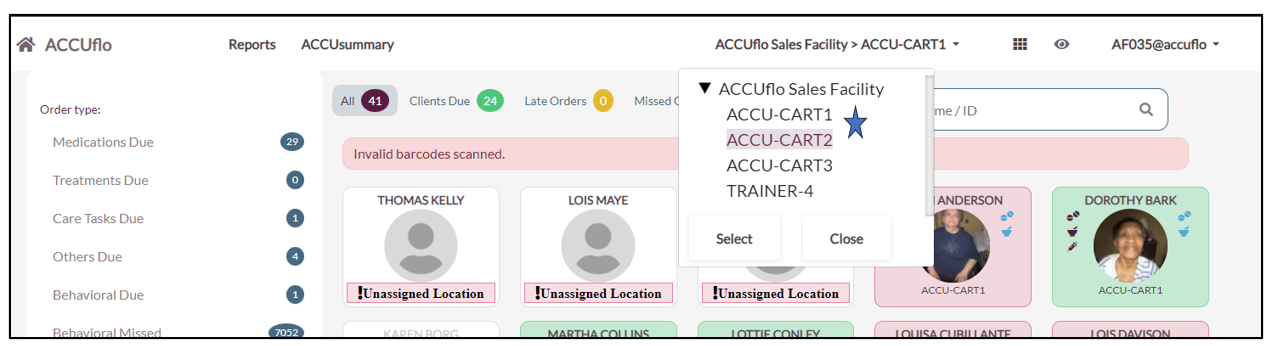
Step 3: Select the Select button.
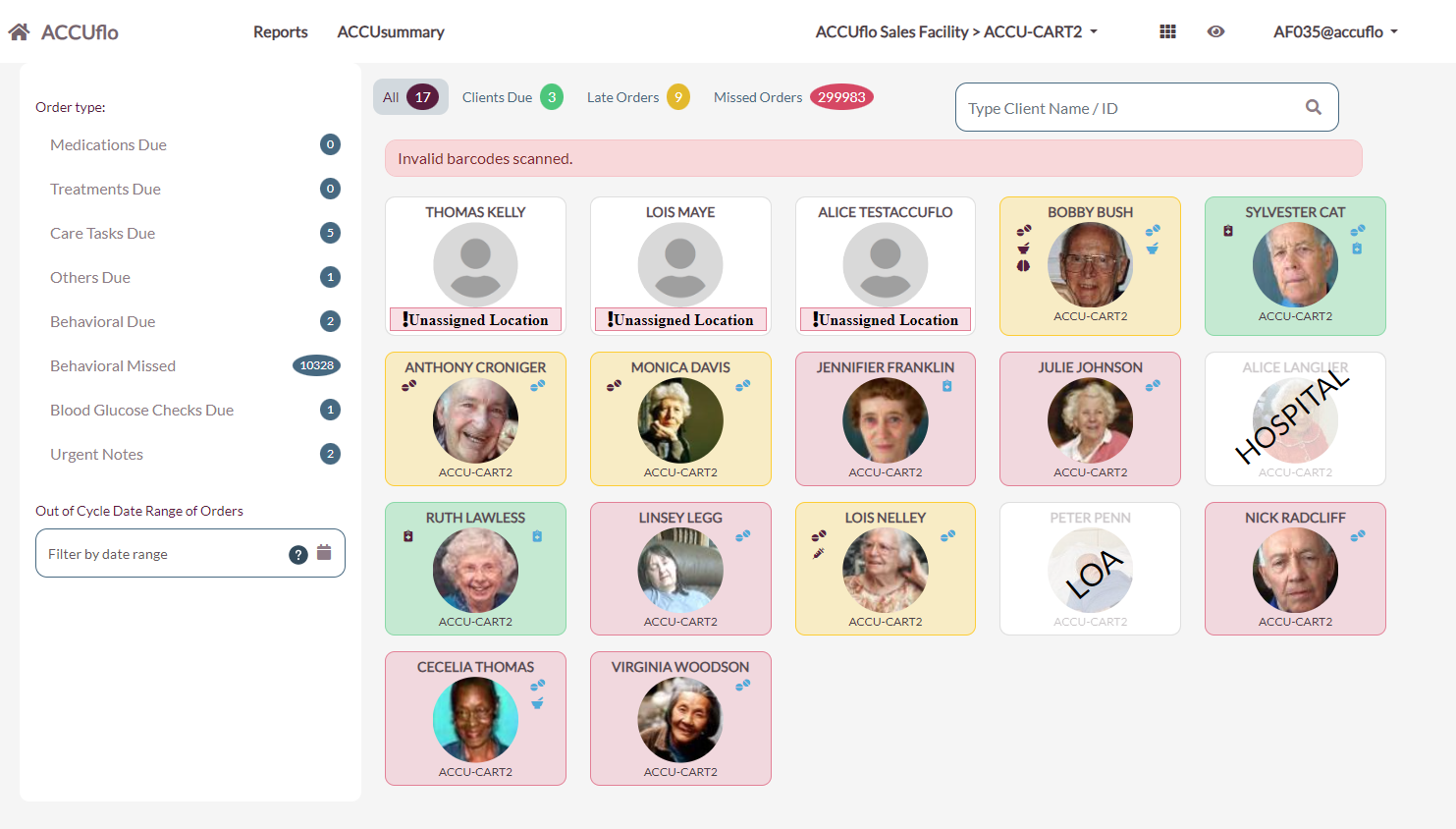
Step 4: Display will be updated to the new group.
Was this article helpful?
That’s Great!
Thank you for your feedback
Sorry! We couldn't be helpful
Thank you for your feedback
Feedback sent
We appreciate your effort and will try to fix the article