Overview
In this article we will review the procedures for setting up shifts in the program.
To get to Facility Maintenance select the Waffle Menu, Facility Maintenance from the header of any screen in ACCUflo.
Shifts | Allows administrative staff to define the shifts used in behavior charting. |
All Facility Maintenance options are community specific. These options are reviewed during the implementation process and changes should be made only after careful consideration. Please contact your Aline Implementation Specialist or Account Manager for assistance with these features.
Note: If changes are made, to ensure all changes take effect, please log out and log back into ACCUflo.Procedure for Shifts
If behavior charting will be done, shifts must be defined.
Behavior charting is completed during the last two (2) hours of each shift. Communities have the option of using 8-hour shifts or 12-hour shifts.
Step 1:Select the Waffle Menu, Facility Maintenance from the header of any screen in ACCUflo.
Step 2: Select Shifts.
Step 3: View and/or make changes to the shift times (see detail below).
- If using only the Day and Night Shifts, delete the value, if any, for the Evening Shift.
Step 4: Select Save if changes are made.
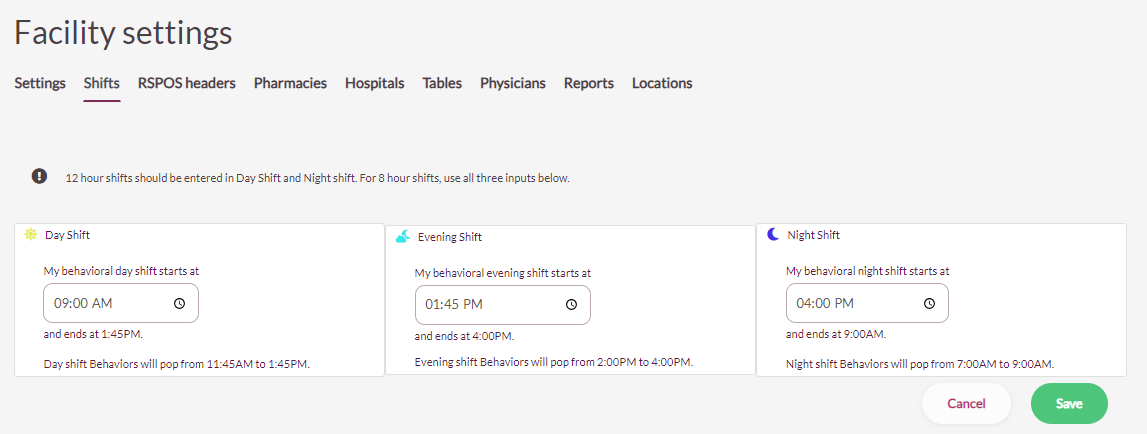
Note: Read all instructions carefully to ensure each time period is set correctly.
Was this article helpful?
That’s Great!
Thank you for your feedback
Sorry! We couldn't be helpful
Thank you for your feedback
Feedback sent
We appreciate your effort and will try to fix the article