Overview
In this article we will discuss the procedure for updating settings in Facility Maintenance.
To get to Facility Maintenance:
- Select the Waffle Menu and then select Facility Maintenance from the header of any screen in ACCUflo.
| Settings | Facility Settings is used to establish parameters and activate/inactivate features specific to the community. |
All Facility Maintenance options are community specific. These options are reviewed during the implementation process and changes should be made only after careful consideration.
Please contact your Aline Implementation Specialist or Account Manager for assistance with these features.
Note: If changes are made, to ensure all changes take effect, please log out and log back into ACCUflo.
Procedure for Editing Features
Step 1: Select the Waffle Menu, Facility Maintenance from the header of any screen in ACCUflo.
Step 2: Select Features.
Step 3: View and/or make changes to the features (see detail below).
- Uncheck box next for setting to make it Inactive.
- Check box next for setting to make it Active.
Step 4: If changes are made, select Save.
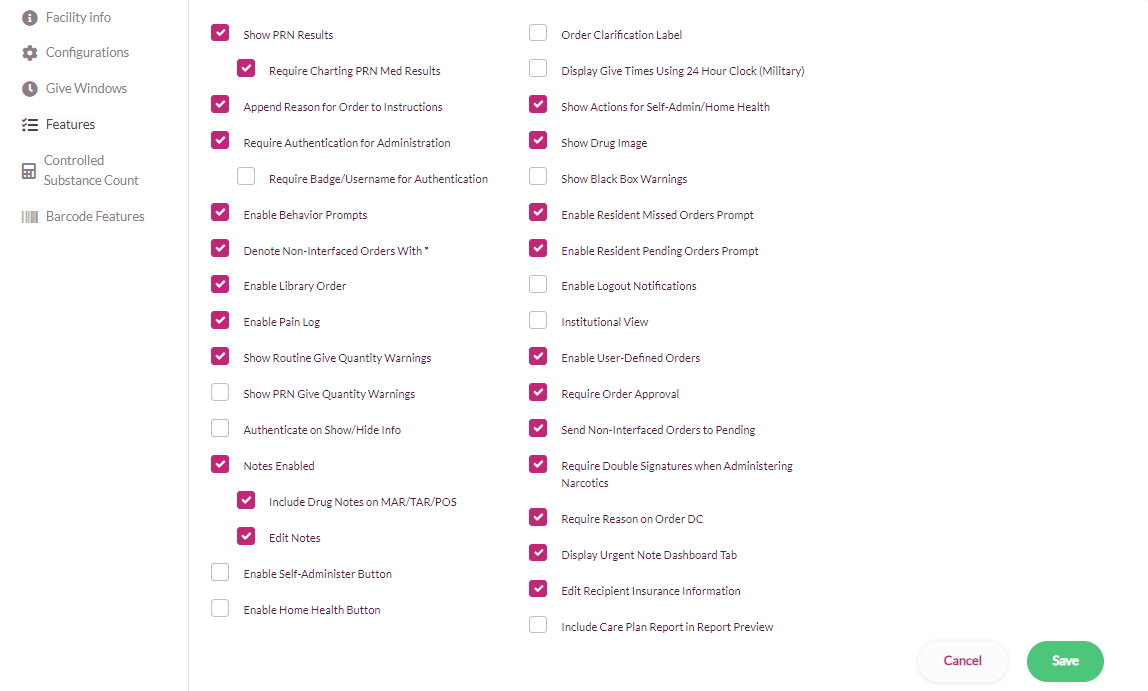
| Show PRN Results | Active enables the PRN Results tab. This must be Active for the “Require Charting PRN Med Results” feature to be Active. |
| Require Charting PRN Med Results | Active requires the user to chart the effectiveness of PRN Medication and Other Orders before the next dose can be administered. |
| Append Reason for Order to Instructions | Active enables the Reason for Order entered by the pharmacy or via order maintenance to print on reports and display in the instructions on the order tile. |
| Require Authentication for Administration | Active requires the user to authenticate their login each time an order is charted. |
| Require Badge/Username for Authentication | Active requires the user to scan their badge to display the authentication sign in box. |
| Enable Behavior Prompts | Active allows Behaviors to be charted. |
| Denote Non-Interfaced Orders With * | Active displays a Blue asterisk on non-interfaced orders. |
| Enable Library Order | Active enables the Library Orders features. |
| Enable Pain Log | Active requires the detailed pain log be completed when administering PRN orders with a reason of pain or discomfort, or Routine orders with the order action of Pain. |
| Show Routine Give Quantity Warnings | Active will display a warning box any time the quantity per dose is not 1 on a Routine Sig. |
| Show PRN Give Quantity Warnings | Active will display a warning box any time the quantity per dose is not 1 on a PRN Sig. |
| Authenticate on Show/Hide Info | Active requires users to authenticate each time the screen is revealed after using the show/hide icon. |
| Notes Enabled | Active enables the Notes feature allowing the Adding/Discontinuing of notes. |
| Include Drug Notes on MAR/TAR/POS | Active includes any notes with the note type MAR/TAR/POS Drug Note onto the MAR, TAR, and POS reports. |
| Edit Notes | Active allows the user to edit notes previously added. |
| Enable Self-Administer Button | Active enables administrations to be charted as Self-Administered. |
| Enable Home Health Button | Active enables administrations to be charted as Home Health. |
| Order Clarification Label | If Active, Rejected button is replaced with Order Clarification label and orders that have been clarified can be undone. |
| Display Give Times Using 24 Hour Clock (Military) | Active will display give times using a 24-hour clock rather than AM/PM. For example, 1300 rather than 1 pm. |
| Show Actions for Self-Admin/Home Health | Active requires the user to chart Order Actions, such as vitals, for orders being charted as Self-Administered or Home Health |
| Show Drug Image | Active displays the Drug Image on the resident’s medication tile instead of the red or blue pill when it is displayed for administration. The Drug Image is based on the NDC of the medication. |
| Note: The drug image will still display on the MORE INFO screen even if this feature is not enabled. | |
| Show Black Box Warnings | Active will display the Black Box Warning when the medication is selected for administration. |
| Note: The black box warning will display on the MORE INFO screen even if this feature is not enabled. | |
| Enable Recipient Missed Orders Prompt | Active will enable the Missed Orders warning box to display when the user selects a resident with missed orders. From this box, the user can choose to chart the missed orders now or chart later. |
| Enable Recipient Pending Orders Prompt | Active will enable the Pending Orders warning box to display when the user selects a resident with pending orders. From this box, the user can choose to approve/reject or view pending orders. |
| Institutional View | Active will display a list of residents without photos or icons. Typically used by Correctional Facilities only. |
| Enable User-Defined Orders | Active will allow the use of the User-Defined order type. |
| Note: Contact Aline Customer Support to begin using the User-Defined order type. | |
| Enable Treatment Orders | When inactive, any treatment orders received from the pharmacy will be set at "Other" orders. When disabling this feature, any active treatments will be changed to "Other" orders. |
| Require Order Approval | Active requires the user to approve any new, discontinued, or changed orders received through the interface with the pharmacy. Orders will not display for administration until they have been approved. |
| Send Non-Interfaced Orders to Pending | Active requires the user to approve any new non-interfaced orders. Orders will not display for administration until they have been approved. |
| Require Double Signatures when Administering Narcotics | Active requires two users to authenticate each time a controlled substance is administered. This should be enabled only if there are always two users available. |
| Require Reason on Order DC | Active requires the user to enter a reason for discontinuing an order upon discontinuation. |
| Display Urgent Not Dashboard Tab | Active shows the number of active Urgent Notes in the system on the Dashboard. |
| Edit Recipient Insurance Information | Active allows insurance information to be edited on the Resident Maintenance page. |
| Include Care Plan Report in Report Preview | Active will include the report Care Plan Report to default reports listed in Report Preview on resident’s page. |
Was this article helpful?
That’s Great!
Thank you for your feedback
Sorry! We couldn't be helpful
Thank you for your feedback
Feedback sent
We appreciate your effort and will try to fix the article