Overview
In this article we will discuss the procedure for updating settings in Facility Maintenance.
To get to Facility Maintenance:
- Select the Waffle Menu, Facility Maintenance from the header of any screen in ACCUflo.
| Settings | Facility Settings is used to establish parameters and activate/inactivate features specific to the community. |
All Facility Maintenance options are community specific. These options are reviewed during the implementation process and changes should be made only after careful consideration. Please contact your Aline Implementation Specialist or Account Manager for assistance with these features.
Note: If changes are made, to ensure all changes take effect, please log out and log back into ACCUflo.
Procedure for Barcode Features
Step 1: Select the Waffle Menu, Facility Maintenance from the header of any screen in ACCUflo.
Step 2: Select Barcode Features.
Step 3: View and/or make changes using each checkbox.
Step 4: Select Save.
Order types which require scanning will be included in Scanned vs Touched reports unless a specific order is marked as not scannable in Order Maintenance.
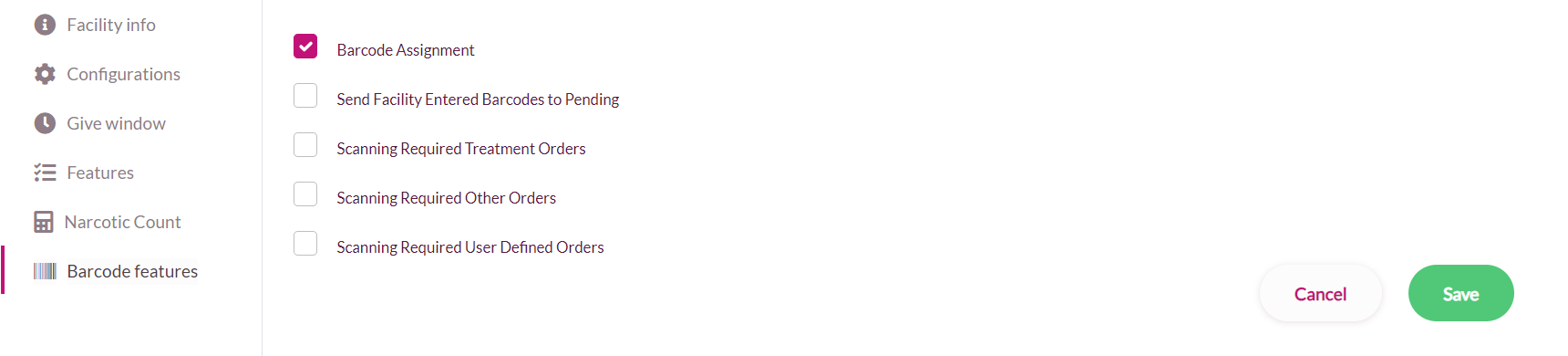
| Barcode Assignment | Active allows users to assign barcodes to all necessary orders. Medication Orders are considered scannable unless marked otherwise in Order Maintenance. |
| Send Facility Entered Barcodes to Pending | Active will send orders to a Pending Barcode page to be approved prior to being able to scan the order. |
| Scanning Required Treatment Orders | Active sets Treatment Orders to be scannable. |
| Scanning Required Other Orders | Active sets Other Orders to be scannable. |
| Scanning Required User Defined Orders | Active sets User Defined Orders to be scannable. |
Was this article helpful?
That’s Great!
Thank you for your feedback
Sorry! We couldn't be helpful
Thank you for your feedback
Feedback sent
We appreciate your effort and will try to fix the article