Overview
In this article we will review the procedures for Report Maintenance.
To get to Facility Maintenance select the Waffle Menu, Facility Maintenance from the header of any screen in ACCUflo.
| Reports | Allows administrative staff to customize reports. Currently, the only reports included in Report Maintenance are the MAR, TAR, and Vitals Report. Users can set default order types to appear on the MAR and TAR and can decide which Order Actions should be included in the Vitals Report. |
All Facility Maintenance options are community specific. These options are reviewed during the implementation process and changes should be made only after careful consideration. Please contact your Aline Implementation Specialist or Account Manager for assistance with these features.
Note: If changes are made, to ensure all changes take effect, please log out and log back into ACCUflo.
Report Maintenance
Report Maintenance is used to customized reports within ACCUflo. Three reports are available to customized, MAR, POS and Vitals reports.
Procedure for Editing Reports in Report Maintenance
Step 1: Select the Waffle Menu, Facility Maintenance from the header of any screen in ACCUflo.
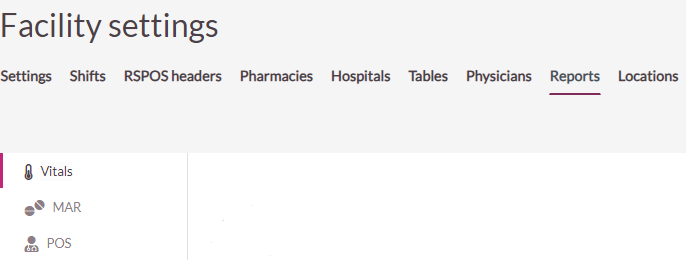
Step 2: Select Reports from the Header Options.
Step 3: Reports that can be customized will be available on the left panel. Vitals, MAR and POS are available.
Customize Vitals Report
Step 1: Select an Order Action to include it on the Vitals Report. Unselect an Order Action to omit it from the Vitals Report.
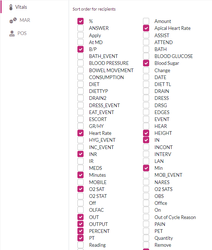
Step 2: Select Save to save the customized report.
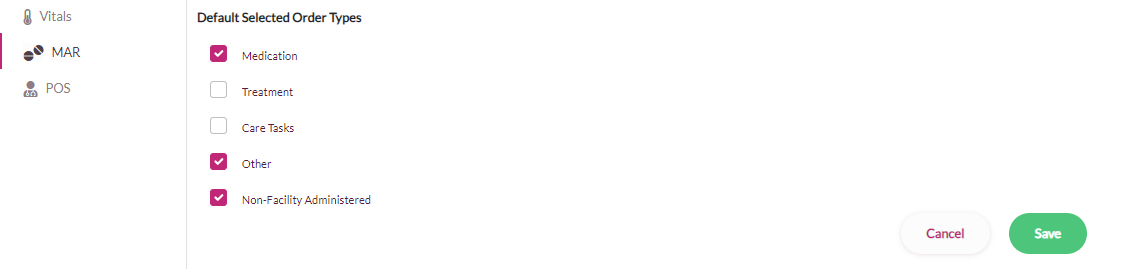
Customize MAR Report
Step 1: Select the order types that will populate on the MAR by default.
Step 2: Select Save to save the customized report.
Customize POS Report
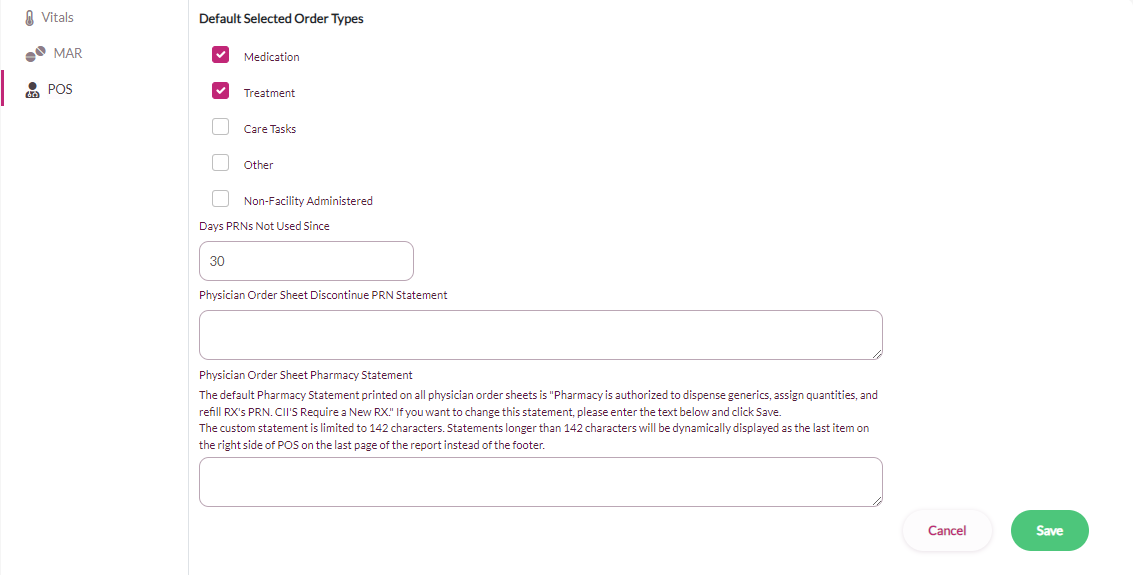
Step 1: Select the Order Types that will populate on the report by default.
Step 2: Enter number in how many Days PRN’s Not Used Since option. This number defines the parameters for the PRN’s Not Used Since report.
Step 3: Add Physician Order Sheet Discontinued PRN Statement if desired.
- If this field is blank, no statement will print on the POS
- If a statement is provided it will print on the POS with orders that have not been used based on the defined Days PRN’s Not Used Since parameter.
Step 4: A default options is available for the Physician Order Sheet Pharmacy Statement that can remain if desired or a new statement can be added.
- If the field is left blank the default Pharmacy Statement printed on all physician order sheets is "Pharmacy is authorized to dispense generics, assign quantities, and refill RX's PRN. CII'S Require a New RX."
- If the statement is changed and is less than 142 characters, it will remain in the signature section on the POS. If the new statement is greater than 142 characters, it will be displayed as the last item on the right side of POS on the last page of the report instead of the signature area.
Step 5: Select Save
Was this article helpful?
That’s Great!
Thank you for your feedback
Sorry! We couldn't be helpful
Thank you for your feedback
Feedback sent
We appreciate your effort and will try to fix the article